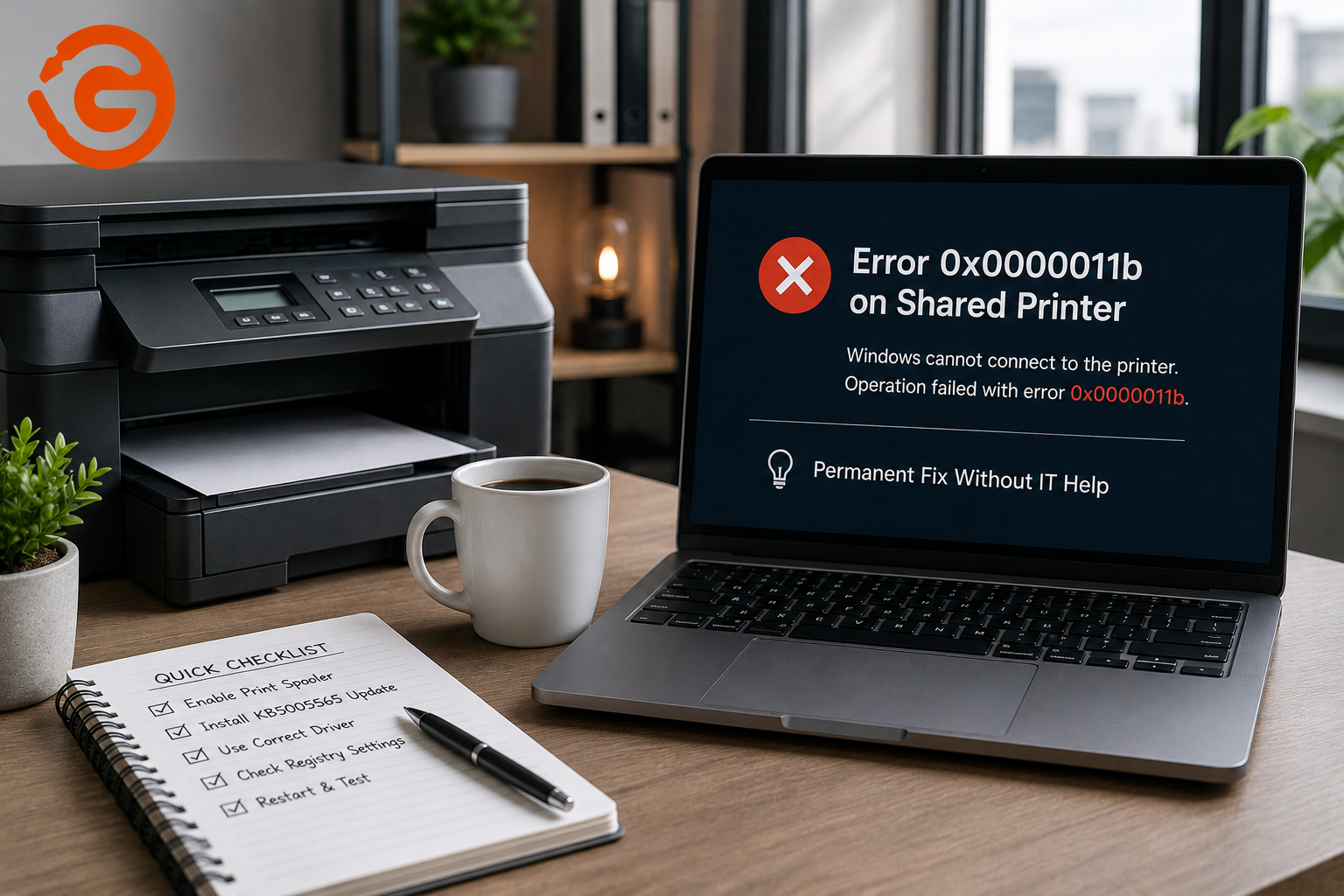
The shared printer was working fine yesterday. Today, trying to connect to it, or even just print to a printer you've used for months, throws "Operation failed with error 0x0000011b" and refuses to go any further. This isn't something you broke. It's a side effect of a Windows security update, and it has a genuine, permanent fix once you understand what's actually causing it.
What Error 0x0000011b Actually Means
This error appears specifically when a computer tries to connect to, install, or print to a printer shared from another Windows machine on the same network. The printer often still shows up when browsing the network, and the shared PC reports everything as normal, but the connection itself fails at the exact moment you try to use it.
Why This Started Happening: The Real Cause
This isn't a bug in the traditional sense, it's the direct result of a Microsoft security update. Windows updates including KB5005565 addressed a Print Spooler vulnerability (tracked as CVE-2021-1678) related to the same family of issues as the well-known PrintNightmare vulnerability, which allowed the print spooler service to be exploited to run malicious code remotely. To close this gap, the update increased the RPC (Remote Procedure Call) authentication level required for printer connections, RPC being the underlying protocol Windows uses for one machine to request services, like printing, from another over the network.
The problem is that this increased authentication requirement assumes an environment with proper domain infrastructure and Kerberos authentication behind it. In a small office or home network running as a simple workgroup, without a domain controller, that stricter requirement has nothing to authenticate against, and the connection fails outright with error 0x0000011b instead of falling back gracefully.
The Fix: Adjusting the RPC Authentication Setting
This fix goes on the host computer, meaning the specific machine the printer is physically connected to and shared from, not the computers trying to connect to it.
Before you start: this involves editing the Windows Registry. Back up the registry first, or at minimum create a system restore point, since incorrect registry edits can cause other issues if applied carelessly.
- Press Windows key + R to open the Run dialog
- Type regedit and press Enter, then approve the administrator prompt
- Navigate to: HKEY_LOCAL_MACHINE\SYSTEM\CurrentControlSet\Control\Print
- Right-click the Print key, select New, then DWORD (32-bit) Value
- Name the new value exactly: RpcAuthnLevelPrivacyEnabled
- Double-click the new value and set it to 0
- Close the Registry Editor and restart the computer
Setting this value to 0 disables the enforced, stricter RPC authentication level the security update introduced, restoring the connection behavior that existed before the update, at the cost of the specific hardening that update was meant to add.
Restarting the Print Spooler (Do This Too)
After making the registry change, restart the Print Spooler service directly rather than relying on the full computer restart alone to pick up the change reliably:
- Press Windows key + R, type services.msc, and press Enter
- Find Print Spooler in the list
- Right-click it and select Restart
If the printer still doesn't connect after this, restart the host computer fully, then attempt the connection again from the client machine.
Why This Fix Sometimes "Comes Back": The Part Most Guides Skip
This is the detail that separates a genuinely permanent fix from a temporary one. If the host computer receives further Windows updates, particularly major feature updates rather than routine patches, this registry value can occasionally get reset back to its enforced default, bringing the error back even though you already applied the fix once. This is why the error resurfacing after a Windows update isn't a sign the fix failed, it's a sign the update reset a setting that isn't permanently protected from being overwritten by future updates.
For a genuinely permanent fix, two approaches hold up better than a one-time registry edit:
Option 1: Apply the setting through Group Policy instead of the raw registry (Windows Pro/Business editions). Group Policy settings are more consistently preserved across updates than a manually added registry value, since they're managed through a dedicated policy engine rather than a value that updates can freely overwrite. If your host machine runs Windows Pro, Enterprise, or Business edition, setting this through Local Group Policy Editor (gpedit.msc) under the relevant Printers policy path gives you a more durable version of the same fix.
Option 2: Move away from peer-to-peer printer sharing entirely, toward IP-based printing. This is the approach that actually eliminates the problem at its root rather than working around it. Instead of sharing a printer from one PC to others over the vulnerable RPC-based sharing mechanism, assign the printer a static IP address through its own control panel or web interface, then add it to each computer as a network printer using that IP address directly (via a standard TCP/IP port) rather than browsing to it as a shared device. This bypasses the RPC printer sharing mechanism that error 0x0000011b affects in the first place, since each computer talks to the printer directly rather than routing through another PC's shared connection.
Setting Up IP-Based Printing (The Truly Permanent Fix)
- On the printer itself, or through its web interface, assign it a static IP address rather than relying on DHCP to potentially change it later
- On each computer that needs to print, go to Settings > Devices > Printers & Scanners > Add a printer
- Choose "The printer that I want isn't listed"
- Select "Add a printer using a TCP/IP address or hostname"
- Enter the printer's static IP address
- Install the correct printer driver for that specific model when prompted
- Print a test page to confirm the connection works
Once set up this way, each computer maintains its own direct connection to the printer, independent of any other PC being turned on, sharing anything, or having a registry value silently reset by a future update.
A Few Things to Try If the Fix Doesn't Work Right Away
Remove and re-add the printer connection on the client machine after applying the host-side fix, rather than assuming an already-failed connection will start working retroactively.
Confirm the registry fix was applied on the correct machine. This is a common mix-up, the fix needs to go on the computer sharing the printer, not necessarily the one trying to connect to it (though applying it on both doesn't hurt).
Check that File and Printer Sharing is actually enabled on the host machine's network settings, since this is a separate setting from the RPC authentication issue and can independently block the connection.
If none of the above resolves it, adding the printer manually using its hostname or IP address directly, as described in the IP-based printing section above, resolves the underlying issue entirely rather than continuing to troubleshoot the shared-connection method.
A Security Note Worth Understanding
Setting RpcAuthnLevelPrivacyEnabled to 0 does genuinely reduce the specific security hardening Microsoft added with this update. For a small office or home network where every device is trusted and the network itself isn't exposed to untrusted machines, this tradeoff is generally reasonable and widely used. For a larger or more security-sensitive environment, the IP-based printing approach described above is the better long-term solution precisely because it avoids reducing that security setting at all, rather than working around it.
Why Choose Guru Computer Solution for Office Network and Printer Issues
Proper Diagnosis Before Any Registry Changes We confirm the actual cause before modifying system settings, rather than applying a generic fix that may not match your specific situation.
IP-Based Printing Setup for Small Offices We can configure a proper, durable printer sharing setup that avoids this class of issue recurring after future Windows updates.
Network and Print Server Configuration For offices with multiple printers and users, we can set up a more manageable, centralized printing setup rather than ad hoc peer-to-peer sharing.
Remote and On-Site Support Whether the issue is isolated to one machine or affecting your whole office, we can help resolve it without requiring in-house IT staff.
Conclusion
Error 0x0000011b on a shared printer is a direct, well-documented side effect of Windows security updates tightening RPC authentication requirements that small workgroup networks weren't built to satisfy. The registry fix restores normal function immediately, but for a fix that actually stays fixed through future Windows updates, applying it via Group Policy or, better still, switching to IP-based printer connections entirely, is what makes the difference between a fix you'll be redoing every few months and one you genuinely won't have to think about again.
If shared printer issues keep coming back in your office, contact Guru Computer Solution for a proper, lasting setup.