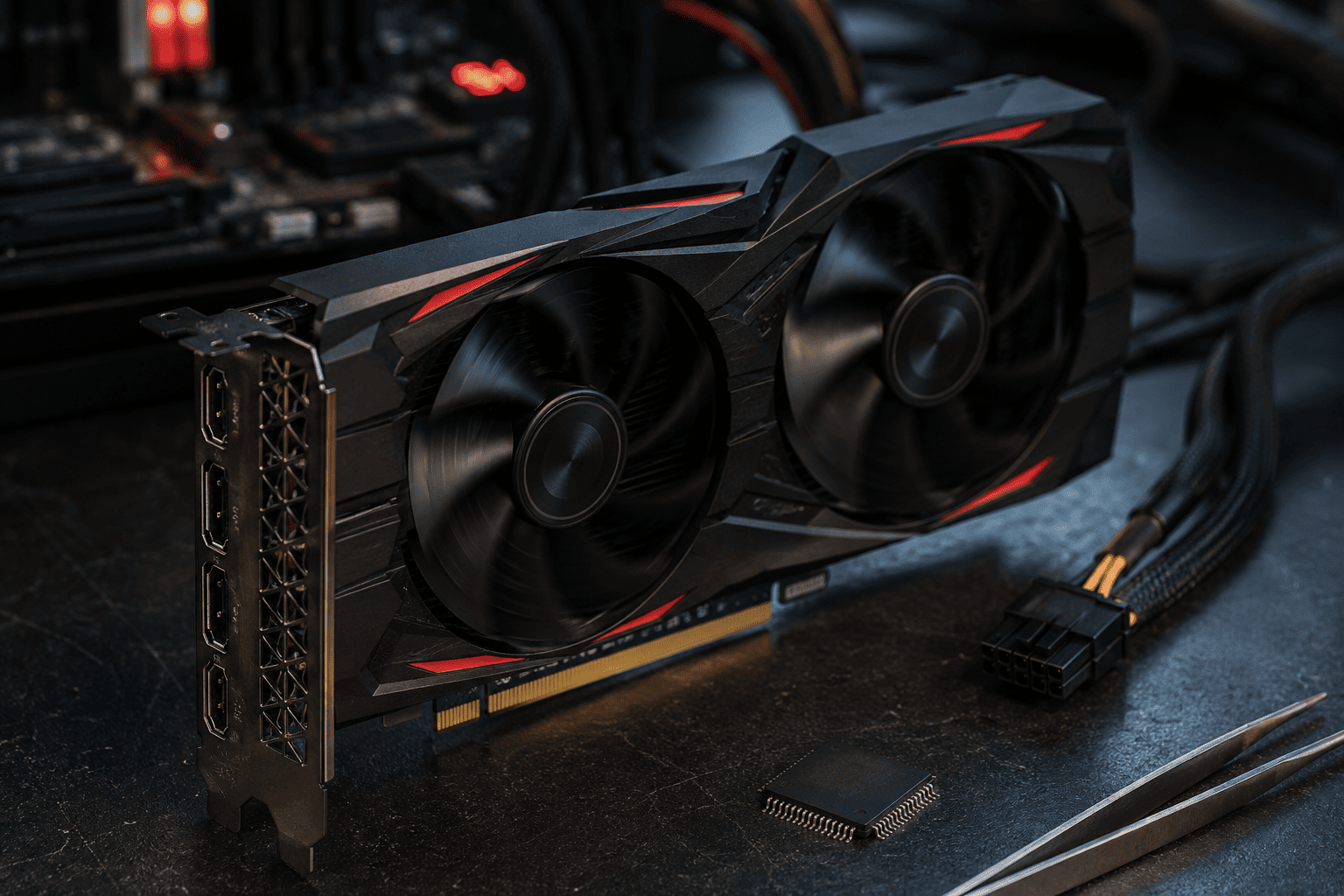
A graphics card that powers on and has spinning fans but produces no display can be difficult to diagnose. Many users assume that because the GPU fans are spinning, the graphics card is working correctly. However, fan operation only confirms that the card is receiving some power—it does not prove that the GPU is initializing properly.
A corrupted or damaged VBIOS can prevent a graphics card from completing its startup process, resulting in no display, failed POST, black screen, or unstable graphics output. However, similar symptoms can also be caused by faulty RAM, PCIe connections, power delivery, display cables, motherboard problems, or a defective GPU.
Problem
The customer has a desktop where the graphics card fans spin normally, but there is no display output when the computer starts.
The GPU may appear to receive power, but the system may fail to initialize the graphics card correctly. In some cases, the issue can be related to corrupted VBIOS firmware, especially after an interrupted BIOS update, failed firmware modification, or an incompatible VBIOS flash.
What Problem Is the Customer Facing?
Customers may experience:
- Graphics card fans spin but there is no display
- Monitor shows "No Signal"
- PC powers on but does not complete POST
- Display works only with integrated graphics
- Graphics card is not detected by the operating system
- GPU disappears from Device Manager
- Black screen after a VBIOS update
- Graphics card stops working after an interrupted firmware flash
- Display output works intermittently
- GPU works in another system but does not initialize correctly
- GPU fans spin at startup but the card produces no video output
- System repeatedly fails to boot when the dedicated GPU is installed
Root Causes of the Problem
1. Corrupted VBIOS
The VBIOS contains firmware required for the graphics card to initialize and communicate correctly with the system.
If the VBIOS becomes corrupted, the card may receive power and spin its fans but fail to initialize the GPU or video outputs.
2. Failed or Interrupted VBIOS Flash
A VBIOS update that is interrupted, uses the wrong firmware, or is performed incorrectly can leave the graphics card unable to start normally.
This can happen after a power interruption, incorrect firmware selection, or an unsuccessful firmware modification.
3. Incorrect VBIOS for the Graphics Card
Graphics cards can have different VBIOS versions depending on the exact model, PCB revision, memory configuration, and manufacturer.
Flashing firmware intended for a different card or board revision can cause compatibility problems or prevent proper initialization.
4. Faulty PCIe Connection
A graphics card that is not properly seated in the PCIe slot may receive power but fail to establish reliable communication with the motherboard.
Dust, oxidation, damaged contacts, or a poorly seated card can create similar symptoms to a firmware problem.
5. GPU Power Connection Problem
A graphics card may spin its fans while still having an inadequate or unstable power connection.
Loose PCIe power connectors, damaged cables, incorrect PSU connections, or an unsuitable power supply can prevent the GPU from operating correctly.
6. GPU Hardware Failure
A defective GPU core, VRAM, VRM, or another component on the graphics card can also produce a no-display condition.
In this situation, the VBIOS may be completely healthy, but the hardware itself cannot initialize properly.
7. Display Cable or Port Problem
A faulty HDMI, DisplayPort cable, monitor input, or damaged graphics output can make a working GPU appear to have no display.
Testing another known-good cable, monitor, and output port can help eliminate this possibility.
8. Motherboard or PCIe Slot Problem
A damaged or malfunctioning PCIe slot can prevent the graphics card from communicating with the motherboard.
Testing the GPU in another compatible PCIe slot or computer can help determine whether the problem follows the card.
How Can Customers Identify the Issue?
Look for:
- GPU fans spin but monitor remains black
- Monitor displays "No Signal"
- GPU was working normally before a VBIOS update
- No display immediately after firmware flashing
- Graphics card is not detected by the operating system
- Integrated graphics works while the dedicated GPU does not
- GPU fails to initialize during POST
- The problem occurs with multiple known-good cables and monitors
- GPU power connectors appear connected but the card still does not initialize
- Graphics card behaves the same way in another compatible system
- GPU has previously been modified, overclocked, or flashed with custom firmware
These symptoms can suggest a VBIOS issue, but fan spinning alone does not confirm VBIOS corruption. Proper diagnosis is required before attempting firmware recovery.
Possible Solutions
1. Check the Display Connection
Before assuming the graphics card is faulty:
- Check the monitor input source
- Test another HDMI or DisplayPort cable
- Test another monitor if available
- Try another output port on the graphics card
- Make sure the display cable is connected to the graphics card rather than the motherboard when using a dedicated GPU
A simple cable or input problem can produce the same no-display symptom.
2. Reseat the Graphics Card
Shut down the computer and disconnect AC power.
Remove and carefully reinstall the graphics card into the PCIe slot.
Check for:
- Dust or debris
- Damaged PCIe contacts
- Physical damage
- Incorrect seating
- PCIe slot damage
Make sure the card is fully secured before testing again.
3. Check GPU Power Connectors
Inspect all required GPU power connections.
Check:
- PCIe power connectors
- 12VHPWR/12V-2x6 connection where applicable
- PSU cable condition
- Connector seating
- Signs of heat or physical damage
Do not force a connector or use an incompatible power cable.
4. Test With Integrated Graphics
If the processor and motherboard support integrated graphics, remove or disable the dedicated GPU where appropriate and connect the monitor to the motherboard video output.
If the system boots normally, check whether the dedicated GPU is detected by the operating system.
This can help determine whether the problem is isolated to the graphics card.
5. Check Whether the GPU Is Detected
If the system can boot using integrated graphics, check whether the dedicated graphics card appears in the operating system or hardware diagnostic tools.
If the card is completely absent, the problem could involve:
- VBIOS
- PCIe communication
- GPU power
- GPU hardware
- Motherboard slot
A missing GPU does not automatically mean the VBIOS is corrupted.
6. Check for VBIOS Corruption Signs
A technician should consider VBIOS-related troubleshooting when:
- The GPU stopped working immediately after a VBIOS flash
- The wrong firmware was installed
- The firmware update was interrupted
- The card is powered but cannot initialize
- The GPU is not detected correctly
- The graphics card previously worked normally before firmware modification
- The exact VBIOS version does not match the card's model or PCB revision
These signs can increase suspicion of a firmware problem, but confirmation requires proper diagnostic testing.
7. Check for Dual-BIOS Support
Some graphics cards include a physical BIOS switch with multiple firmware profiles.
If the card has such a switch, a technician can follow the manufacturer's instructions to test the alternate BIOS position.
This can help determine whether one VBIOS profile is damaged while another remains functional.
Do not change the BIOS switch while the system is powered unless the manufacturer explicitly permits it.
8. Recover or Reflash the VBIOS
If VBIOS corruption is confirmed, a technician may be able to recover the card by flashing the correct firmware.
Before doing this, verify:
- Exact graphics card model
- Manufacturer
- PCB revision
- Memory configuration
- Correct VBIOS version
- Firmware compatibility
Using the wrong VBIOS can make the situation worse, so firmware recovery should be performed carefully and with the correct equipment and procedures.
9. Test the Graphics Card in Another System
Testing the GPU in a known-good compatible computer can help separate a graphics-card problem from a motherboard or power-supply issue.
If the card shows the same no-display behavior in another compatible system, further GPU-level diagnosis may be required.
10. Inspect the Graphics Card Hardware
If VBIOS recovery does not solve the problem, the graphics card should be inspected for hardware faults.
A technician may check:
- GPU power rails
- VRAM
- VRM components
- MOSFETs
- Capacitors
- PCIe power section
- Burn marks
- Corrosion
- Physical PCB damage
- Short circuits
If the GPU hardware itself has failed, VBIOS flashing will not repair the underlying fault.
Why Choose Guru Computer Solution?
1. Experienced Technicians
Our technicians can systematically diagnose graphics card, VBIOS, PCIe, power, and motherboard-related display problems.
2. Proper Diagnostic Process
We check basic connections and hardware first instead of immediately assuming that the VBIOS is corrupted.
3. VBIOS Troubleshooting
Where appropriate, we can investigate firmware-related problems and determine whether VBIOS recovery or reprogramming is a suitable solution.
4. Hardware-Level Diagnosis
If firmware is not the cause, we can investigate GPU power delivery, VRAM, PCB, and other graphics-card hardware issues.
5. Affordable Repair Approach
We diagnose the actual cause before recommending replacement, helping customers avoid unnecessary graphics card or component replacement.
6. Warranty Support
Eligible repair and replacement services come with warranty support, giving customers additional confidence in the repair.





