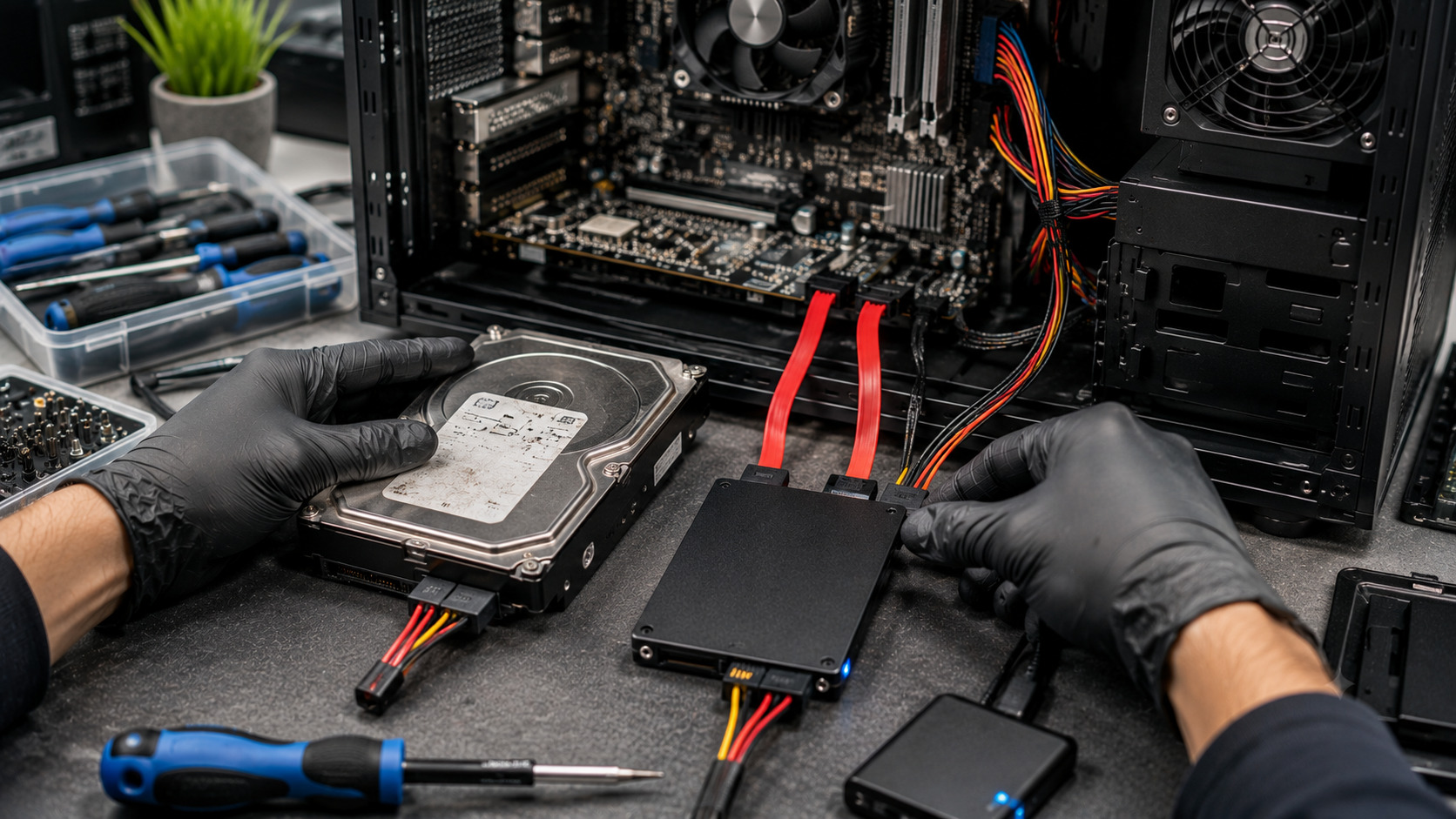
Hard drives rarely fail without warning. Before complete failure, they often show signs such as slow performance, clicking noises, corrupted files, bad sectors, or frequent system crashes. When these symptoms appear, time becomes critical. Every additional use of a failing drive increases the risk of permanent data loss. Cloning the drive as soon as possible allows you to preserve your data and migrate to a healthy storage device before the situation worsens. Understanding the proper cloning process can help protect important files and avoid a costly data recovery situation.
What Problem Is the Customer Facing?
A failing hard drive may exhibit:
- Slow file access
- Frequent freezing or crashes
- Clicking or grinding noises
- Corrupted files and folders
- Operating system boot failures
- SMART warnings
- Bad sector errors
- Missing or inaccessible data
If ignored, these symptoms can quickly lead to complete drive failure and significant data loss.
Why Does It Happen?
1. Mechanical Wear
Traditional HDDs contain moving parts that wear out over time.
2. Bad Sectors
Damaged storage areas can make files difficult or impossible to read.
3. Power Issues
Voltage fluctuations can damage drive electronics.
4. Physical Shock
Drops or impacts can damage internal components.
5. Overheating
Excessive heat accelerates drive degradation.
6. Aging Components
Hard drives naturally become less reliable as they age.
7. Manufacturing Defects
Some drives experience premature failure due to component defects.
How Can Customers Identify the Issue?
Common warning signs include:
- Unusual clicking sounds
- Files taking a long time to open
- Windows disk errors
- System freezes during file transfers
- Boot failures
- Frequent blue screens
- SMART health warnings
- Missing files or folders
Why Cloning Is Better Than Copying Files
Many users attempt to copy important files manually. However, a failing drive may become unreadable at any time.
Cloning provides several advantages:
- Preserves the entire operating system
- Copies partitions and boot information
- Maintains software installations
- Reduces downtime
- Allows migration to a replacement drive
- Minimizes handling of the failing drive
The sooner the cloning process begins, the higher the chance of successful recovery.
Step-by-Step Cloning Process
Step 1: Stop Unnecessary Use
Avoid running scans, games, or large file transfers that place additional stress on the drive.
Step 2: Check Drive Health
Use SMART monitoring tools to evaluate the drive's condition.
Step 3: Prepare a New Drive
Install a replacement SSD or HDD with equal or greater capacity.
Step 4: Connect Both Drives
Use SATA connections or a USB-to-SATA adapter.
Step 5: Use Professional Cloning Software
Create a sector-by-sector clone whenever possible.
Step 6: Prioritize Data Recovery
If bad sectors exist, use cloning software designed for failing drives.
Step 7: Verify the Clone
Confirm that the cloned drive boots correctly and files are accessible.
Common Mistakes to Avoid
Continuing Daily Use
Using the failing drive can accelerate damage.
Running Defragmentation
Defragmentation increases drive activity and may worsen failure.
Ignoring SMART Warnings
SMART alerts often provide the last warning before catastrophic failure.
Delaying Backup
Many users wait until the drive becomes unreadable.
Writing Data to the Failing Drive
Avoid installing software or saving new files.
Diagnostic Process Used by Technicians
A professional diagnosis typically includes:
- SMART health analysis
- Bad sector detection
- Read/write performance testing
- File system integrity checks
- Clone feasibility assessment
- Controlled imaging procedures
- Verification of recovered data
Possible Solutions
Immediate Drive Cloning
Create a full clone before further deterioration occurs.
SSD Upgrade
Replace the failing HDD with a faster and more reliable SSD.
Data Backup Strategy
Implement regular backups to prevent future emergencies.
Professional Recovery Services
For severely damaged drives, specialized recovery procedures may be required.
Why Choose Guru Computer Solution?
1.Certified Technicians
Experienced in drive diagnostics and data migration.
2.Professional Cloning Tools
Reliable solutions for failing storage devices.
3.Data Protection Focus
Priority given to preserving important files.
4.Fast Turnaround
Efficient cloning and migration services.
5.Affordable Pricing
Cost-effective alternatives to expensive recovery services.
Conclusion
A dying hard drive should never be ignored. Slow performance, unusual noises, bad sectors, and SMART warnings often indicate that complete failure may be approaching. Cloning the drive as early as possible provides the best chance of preserving your operating system, applications, and important data before the drive becomes unreadable.
If your hard drive is showing signs of failure, Guru Computer Solution can perform professional drive diagnostics, data migration, SSD upgrades, and cloning services to help protect your valuable files before it's too late.





