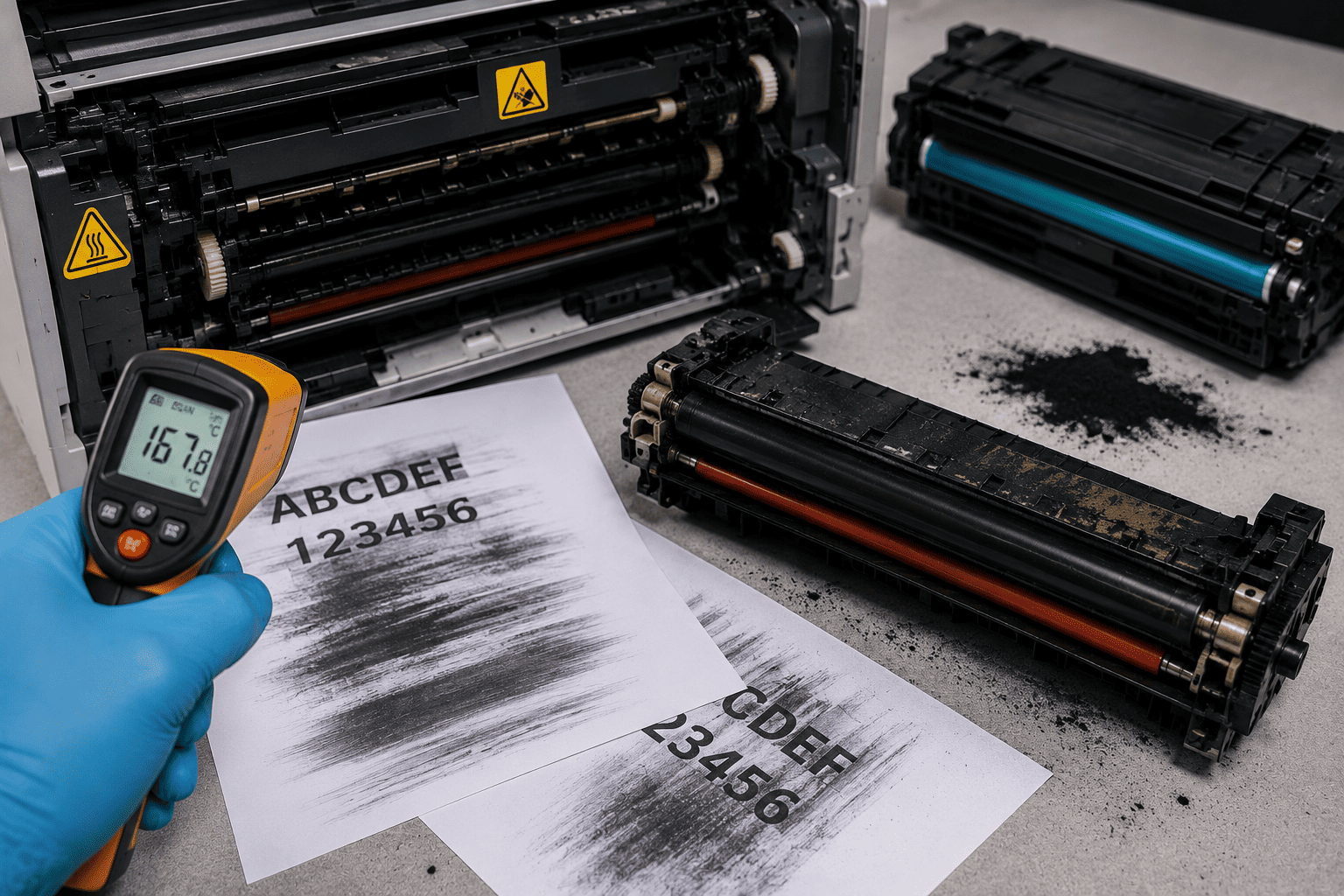
A laser printer that produces smudged, smeared, or easily rubbed-off prints may have a problem with the fuser system, toner, paper, or print process. The fuser uses controlled heat and pressure to bond toner to the paper permanently.
If the fuser does not reach the correct operating temperature, the toner may not properly bond to the page. Using the wrong toner cartridge or incompatible toner can also cause poor print quality, especially when the toner formulation is not suitable for the printer's fuser system.
Problem
The customer notices that printed pages are smudging, rubbing off, or leaving toner marks when touched.
The printer may still complete the print job normally, but the toner does not properly adhere to the paper.
What Problem Is the Customer Facing?
Customers may experience:
- Prints smudge when touched
- Toner rubs off the paper
- Text appears blurry or smeared
- Printed pages have repeated toner marks
- Toner comes off when the paper is folded
- Prints are darker or lighter than normal
- Smudging occurs across the entire page
- Smudging is worse on thicker paper
- Printer produces inconsistent print quality
- Problem started after changing the toner cartridge
- Print quality changed after using third-party toner
- Paper exits the printer but toner is not properly fused
Root Causes of the Problem
1. Fuser Temperature Is Too Low
The fuser needs to reach an appropriate temperature to bond toner to the paper.
If the fuser is not heating correctly, toner may remain loose on the surface and easily smear.
2. Faulty Fuser Heating Element
A damaged heating element can prevent the fuser from reaching its required operating temperature.
This can result in poor toner adhesion and recurring print-quality problems.
3. Defective Thermistor
The printer uses temperature-sensing components to monitor the fuser.
A dirty, damaged, or incorrectly reading thermistor can cause the printer to control fuser temperature incorrectly.
4. Incorrect Toner Type
Laser printers are designed around specific toner formulations.
Using toner intended for another printer or fuser system can result in poor bonding, excessive toner, backgrounding, or smudging.
5. Low-Quality or Incompatible Compatible Toner
Not every third-party cartridge uses the same toner formulation as the original cartridge.
Poor-quality toner can create print defects even when the printer's fuser is functioning correctly.
6. Wrong Paper Type or Thickness Setting
Paper characteristics affect how toner is fused.
Thicker or specialty media may require different printer settings. If the printer is configured incorrectly, the fuser may not apply the appropriate heat or process timing.
7. Fuser Pressure Roller Problem
The fuser uses pressure as well as heat to bond toner.
A worn, damaged, contaminated, or improperly functioning pressure roller can lead to uneven toner adhesion.
8. Contaminated Fuser Components
Toner buildup, paper dust, adhesive residue, or other contamination can affect the fuser's ability to process paper correctly.
9. Worn Fuser Assembly
Fuser components naturally wear over time.
A worn fuser can produce recurring smearing, ghosting, wrinkles, or toner adhesion problems.
10. Paper Quality or Moisture
Paper that has absorbed excessive moisture or is unsuitable for laser printing can contribute to poor toner adhesion and other print defects.
How Can Customers Identify the Issue?
Look for:
- Toner comes off when rubbed
- Printed text smears immediately after printing
- Pages have repeated toner marks
- Smudging occurs consistently from the printer
- Problem appears with both text and graphics
- Smudging becomes worse on thicker media
- Print quality changed after installing a new toner cartridge
- Printer recently received a third-party or refilled cartridge
- Printer reports a fuser-related error
- Pages come out with loose toner
- Toner adhesion improves or worsens depending on paper type
- Printer has high page mileage and an older fuser assembly
Possible Solutions
1. Test With the Correct Paper
Start by testing with good-quality paper recommended for the printer.
Check:
- Paper size
- Paper type
- Paper thickness
- Paper condition
- Moisture exposure
Avoid testing with damaged, damp, or unsuitable paper.
2. Check the Toner Cartridge
Inspect the installed toner cartridge.
Check whether:
- It is the correct cartridge model
- It is properly installed
- It is damaged
- Toner is leaking
- The cartridge was recently replaced
- The toner is compatible with the exact printer model
If the problem began immediately after replacing toner, testing with a known-good compatible cartridge can help isolate the issue.
3. Test With Genuine or Known-Good Toner
If the printer is using a questionable refill or incompatible cartridge, test with an appropriate genuine or known-good cartridge.
If the smudging disappears, the toner or cartridge may have been responsible.
4. Check Printer Paper Settings
Verify that the selected media type matches the paper being used.
For example, thicker media may require an appropriate media setting so the printer can adjust its printing process accordingly.
Always follow the manufacturer's recommended settings for the specific media.
5. Inspect the Fuser
A technician can inspect the fuser assembly for:
- Toner buildup
- Damaged film or sleeve
- Worn pressure roller
- Contamination
- Physical damage
- Uneven heating
- Excessive wear
The fuser becomes very hot during operation, so it should be allowed to cool sufficiently before inspection or service.
6. Check Fuser Temperature
A technician can diagnose whether the fuser is reaching and maintaining the required operating temperature using the printer's diagnostic procedures and appropriate measurement methods.
If the fuser is consistently underheating, the heating system or temperature-control components may require repair.
7. Check the Thermistor
The thermistor helps the printer monitor fuser temperature.
If it is contaminated, damaged, incorrectly positioned, or producing an incorrect reading, the printer may not control fuser temperature properly.
A technician can inspect and test it according to the manufacturer's service procedure.
8. Check the Fuser Heating System
If the fuser is not reaching the correct temperature, the technician may inspect:
- Heating element
- Thermal fuse
- Thermistor
- Fuser wiring
- Power connections
- Fuser control circuitry
The exact components vary between printer models.
9. Replace the Fuser When Necessary
If the fuser assembly is worn or damaged beyond practical repair, replacing it with the correct compatible assembly may resolve persistent toner adhesion problems.
After replacement, the printer should be tested with suitable paper and toner.
10. Clean the Printer Carefully
If toner buildup or contamination is contributing to the problem, appropriate cleaning procedures may help.
Do not use aggressive cleaning methods or unsuitable liquids on sensitive printer components.
11. Run a Test Print
After troubleshooting:
- Install the correct toner
- Load suitable paper
- Confirm paper settings
- Print several test pages
- Check toner adhesion
- Test different areas of the page
- Confirm that toner does not easily rub off
If smudging continues, further fuser and toner-system diagnosis may be required.
Why Choose Guru Computer Solution?
1. Experienced Technicians
Our technicians can diagnose laser printer fuser, toner, paper, and print-quality problems systematically.
2. Fuser Temperature Diagnosis
We can investigate whether the fuser is heating correctly and identify potential issues with the heating and temperature-sensing system.
3. Toner Compatibility Check
We can check whether the installed toner or cartridge is appropriate for the printer model and help identify toner-related print defects.
4. Professional Fuser Repair
If the fuser assembly is worn or damaged, our technicians can determine whether repair or replacement is the more practical solution.
5. Quality Parts and Consumables
We recommend suitable replacement components and compatible toner based on the printer model and manufacturer's specifications.
6. Affordable Repair
We diagnose the actual cause of the smudging problem before recommending expensive fuser or printer replacement.





