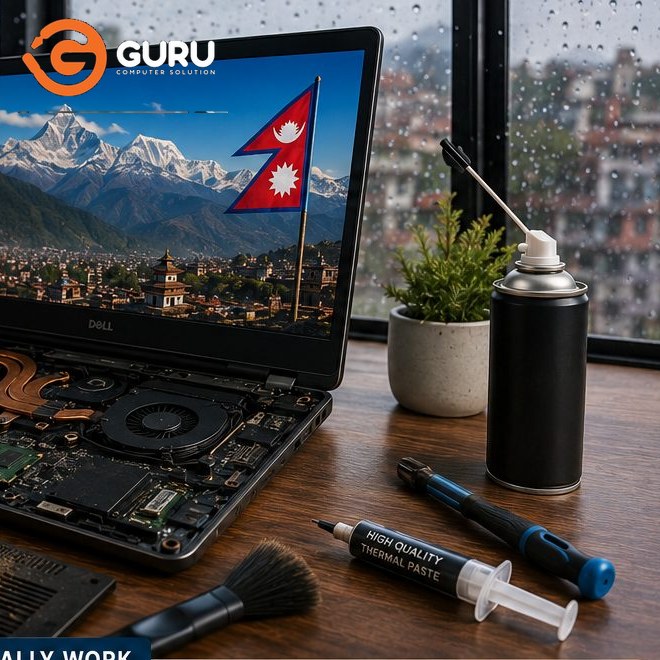
A laptop doesn't necessarily need to be replaced after three, four, or five years.
With the right maintenance, many laptops can remain useful for five years or longer. But Nepal's environment can make laptop maintenance particularly important. Dust, humidity during the monsoon, heat, frequent travel, unstable power, blocked ventilation, and everyday wear can gradually affect the battery, cooling system, motherboard, keyboard, storage, and charging circuit.
The biggest mistake is waiting until the laptop becomes extremely slow, overheats, shuts down, or stops charging before maintaining it.
A better approach is preventive laptop maintenance.
In this guide, we'll explain how to make your laptop last longer in Nepal, what you should check regularly, when you should deep clean it, why thermal maintenance matters, and which warning signs mean your laptop needs professional servicing.
Why Do Laptops Struggle to Last More Than 5 Years?
Laptop lifespan isn't determined by age alone.
Two laptops that are five years old can be in completely different conditions. One may still run reliably, while another may have:
- Severe dust buildup
- Overheating
- Weak battery
- Damaged charging port
- Slow or failing storage
- Corroded motherboard components
- Broken hinges
- Worn keyboard
- Thermal throttling
- Fan problems
- Previous liquid damage
The difference is often maintenance and usage conditions.
A laptop that regularly operates at high temperatures and is never cleaned can experience significantly more stress than one that is kept cool and properly maintained.
This is why extending laptop life is less about finding one magic trick and more about following a consistent maintenance routine.
How Long Should a Laptop Last in Nepal?
A well-maintained laptop can remain useful for five years, six years, or even longer, depending on its hardware, workload, build quality, and maintenance.
However, "lasting" doesn't necessarily mean performing like a brand-new machine.
Over time, you may need to replace or upgrade components such as:
- Battery
- SSD
- RAM
- Cooling fan
- Thermal compound
- Keyboard
- Charger
- Display components
These relatively smaller repairs can sometimes keep an otherwise good laptop running for years.
The question shouldn't always be:
"How old is my laptop?"
A better question is:
"What condition is my laptop actually in?"
Nepal's Dust and Heat Are Major Enemies of Laptop Cooling
One of the biggest threats to long-term laptop health is heat.
Your laptop's CPU and GPU generate heat whenever they work. The cooling system moves that heat away using:
- Heat pipes
- Heatsinks
- Cooling fans
- Air vents
- Thermal interface material
Dust can gradually accumulate inside this system.
When the heatsink fins become clogged, airflow decreases. The fan then has to work harder to remove the same amount of heat.
You may notice:
- Louder fan noise
- Higher temperatures
- Slower performance
- Random shutdowns
- Thermal throttling
- Battery draining faster
- Reduced performance while gaming or working
Over time, continuous excessive heat can put additional stress on internal components.
Why Laptop Fan Cleaning Is Essential for Long-Term Life
A laptop fan isn't simply there to make noise.
It is part of the system responsible for keeping critical components within an acceptable operating temperature.
When dust accumulates around the fan and heatsink, the cooling system becomes less effective.
The laptop may respond by increasing fan speed.
Eventually, you may hear the fan constantly running at high speed even when you're doing relatively simple tasks.
That is often a sign that your laptop's cooling system deserves inspection.
Regular professional laptop fan cleaning can help maintain airflow and prevent dust from becoming a serious thermal problem.
Why Thermal Paste and Thermal Putty Matter
The cooling system doesn't depend only on the fan.
The CPU and GPU transfer heat toward the heatsink through thermal interface materials.
Depending on the laptop design, this can include:
- Thermal paste
- Thermal pads
- Thermal putty
Over time, thermal material can deteriorate, become displaced, or lose effectiveness.
This can contribute to poor heat transfer.
During professional maintenance, technicians can inspect the thermal interface materials and determine whether replacement or servicing is appropriate for that particular laptop.
For some laptops, thermal putty inspection is especially important because memory chips, VRMs, and other components may use thermal putty rather than conventional paste.
Why a Bi-Annual Laptop Cooling Inspection Can Save You Money
If your laptop is exposed to dusty environments or used heavily, waiting until it overheats before servicing it isn't ideal.
A practical preventive approach is to have the cooling system professionally inspected around twice a year, particularly for:
- Gaming laptops
- High-performance laptops
- Laptops used in dusty environments
- Laptops used for long hours every day
- Machines that frequently run hot
- Older laptops
The technician can inspect:
- Fan condition
- Heatsink dust buildup
- Thermal paste
- Thermal putty
- Air vents
- Fan bearings
- Cooling performance
The exact service interval should depend on your environment and usage.
How Often Should You Deep Clean Your Laptop?
There isn't one perfect cleaning schedule for every laptop.
A laptop used occasionally in a clean office may require less frequent internal cleaning than a gaming laptop operating for many hours in a dusty environment.
As a general preventive approach:
Light-use office laptop: Inspect approximately once a year.
Heavy-use laptop: Consider inspection every 6–12 months.
Gaming or high-performance laptop: Six-monthly cooling inspection can be sensible.
Dusty environment: More frequent inspection may be necessary.
The important point is to inspect before overheating becomes severe, rather than following a rigid calendar regardless of the laptop's condition.
Keep Your Laptop's Air Vents Clear
You don't need to open your laptop every week.
One of the easiest things you can do yourself is make sure the external ventilation openings aren't blocked.
Avoid using your laptop on:
- Beds
- Blankets
- Sofas
- Cushions
- Thick clothing
These surfaces can restrict airflow.
A hard, flat surface is generally better for ventilation.
If the laptop's intake or exhaust vents are blocked, the cooling system has a harder time doing its job.
Don't Ignore a Laptop That Suddenly Becomes Very Hot
A laptop becoming unusually hot is a warning sign—not simply an inconvenience.
Pay attention if your laptop suddenly becomes hotter than it used to.
Other warning signs include:
- Fan constantly running
- Fan becoming unusually loud
- Performance dropping during heavy workloads
- Laptop shutting down unexpectedly
- Keyboard or palmrest becoming unusually hot
- Games suddenly running slower
- Laptop becoming hot during basic tasks
If the behavior is new, investigate the cause rather than accepting it as normal aging.
Why Overheating Can Make Your Laptop Slow
Many modern processors automatically reduce their performance when temperatures become too high.
This is known as thermal throttling.
The laptop essentially says:
"I'm getting too hot, so I need to reduce performance."
You may experience:
- Slow application performance
- Lower gaming FPS
- Longer rendering times
- Sluggish multitasking
- Sudden performance drops
Users sometimes assume that they need more RAM or a new laptop when the actual problem is poor thermal performance.
Cleaning the cooling system won't magically upgrade old hardware, but if overheating is causing throttling, restoring proper cooling can help the laptop perform closer to its intended capability.
Take Care of Your Laptop Battery
Laptop batteries naturally lose capacity over time.
Lithium-ion batteries are consumable components, meaning they don't last forever.
To help maintain battery health:
- Avoid excessive heat
- Use an appropriate charger
- Don't use damaged chargers or cables
- Avoid unnecessary extreme temperature exposure
- Don't ignore swelling
- Keep the laptop's charging system healthy
A battery that suddenly drops from a high percentage to zero, shuts down unexpectedly, or becomes physically swollen needs attention.
Never continue using a visibly swollen battery.
Use the Correct Laptop Charger
Your charger is an important part of the laptop's power system.
Using an incorrect or poor-quality adapter can create charging problems and potentially stress the laptop's charging circuitry.
Whenever possible, use the appropriate charger specified for your laptop model.
Check:
- Voltage
- Current
- Connector
- Power rating
- Compatibility
Don't choose a charger solely because the connector physically fits.
Protect Your Laptop From Nepal's Voltage Fluctuations
Power quality can also matter.
Voltage fluctuations can create problems for chargers, adapters, and laptop charging circuits.
A good-quality surge-protection solution or appropriate UPS/power backup can provide an additional layer of protection, particularly for laptops that remain connected to external power for long periods.
Also pay attention to:
- Damaged adapters
- Loose charging connections
- Sparking plugs
- Unusual charger heating
- Intermittent charging
If the laptop repeatedly switches between charging and discharging while connected, don't ignore it.
The problem could involve the charger, DC jack, battery, charging circuit, or motherboard.
Keep Your Laptop Away From Excessive Moisture During Monsoon
Nepal's monsoon season introduces another problem: humidity and moisture.
Moisture can contribute to corrosion, particularly when a laptop is exposed to humid conditions over extended periods.
Be careful about using or storing laptops:
- Near open windows during rain
- In damp rooms
- Near water
- In bags while still wet
- In environments with significant moisture exposure
If liquid enters the laptop, don't assume that drying the outside means the problem is solved.
Liquid can reach internal components and create corrosion that becomes worse over time.
What to Do If Water Spills on Your Laptop
If liquid spills onto your laptop, act quickly.
The priority is to:
- Disconnect the charger.
- Turn the laptop off if it is safe to do so.
- Avoid repeatedly powering it on to "see if it works."
- Get professional inspection if liquid may have entered the machine.
Repeatedly turning on a liquid-damaged laptop can potentially worsen electrical damage.
Internal corrosion may not be immediately visible from outside.
Keep Food and Drinks Away From Your Laptop
It sounds obvious, but liquid and crumbs are responsible for many avoidable laptop problems.
Coffee, tea, water, soft drinks, and other liquids can damage:
- Keyboard
- Touchpad
- Motherboard
- Charging circuits
- USB ports
- Display cables
A laptop can survive years of normal use but be permanently damaged by one poorly placed cup of water.
Don't Carry Your Laptop Without Protection
Physical damage is another major reason laptops don't reach five years.
Use an appropriate laptop bag or sleeve when transporting the machine.
Avoid placing heavy objects directly on top of the laptop.
Protect it from:
- Drops
- Pressure
- Impacts
- Bending
- Excessive vibration
A small impact can damage the screen, hinges, storage device, motherboard, or internal connectors.
Take Care of Your Laptop Hinges
Laptop hinges are often overlooked until they become difficult to move.
Warning signs include:
- Cracking sounds
- Extremely stiff movement
- Loose display
- Screen wobbling
- Plastic separating around the hinge
- Difficulty opening the laptop
- Uneven movement
Don't continue forcing a damaged hinge.
A failing hinge can eventually damage the surrounding chassis and cables, turning a relatively manageable repair into a more expensive one.
Don't Ignore a Loose Charging Port
If you have to move the charger around to make the laptop charge, something is wrong.
Possible causes include:
- Damaged DC jack
- Loose connector
- Broken solder joints
- Worn charging port
- Damaged charger
Continuing to use a loose charging connection can make the problem worse.
Early repair may be significantly simpler than waiting until the charging circuit itself becomes affected.
Upgrade the Right Components Instead of Replacing the Entire Laptop
Sometimes your laptop feels old simply because one component has become a bottleneck.
Depending on the laptop model, upgrading may be possible.
For example:
SSD upgrade
Replacing an old mechanical hard drive with an SSD can dramatically improve responsiveness.
RAM upgrade
Additional RAM can help with multitasking if the laptop supports an upgrade.
Battery replacement
A worn battery can make a perfectly usable laptop inconvenient to use.
Before buying a new laptop, check whether an affordable upgrade or replacement component can solve the problem.
Keep Your Operating System and Drivers Updated
Hardware maintenance isn't enough.
Your software should also be maintained.
Keep:
- Windows
- Device drivers
- Security software
- Important applications
reasonably up to date.
However, don't install random driver packages simply because a website claims they will "make your laptop faster."
Use reliable sources and create backups before major operating-system changes.
Don't Install Unnecessary "PC Cleaner" Software
Many users install programs promising to:
- Clean the registry
- Speed up Windows
- Remove junk
- Boost RAM
- Increase CPU performance
Some provide little meaningful benefit, while others can create additional problems.
A genuinely slow laptop should be diagnosed.
The cause could be:
- Aging storage
- Low RAM
- Startup applications
- Malware
- Thermal throttling
- Hardware failure
- Windows problems
A random "one-click optimizer" isn't necessarily the solution.
Keep Your Storage Healthy
Don't allow your system drive to remain almost completely full.
Maintain adequate free storage and regularly remove files you no longer need.
More importantly, keep backups of important data.
A laptop that lasts ten years isn't much help if the important photos, documents, business files, or academic work are lost.
For important data, maintain at least one backup separate from the laptop.
Back Up Your Important Data Before It Becomes an Emergency
Laptop maintenance isn't only about preventing hardware damage.
It is also about protecting your information.
Important files should ideally exist in more than one location.
Consider keeping backups of:
- Documents
- Photos
- Videos
- Business files
- Password recovery information
- Academic projects
- Financial records
If a laptop suddenly stops turning on because of motherboard or storage failure, having a backup can save you from an expensive and stressful data recovery situation.
How to Extend Your Laptop's Life With a Simple Maintenance Schedule
A practical maintenance routine can look like this:
Every week
Keep ventilation areas clear and avoid using the laptop on soft surfaces.
Every month
Check for unusual fan noise, excessive heat, battery problems, charging issues, and physical damage.
Every 3–6 months
Check storage space, software health, backups, and general performance.
Every 6–12 months
Consider professional inspection of the cooling system, particularly if you use the laptop heavily or live/work in a dusty environment.
During monsoon
Pay extra attention to humidity, moisture, liquid exposure, corrosion risks, and unusual charging or hardware behavior.
Every 2 years or when symptoms appear
Have the battery, cooling system, thermal interface materials, storage health, and other aging components evaluated.
The exact schedule depends on the laptop and its environment.
When Should You Bring Your Laptop for Professional Maintenance?
Don't wait until the laptop stops working.
Consider professional servicing if you notice:
- Constant loud fan noise
- Excessive heat
- Sudden shutdowns
- Major performance drops
- Charging problems
- Battery swelling
- Hinge problems
- Strange burning smells
- Liquid exposure
- Intermittent display problems
- USB ports randomly disconnecting
- Wi-Fi problems
- Unusual motherboard behavior
These symptoms don't necessarily mean your laptop is dying.
They mean something deserves investigation.
Why Professional Laptop Deep Cleaning Is Worth It
External cleaning can make a laptop look better, but it doesn't remove dust from the places where it matters most.
Professional internal maintenance can include inspection and cleaning of:
- Cooling fan
- Heatsink
- Air vents
- Motherboard
- Internal dust buildup
- Thermal paste
- Thermal putty
- Fan condition
- Internal connectors
The objective isn't simply to make the laptop look clean.
It's to maintain airflow, cooling, and component reliability.
For older laptops, this becomes increasingly important because thermal problems that might have been minor when the machine was new can become more noticeable after years of accumulated dust and degraded thermal materials.
Why Choose Guru Computer Solution for Preventive Laptop Maintenance?
Guru Computer Solution
If your laptop has been running for several years, preventive maintenance can be more sensible than waiting for a major failure.
Guru Computer Solution can inspect the laptop's condition and identify issues such as:
- Dust buildup
- Fan problems
- Cooling problems
- Thermal paste deterioration
- Thermal putty condition
- Battery issues
- Charging problems
- Storage health
- Physical damage
- Motherboard-related problems
The goal is simple: find small problems before they become expensive repairs.
For heavily used laptops, a periodic cooling inspection and professional cleaning can be one of the most practical maintenance steps you can take.
Keep Your Laptop Running for Years, Not Just Until the Warranty Ends
A laptop reaching five years isn't simply a matter of luck.
How you use it, how you transport it, how you protect it from moisture and dust, how you manage heat, and whether you address small problems early can make a significant difference.
Keep the cooling system clean. Watch temperatures. Protect the battery. Use the correct charger. Keep moisture away. Don't ignore damaged hinges or charging ports. Upgrade components when it makes financial sense. Most importantly, don't wait for a complete failure before maintaining an aging laptop.
If your laptop is already overheating, making excessive fan noise, shutting down, charging inconsistently, or running unusually slowly, professional inspection can help determine whether the machine needs simple maintenance or a more significant repair.
A five-year-old laptop isn't necessarily an old laptop. A poorly maintained laptop is.
Frequently Asked Questions
How can I make my laptop last more than 5 years?
Keep the cooling system clean, avoid excessive heat and moisture, protect the laptop physically, use the correct charger, maintain the battery, keep software updated, back up your data, and address hardware problems early.
How often should I clean my laptop internally?
It depends on usage and environment. A heavily used laptop in a dusty environment may benefit from inspection every 6–12 months, while a lightly used laptop in a clean environment may require less frequent servicing.
Does laptop cleaning improve performance?
It can if overheating is causing thermal throttling. Cleaning the cooling system can improve airflow and help the laptop maintain appropriate operating temperatures.
Should I replace thermal paste every year?
Not necessarily. Thermal paste condition depends on the laptop, usage, thermal design, and environment. It should be inspected when servicing the cooling system rather than replaced blindly on a fixed schedule.
What is thermal putty in a laptop?
Thermal putty is a thermal interface material used in some laptop cooling designs to transfer heat from components such as memory chips or power circuitry to the cooling assembly. Its condition can be checked during professional maintenance.
How often should gaming laptops be cleaned?
Gaming laptops generally benefit from more frequent cooling inspection because they generate substantially more heat under heavy workloads. A six-monthly inspection can be reasonable for heavily used gaming machines, depending on the environment.
Can humidity damage a laptop?
Yes. Long-term exposure to high humidity can contribute to corrosion and other electrical problems. Nepal's monsoon season makes moisture management particularly important.
Can voltage fluctuations damage a laptop?
Voltage problems can potentially affect chargers and charging circuitry. Using appropriate power protection and a compatible charger can provide additional protection.
Is it worth upgrading an old laptop instead of buying a new one?
Often, yes. An SSD, additional RAM, or a new battery can sometimes significantly improve an older laptop. However, the upgrade should be evaluated against the laptop's CPU, motherboard condition, and overall repair cost.
When should I replace my laptop instead of repairing it?
Consider replacement when the required repairs and upgrades are disproportionately expensive compared with the laptop's performance and replacement cost. A professional diagnosis can help you make that decision.
How much does laptop maintenance cost in Kathmandu?
The cost depends on the laptop model and the required service. Basic cleaning, deep cleaning, thermal servicing, battery replacement, and hardware repairs have different costs. A proper inspection is needed for an accurate quote.
Can Guru Computer Solution perform preventive laptop maintenance?
Yes. Preventive servicing can include internal cleaning, cooling-system inspection, thermal maintenance, fan inspection, battery checks, storage checks, and diagnosis of other developing hardware problems.
What laptop brands can be maintained?
Professional laptop maintenance can be performed on common brands including Dell, HP, Lenovo, ASUS, Acer, MSI, and Apple MacBook, although the exact service and parts required depend on the model.