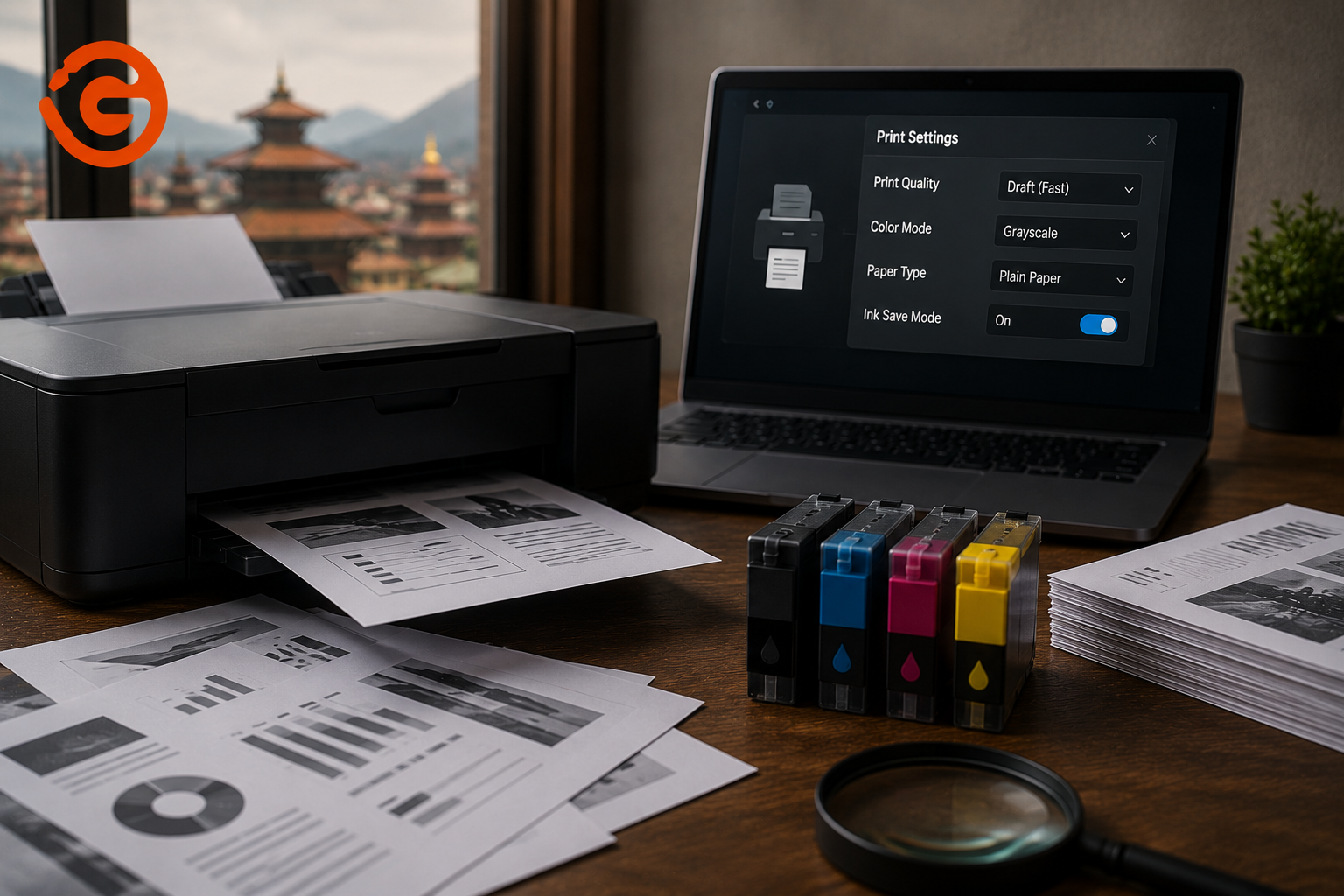
A cartridge that should last months is empty in weeks, and nothing about your printing habits has changed. Before assuming the printer itself is defective or the cartridges are somehow faulty, it's worth knowing that most excessive ink consumption traces back to settings buried in the printer driver, ones almost nobody checks after initial setup, quietly working against you print after print.
Why This Happens Without You Noticing
Printer drivers ship with a specific set of default settings, and manufacturers frequently default toward higher quality output rather than ink efficiency, since quality is what people notice immediately, and ink cost is what they notice weeks later on a completely separate bill. Once these settings are configured, most people never revisit them again. A setting quietly increasing ink usage on every single print job compounds over hundreds or thousands of pages without ever announcing itself as the cause.
Hidden Setting #1: Print Quality Mode Set Higher Than You Need
This is the single biggest lever most people have never touched. Print quality modes, commonly labeled Draft, Normal, and Best or High Quality, directly control how much ink gets laid down per page. Best or High Quality mode uses noticeably more ink than Draft or Normal for the exact same document, and many printers default to Normal or higher out of the box rather than the most ink-efficient setting.
Where to check it: open the printer's Printing Preferences or Properties dialog (accessible from within any application's Print menu, or through your operating system's printer settings), and look for a Print Quality or Quality tab.
What to change: switch to Draft mode for everyday documents, emails, drafts, internal paperwork, where sharpness genuinely doesn't matter. Reserve Best or High Quality specifically for final documents, photos, or anything actually presentation-facing.
Hidden Setting #2: Media Type Mismatched to Your Actual Paper
This is one of the most overlooked settings on this entire list. The Media Type or Paper Type setting tells the printer how much ink to lay down and how to manage drying, based on what kind of paper it thinks is loaded. If this is set to something like photo paper or a heavier stock while you're actually using plain office paper, the printer applies significantly more ink than the paper can properly absorb, since it's calibrating for a completely different material.
Where to check it: the same Printing Preferences dialog, typically under a Paper/Quality or Media tab.
What to change: confirm the media type actually matches the paper physically loaded in the tray. This single mismatch is a surprisingly common, and surprisingly invisible, cause of both ink waste and streaky or smudged output.
Hidden Setting #3: Color Ink Being Used for Black and White Documents
Many printers use a small amount of color ink even when printing a document that appears entirely black and white, blending colors to produce a richer black rather than using the black cartridge alone. If you're primarily printing text documents, this default behavior quietly drains your color cartridges even when you never intended to use color at all.
Where to check it: look for a setting labeled "Use Black Ink Only," "Print in Grayscale," or similar, again inside Printing Preferences.
What to change: enable this setting for any print job that's genuinely just black text, and switch it off only when you actually need color output.
Hidden Setting #4: Ink Density Settings Buried in Paper Configuration
Some printer drivers, particularly on higher-end inkjet models, include a dedicated ink density control inside a Paper Configuration or similar advanced menu, separate from the basic quality setting most people know to check. This setting can be left higher than necessary from a previous print job, a photo print or a heavier paper stock, and then silently applies that same higher density to every subsequent job until someone changes it back.
Where to check it: look for a Paper Configuration, Advanced, or Maintenance section within the driver, not just the main Quality tab.
What to change: lower the density for standard document printing, and only increase it deliberately for specific jobs that actually need it.
Hidden Setting #5: Automatic Cleaning Cycles Running More Than Necessary
Printers periodically run automatic printhead cleaning cycles to prevent clogs, and these cycles consume real ink every time they run, not just water or air. A printer used infrequently tends to run these cleaning cycles more often, since dried ink in the nozzles triggers more frequent maintenance passes. This is a genuine, if less obvious, contributor to ink consumption that has nothing to do with your actual print settings at all.
What to do: print something small on a semi-regular basis, even just a test page every week or two, rather than leaving a printer completely idle for weeks at a time, since consistent light use tends to reduce how often the printer feels the need to run a full automatic cleaning cycle.
Hidden Setting #6: Borderless or Full-Bleed Printing Left Enabled
Borderless printing, which extends ink slightly past the edge of the page to ensure full coverage with no white margin, inherently uses more ink than standard bordered printing, by design. If this setting was enabled for a specific photo or design job and never switched back, it continues consuming extra ink on every subsequent print, including plain documents that never needed borderless output in the first place.
Where to check it: the Page Layout or Paper Size section of Printing Preferences, wherever your printer exposes a Borderless option.
What to change: disable it for standard document printing, and enable it only when a specific job genuinely calls for edge-to-edge coverage.
Hidden Setting #7: Color Management Profiles Applying Extra Processing
More advanced print settings sometimes include color management or ICC profile options that adjust how colors are processed and reproduced. Left on an aggressive or mismatched profile, particularly one intended for photo-quality color accuracy, this can increase ink usage on documents that never needed that level of color processing to begin with.
Where to check it: an Advanced or Color Management tab within the driver, typically a step beyond the basic settings most people interact with.
What to change: for standard office printing, a simpler default color handling setting, rather than a photo-oriented profile, is usually more than sufficient and meaningfully more ink-efficient.
What These Settings Have in Common
Every one of these lives inside the printer driver, not the printer's own physical control panel, which is precisely why they go unnoticed. Most people interact with their printer through whatever application they're printing from, hit print, and never open the underlying driver settings at all unless something looks visibly wrong. These settings also tend to persist once changed, meaning a single adjustment made for one specific job (a photo print, a borderless flyer, a client-facing document) quietly continues affecting every job afterward until someone manually reverts it.
A Quick Audit You Can Do Right Now
Open your printer's Printing Preferences from any application's print dialog, and check each of these in order: confirm Print Quality is set to Draft or Normal for everyday use, confirm Media Type actually matches the paper loaded in the tray, enable Black Ink Only or Grayscale for text-only documents, check for a Paper Configuration or Advanced menu and confirm ink density isn't left elevated from a previous job, confirm Borderless printing is switched off unless you specifically need it, and check whether a Color Management profile is set to something more aggressive than plain document printing actually requires.
Working through this list takes a few minutes and, for most people who've never touched these settings, produces a genuinely noticeable drop in ink consumption on the very next print job.
When It's Not Just Settings
If you've worked through every setting above and ink consumption is still unusually high, a few other causes are worth ruling out: dried or clogged printheads that are actually forcing more ink through to compensate for reduced flow, aging cartridges or components that no longer regulate ink delivery properly, or, on some models, using refilled or third-party cartridges that don't communicate accurate ink level or delivery data to the printer the way genuine cartridges do. At this point, a proper technician inspection is a more reliable next step than continuing to guess through settings that have already been ruled out.
Why Choose Guru Computer Solution
Proper Printer Diagnosis We check whether excessive ink use is a settings issue, a printhead problem, or a genuine hardware fault, rather than assuming any single cause.
Printhead Cleaning and Service Where clogged or degraded printheads are contributing to ink waste, we address the actual component rather than just adjusting settings around it.
Both Inkjet and Laser Printer Support From ink-related consumption issues to toner and drum servicing, we handle the full range of printer types and problems.
Honest Guidance, Not Just a Sales Pitch If your printer's ink usage is a simple settings fix, we'll tell you that directly rather than recommending an unnecessary service.
Conclusion
Excessive ink consumption is rarely a mystery once you know where to look, it's almost always sitting in driver settings nobody thinks to check after initial setup. Print quality mode, media type mismatches, color ink defaulting into black and white jobs, elevated ink density, borderless printing left switched on, and overly aggressive color management profiles are collectively responsible for a large share of the "my printer eats ink" complaints we see. A five-minute audit through your printer's Printing Preferences resolves most of these cases outright, and for the rest, it at least narrows things down to a genuine hardware issue worth having properly diagnosed.
If your printer is still consuming ink faster than it should after checking these settings, contact Guru Computer Solution for a proper diagnosis.





