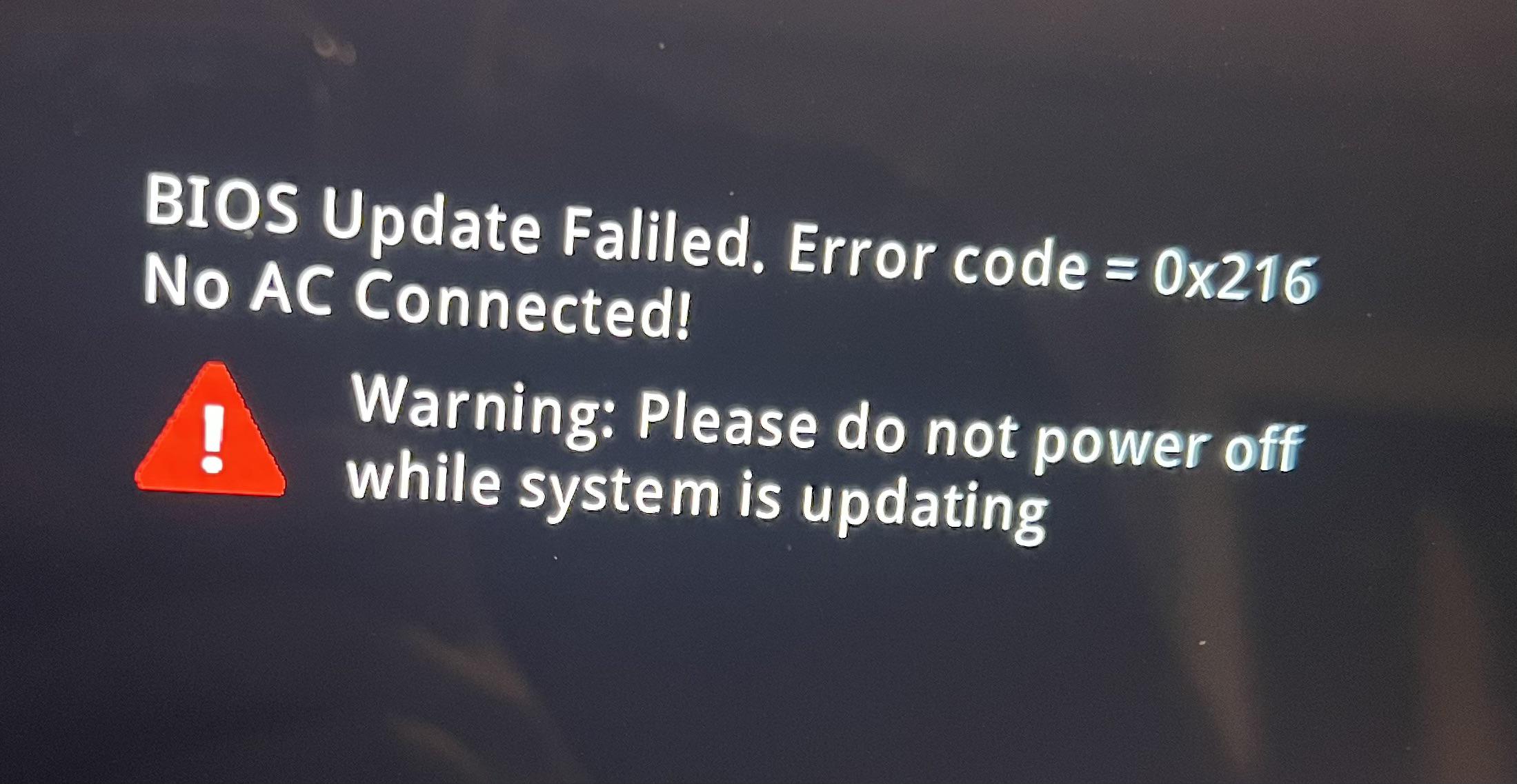
A failed BIOS update is one of the more alarming things that can happen to a laptop — the screen stays black, fans spin, but nothing happens, and it's not obvious whether the laptop is dead or just stuck. The good news is that many manufacturers build in recovery methods specifically for this situation, and they're worth trying before assuming the worst.
Why BIOS Updates Fail in the First Place
Common causes include a power interruption during the flash process, a corrupted update file, or the update being interrupted by the user before completion. Understanding the cause doesn't undo the failure, but it does help predict which recovery method is likely to work.
Before You Try Anything: Safety First
Don't remove the battery or power source while attempting recovery unless a specific method instructs you to. Many recovery procedures rely on power being available to complete a re-flash — cutting power mid-attempt can turn a recoverable failure into an unrecoverable one.
Don't repeatedly force a hard shutdown out of frustration. Give each recovery attempt a full chance to complete before trying something else.
Recovery Methods to Try
1. Manufacturer BIOS Recovery Key Combination
Most major manufacturers build a dedicated BIOS recovery mode into their firmware specifically for failed updates, triggered by holding a specific key combination during power-on.
General approach:
- Fully power off the laptop (hold the power button if it's unresponsive)
- Insert a USB drive containing the correct BIOS recovery file (renamed and formatted per the manufacturer's exact specification — this step is easy to get wrong)
- Hold the manufacturer's designated key combination while pressing power (commonly a combination involving Windows key, Fn, Esc, or a dedicated recovery button, depending on brand)
- Allow the recovery process to run fully without interrupting it, even if it takes several minutes and shows no visible progress
Why this works: this recovery mode typically runs from a separate, protected boot block that survives a failed main BIOS flash, specifically so a bad update doesn't permanently brick the device.
2. Crisis Recovery / Boot Block Recovery
Some manufacturers refer to this as "Crisis Recovery" — a lower-level fallback than the standard recovery key combination, sometimes requiring a specifically named recovery file and a longer, unattended wait.
General approach:
- Prepare a USB drive with the exact recovery file, correctly named per the manufacturer's documentation
- Connect the laptop to power (don't rely on battery alone for this)
- Trigger the crisis recovery sequence per the manufacturer's specific instructions
- Leave it completely alone for the specified time — interrupting a crisis recovery is one of the few ways to turn this into an unrecoverable situation
3. Removing and Reinserting the CMOS Battery (Where Accessible)
On some laptops, a stuck BIOS state can sometimes be cleared by disconnecting the small CMOS/RTC battery for a short period, resetting BIOS settings to default.
Important caveats:
- This does not fix a corrupted BIOS flash — it only resets settings, and won't help if the firmware itself is genuinely corrupted
- Many modern thin laptops don't have an easily accessible CMOS battery, or don't have one that can be disconnected without significant disassembly
- This should only be attempted if you're already comfortable opening the laptop safely
4. External BIOS Programming (Advanced, Usually Requires a Technician)
If the built-in recovery methods don't work, the BIOS chip may need to be reflashed externally using a SOIC clip and a dedicated programmer — desoldering isn't always required, but precise equipment and a verified, correct firmware file are.
This method genuinely sits at the edge of "without a service center" — it's technically possible for an experienced hobbyist with the right equipment, but the risk of using an incorrect firmware version or damaging the chip is high enough that most people are better served by a professional at this stage.
When to Stop and Call a Professional
Recovery attempts should stop and move to professional service if:
- The manufacturer's recovery key combination produces no response at all after multiple careful attempts
- There's no accessible CMOS battery and the built-in recovery methods have already failed
- You don't have complete confidence in the exact recovery file and method for your specific model — using the wrong file can worsen the situation
- Any physical damage or unusual smell/heat is present in addition to the BIOS failure, suggesting a hardware fault rather than a pure firmware issue
Why Manufacturer Recovery Methods Don't Always Work
Built-in recovery paths assume the boot block itself is undamaged — if the failure affected a deeper part of the firmware, or if the laptop's specific model doesn't include this hardware-level fallback at all (some budget models skip it), these methods won't succeed. At that point, external chip-level reflashing genuinely is the only remaining option short of a motherboard replacement.
Why Choose Guru Computer Solution
BIOS Chip-Level Recovery: Where manufacturer recovery methods fail, our technicians can externally reflash the BIOS chip using proper programming equipment and verified firmware.
Correct Firmware Sourcing: We verify the exact correct BIOS version for your specific model and revision before any flash attempt, avoiding the risk of using an incompatible file.
Full Diagnostic Before Repair: We confirm whether the issue is genuinely firmware-related or whether there's an underlying hardware fault before recommending a fix.
Data-Safe Recovery Process: Our BIOS recovery process doesn't affect your storage drive or data, since the work is isolated to the firmware chip itself.
Conclusion
A failed BIOS update looks catastrophic, but most manufacturers build in a genuine recovery path specifically for this scenario. Trying the correct key-combination recovery method first, carefully and without interruption, resolves many cases without needing a service center at all. When that doesn't work — no accessible recovery mode, no response, or a model without built-in fallback — external chip-level reflashing by a professional is the reliable next step, rather than assuming the laptop needs a full motherboard replacement.
If your laptop won't boot after a failed BIOS update and built-in recovery hasn't worked, contact Guru Computer Solution for professional BIOS recovery service.





