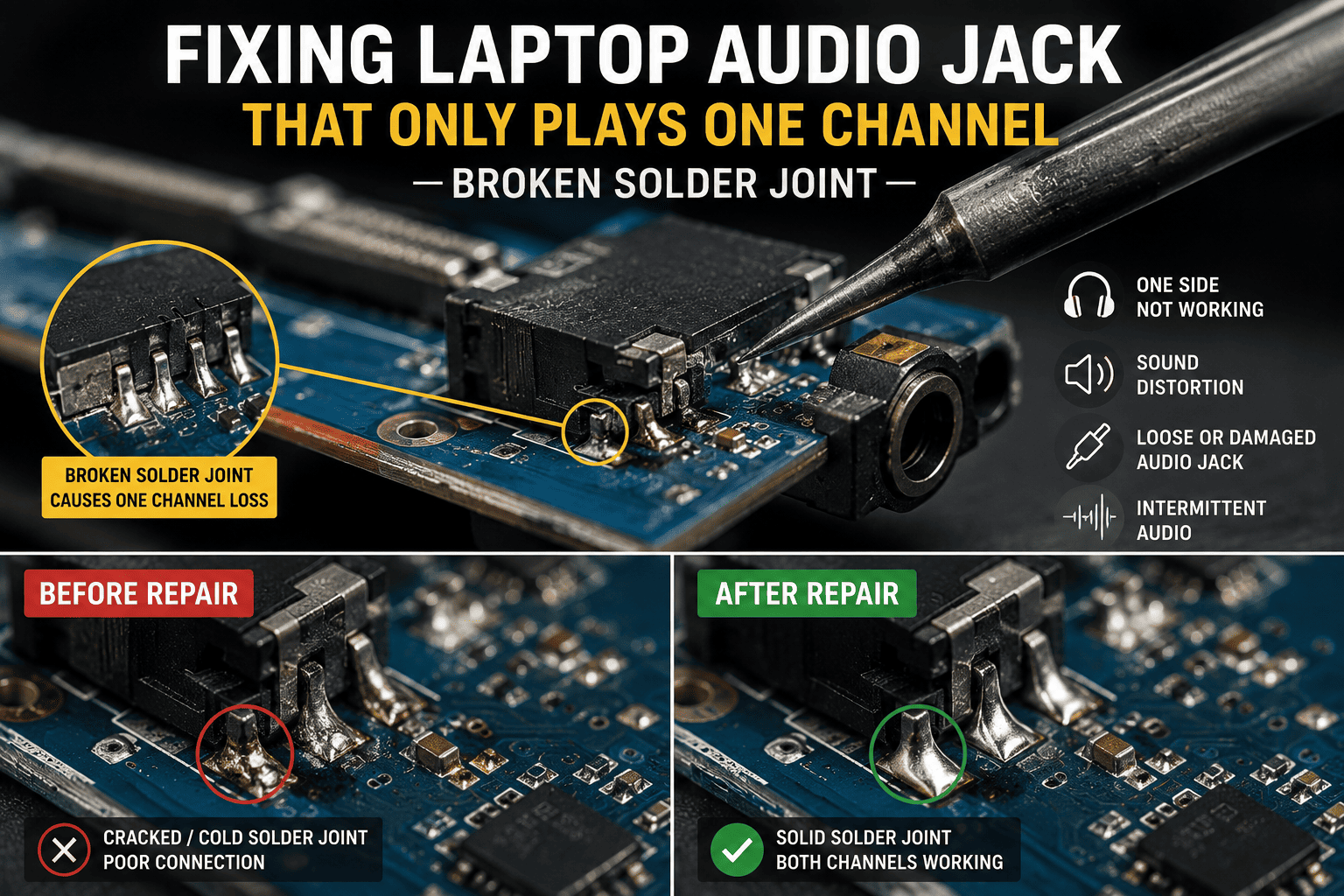
If your laptop headphone jack plays sound through only the left or right earbud, the problem may not be with your headphones or audio driver. A loose audio jack, damaged connector, or broken solder joint on the motherboard can interrupt one audio channel while the other continues to work normally.
This type of fault is especially common when the headphone plug has been pulled sideways, the laptop has been dropped, or the audio jack has become loose from repeated use. In some cases, the jack may work when the plug is held at a particular angle, which is a strong indication of a physical connection problem.
In this guide, we'll explain the common causes of one-channel audio, how to identify a broken solder joint, and when professional motherboard-level repair is required.
Problem
A laptop headphone jack produces sound through only one side of the headphones or earphones. The other channel may be completely silent, extremely quiet, or work intermittently when the plug is moved.
The issue can be caused by incorrect audio balance settings, faulty headphones, debris inside the jack, a damaged headphone connector, or a broken solder joint connecting the audio jack to the motherboard.
What Problem Is the Customer Facing?
Customers may notice that their headphones suddenly play audio through only one ear. The laptop speakers may work normally, making the headphone jack appear to be the problem.
In some cases, the sound returns temporarily when the headphone plug is rotated, pushed in, or held at a specific angle. This usually suggests a mechanical or electrical connection issue.
A damaged solder joint can disconnect one of the audio signal paths from the motherboard. Since a standard stereo headphone connection has separate left and right audio channels, damage to one connection can result in single-channel audio while the other channel continues working.
Root Causes of the Problem
1. Broken Solder Joint
The audio jack is attached to the motherboard using soldered connections. Physical stress can crack these joints and interrupt one audio channel.
2. Loose Audio Jack
Repeatedly inserting and removing headphones can loosen the jack from the motherboard, especially if the connector receives sideways pressure.
3. Damaged Headphone Jack
The internal contacts inside the jack can become worn or bent, preventing proper contact with the headphone plug.
4. Physical Impact
Dropping or hitting the laptop while headphones are connected can transfer force directly to the audio jack and its solder joints.
5. Damaged Headphones or Cable
A broken headphone cable or defective earphones can also cause one-channel audio. Testing with another known-good headset is an important first step.
6. Incorrect Audio Balance
Windows or audio software may have the left and right channels set to different volume levels.
7. Dirt or Debris Inside the Jack
Dust or foreign material can prevent the plug from making proper contact with the internal jack terminals.
8. Motherboard Trace Damage
In more severe cases, physical damage can break the copper trace connecting the audio jack to the audio circuitry.
How Can Customers Identify the Issue?
Common symptoms include:
- Sound comes from only one headphone side
- Left channel works but right channel is silent
- Right channel works but left channel is silent
- Audio cuts in and out when the plug moves
- Sound returns when the plug is held at an angle
- Headphone jack feels loose
- Crackling or static sound
- Headphones are detected but stereo audio is incomplete
- Laptop speakers work normally but headphone output does not
- Problem started after a drop or physical impact
- Multiple headphones produce the same one-channel problem
Possible Solutions
1. Test with Another Headset
Connect a known-good pair of headphones. If the same channel remains silent, the laptop is more likely to be the source of the problem.
2. Check Left/Right Audio Balance
In Windows sound settings, verify that the left and right audio channels have equal volume levels.
3. Check the Audio Driver
A corrupted or incorrectly configured audio driver can cause channel-related problems. Updating or reinstalling the appropriate audio driver can help rule out software issues.
4. Inspect and Clean the Audio Jack
The jack should be checked for dust, debris, or visible physical damage. Cleaning should be performed carefully to avoid damaging the internal contacts.
5. Inspect the Solder Joints
If software and headphone testing don't solve the problem, a technician can inspect the audio jack's solder connections under magnification.
Signs of a damaged connection may include:
- Cracked solder
- Loose jack
- Lifted solder pad
- Broken copper trace
- Visible movement of the connector
6. Re-Solder the Audio Jack
If the jack itself is still functional, repairing the cracked solder joints may restore both audio channels.
The technician carefully removes old damaged solder, cleans the connection, and re-solders the affected pins or mounting points.
7. Replace the Audio Jack
If the internal contacts are damaged or the connector is physically broken, the audio jack may need to be replaced.
8. Repair Damaged Motherboard Traces
If the solder pad or copper trace has been damaged, advanced motherboard repair may be necessary to restore the audio signal path.
Why Choose Guru Computer Solution?
1. Certified Technicians
Our technicians diagnose laptop audio problems from software settings to motherboard-level faults.
2. Genuine Parts
When replacement is necessary, we use quality-compatible audio jacks and components.
3. Fast Turnaround
Many audio jack repairs and soldering jobs can be completed quickly, depending on the laptop model and motherboard design.
4. Warranty Support
Eligible repairs and replacement parts come with warranty support.
5. Affordable Pricing
We repair the actual faulty component instead of unnecessarily replacing the entire motherboard.