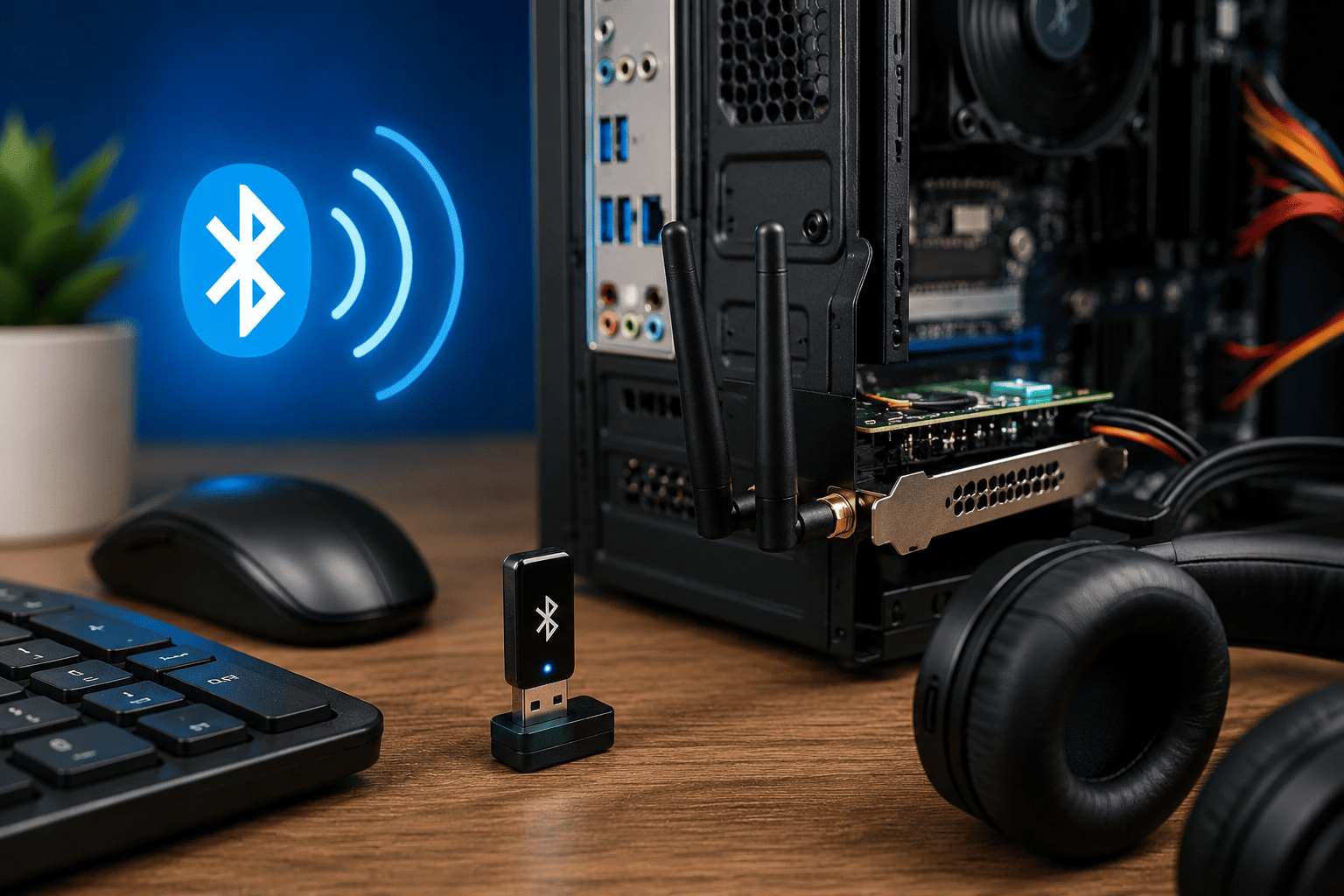
Not every desktop PC comes with built-in Bluetooth. If a computer cannot connect to wireless headphones, keyboards, mice, speakers, phones, or other Bluetooth accessories, the problem may simply be that the motherboard does not have Bluetooth hardware.
Fortunately, Bluetooth can usually be added to a desktop using a USB Bluetooth adapter or a PCIe Wi-Fi/Bluetooth card. The correct option depends on the customer's needs, available ports, desktop configuration, and required connection range.
Problem
The customer has a desktop PC without built-in Bluetooth and wants to connect Bluetooth devices.
The computer may have working Wi-Fi or Ethernet but no Bluetooth option in Windows. In some cases, Bluetooth hardware may be installed but the correct driver is missing or the device is disabled.
What Problem Is the Customer Facing?
Customers may experience:
- Bluetooth option is missing from Windows
- Cannot connect wireless headphones
- Bluetooth keyboard or mouse won't pair
- Bluetooth speakers are not detected
- Bluetooth settings are completely unavailable
- Device Manager does not show Bluetooth
- Bluetooth adapter shows an unknown device
- Bluetooth keeps disconnecting
- USB Bluetooth adapter is not detected
- Bluetooth works intermittently
- Desktop has Wi-Fi but no Bluetooth
- Customer wants to connect a phone or other wireless device
Root Causes of the Problem
1. Desktop Motherboard Does Not Have Bluetooth
Many desktop motherboards do not include Bluetooth hardware.
A PC can have Ethernet or even Wi-Fi without necessarily having Bluetooth.
2. Bluetooth Adapter Is Not Installed
If the desktop has no Bluetooth hardware, Windows cannot provide Bluetooth connectivity without an internal or external adapter.
3. Missing Bluetooth Driver
A Bluetooth adapter may be physically installed but not work correctly because Windows does not have the appropriate driver.
4. USB Bluetooth Adapter Problem
A low-quality, damaged, or incompatible USB Bluetooth adapter can cause connection problems or may not be detected correctly.
5. Bluetooth Hardware Is Disabled
Bluetooth hardware or related wireless functionality can sometimes be disabled through Windows, Device Manager, BIOS/UEFI, or manufacturer-specific settings.
6. USB Port Problem
A faulty USB port can prevent a Bluetooth adapter from receiving power or communicating correctly with the computer.
7. Bluetooth Interference
Wireless interference from other devices, USB 3.x equipment, Wi-Fi networks, or physical obstructions can affect Bluetooth range and stability.
8. Outdated or Incorrect Drivers
Incorrect or outdated drivers can cause pairing failures, random disconnections, or missing Bluetooth functionality.
How Can Customers Identify the Issue?
Look for:
- No Bluetooth icon or settings in Windows
- Bluetooth does not appear in Device Manager
- Windows cannot find Bluetooth devices
- Desktop motherboard specifications do not mention Bluetooth
- USB Bluetooth adapter is not recognized
- Bluetooth adapter appears with a warning icon
- Wireless headphones cannot be paired
- Bluetooth keyboard or mouse does not connect
- Bluetooth devices disconnect frequently
- Bluetooth works after installing a driver but not before
- Bluetooth range is unusually short
Possible Solutions
1. Check Whether Bluetooth Is Already Built In
First, check the motherboard or desktop specifications.
Look for:
- Bluetooth support
- Wireless connectivity
- Wi-Fi + Bluetooth
- Bluetooth version
If Bluetooth is not supported, an adapter will be required.
2. Use a USB Bluetooth Adapter
A USB Bluetooth adapter is usually the simplest way to add Bluetooth to a desktop.
The basic process is:
- Purchase a compatible USB Bluetooth adapter
- Connect it to an available USB port
- Allow Windows to detect the device
- Install the manufacturer's driver if required
- Restart the computer if necessary
- Open Windows Bluetooth settings
- Pair the required device
For basic Bluetooth accessories, this is often the quickest solution.
3. Install the Correct Bluetooth Driver
If Windows does not automatically install the required driver:
- Identify the exact Bluetooth adapter model
- Download the appropriate driver from the manufacturer's official website
- Install the driver
- Restart Windows
- Check Device Manager
- Test Bluetooth pairing again
Avoid installing random drivers from unknown sources.
4. Check Device Manager
Open Device Manager and check for:
- Bluetooth category
- Unknown devices
- Warning symbols
- USB controller errors
- Wireless adapter entries
A missing Bluetooth category does not necessarily mean Windows is faulty—the PC may simply lack Bluetooth hardware.
5. Try Another USB Port
If the Bluetooth adapter is not detected, test another USB port.
Also check whether other USB devices work correctly on the same port.
If multiple USB devices fail, the issue may be related to the USB port or motherboard rather than the Bluetooth adapter.
6. Use a PCIe Wi-Fi + Bluetooth Card
For customers who want a more permanent internal solution, a PCIe wireless card can add both Wi-Fi and Bluetooth.
Before installation, check:
- Available PCIe slot
- Windows compatibility
- Driver support
- Antenna requirements
- Bluetooth connection cable requirements
Some PCIe wireless cards require an internal USB connection from the card to the motherboard for Bluetooth functionality.
7. Install the Bluetooth Antenna Correctly
For PCIe wireless cards with external antennas, connect the antennas securely.
Poor antenna placement can reduce:
- Bluetooth range
- Connection stability
- Wireless performance
Keep antennas away from unnecessary physical obstructions where practical.
8. Pair the Bluetooth Device
After Bluetooth is installed:
- Open Windows Bluetooth settings
- Turn Bluetooth on
- Put the accessory into pairing mode
- Search for available devices
- Select the correct device
- Complete the pairing process
- Test the connection
If the device does not appear, verify that it is charged, powered on, and actually in pairing mode.
9. Troubleshoot Bluetooth Connection Problems
If Bluetooth is installed but unstable, check:
- Bluetooth driver
- Windows updates
- USB port
- Device battery
- Wireless interference
- Distance between devices
- Adapter placement
- Other nearby wireless devices
Moving a USB Bluetooth adapter away from interference sources using a short USB extension cable can sometimes improve reception.
10. Check Windows Bluetooth Services and Settings
If Bluetooth hardware is detected but pairing does not work, Windows Bluetooth services and settings may need to be checked.
A technician can verify the relevant Windows configuration and reinstall the Bluetooth device or driver if necessary.
Why Choose Guru Computer Solution?
1. Experienced Technicians
Our technicians can check desktop hardware, Bluetooth adapters, drivers, USB ports, and Windows configuration to identify the actual cause.
2. Proper Hardware Selection
We can help customers choose a suitable USB Bluetooth adapter or PCIe wireless card based on their desktop configuration and requirements.
3. Driver Installation
We can install and configure compatible Bluetooth drivers so the adapter works correctly with the operating system.
4. Hardware Installation
For PCIe Bluetooth and Wi-Fi cards, our technicians can install the hardware properly and check antenna and internal connections.
5. Troubleshooting Support
If Bluetooth keeps disconnecting or devices cannot be paired, we can diagnose whether the problem is caused by hardware, drivers, USB connectivity, interference, or Windows settings.
6. Affordable Service
We diagnose the actual issue before recommending unnecessary hardware replacement, helping customers get reliable Bluetooth connectivity at a reasonable cost.





