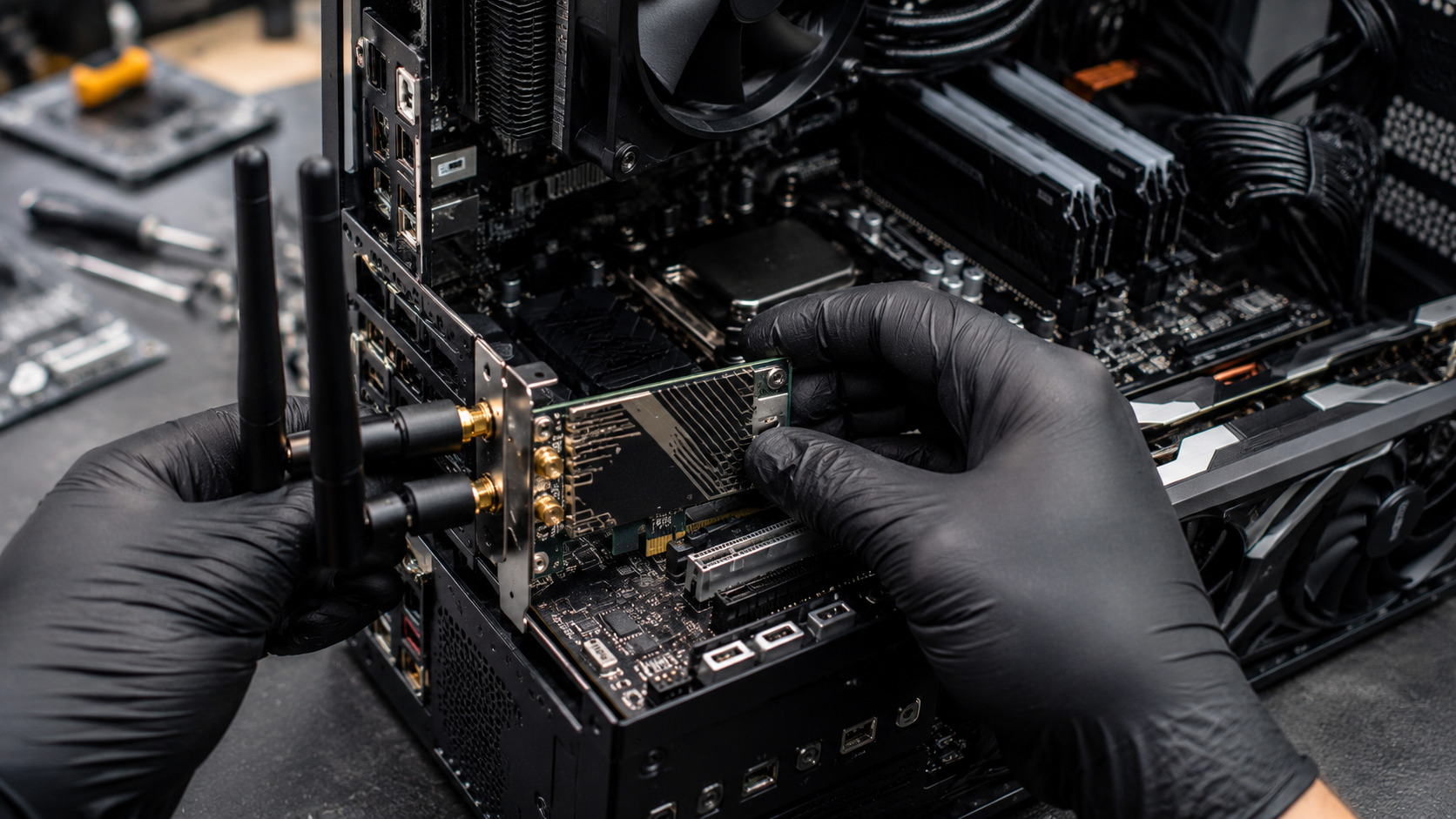
A PCIe Wi-Fi card is one of the easiest upgrades for improving wireless connectivity on a desktop PC. However, installation isn't always as simple as plugging in the card and powering on the system. Driver conflicts, BIOS settings, disabled PCIe slots, and onboard network adapter issues can prevent the new card from working properly. In some cases, the onboard LAN adapter may continue to cause network conflicts even after the Wi-Fi card is installed. Understanding the correct installation process and troubleshooting common networking issues can help ensure a smooth upgrade and reliable wireless performance.
What Problem Is the Customer Facing?
After installing a PCIe Wi-Fi card, users may encounter:
- Wi-Fi card not detected
- No wireless networks appearing
- Driver installation failures
- Slow or unstable connections
- Network conflicts between LAN and Wi-Fi adapters
- Internet disconnecting randomly
- Windows preferring Ethernet over Wi-Fi
- Onboard LAN causing connection issues
These problems can make a simple upgrade frustrating and prevent the Wi-Fi card from operating correctly.
Why Does It Happen?
1. Missing or Incorrect Drivers
Many Wi-Fi cards require manufacturer-specific drivers for full functionality.
2. PCIe Slot Issues
A faulty, disabled, or improperly seated PCIe card can prevent detection.
3. Antennas Not Connected
External antennas are critical for signal strength and wireless stability.
4. BIOS Configuration Problems
Some motherboards may require network adapter settings adjustments.
5. Onboard LAN Conflicts
Windows may prioritize the onboard Ethernet controller over the new wireless adapter.
6. Outdated Operating System
Older operating systems may not support newer Wi-Fi chipsets.
7. Improper Card Installation
A loose PCIe card can cause intermittent detection issues.
How Can Customers Identify the Issue?
Common symptoms include:
- Wi-Fi adapter missing from Device Manager
- No wireless network option in Windows
- Limited or no internet access
- Frequent disconnections
- Slow wireless speeds
- Yellow warning icons in Device Manager
- Ethernet connection overriding Wi-Fi
Step-by-Step PCIe Wi-Fi Card Installation
Step 1: Power Off the PC
Disconnect power completely before opening the case.
Step 2: Install the Wi-Fi Card
Insert the card firmly into an available PCIe x1 or compatible slot.
Step 3: Secure the Bracket
Use the mounting screw to prevent movement.
Step 4: Attach External Antennas
Proper antenna installation is essential for strong wireless reception.
Step 5: Install Drivers
Download and install the latest drivers from the manufacturer's website.
Step 6: Restart the System
Verify that Windows detects the adapter correctly.
How to Disable Onboard LAN
Method 1: Device Manager
- Open Device Manager
- Expand "Network Adapters"
- Locate the onboard Ethernet controller
- Right-click and select Disable Device
Method 2: BIOS/UEFI Settings
- Enter BIOS during startup
- Navigate to Integrated Peripherals or Onboard Devices
- Locate Onboard LAN Controller
- Set it to Disabled
- Save and restart
Disabling the onboard LAN can prevent adapter conflicts and simplify network management.
Visual Signs During Inspection
Loose PCIe Card
The card may not sit fully inside the PCIe slot.
Missing Antennas
Many connectivity complaints result from forgotten antenna installation.
Damaged PCIe Contacts
Physical damage can prevent proper communication.
Bent Brackets
Improper installation can stress the card and motherboard slot.
Diagnostic Process Used by Technicians
A professional diagnosis typically includes:
- Physical inspection of the Wi-Fi card
- PCIe slot testing
- Driver verification
- Device Manager analysis
- BIOS network configuration checks
- Signal strength testing
- Network performance benchmarking
Possible Solutions
Reinstall the Card
Ensure proper seating and secure mounting.
Update Drivers
Install the latest manufacturer-approved drivers.
Disable Conflicting Adapters
Disable unused onboard LAN adapters when necessary.
Update BIOS
Motherboard firmware updates can improve compatibility.
Replace Faulty Hardware
Damaged cards or PCIe slots may require replacement.
Why Choose Guru Computer Solution?
1.Certified Technicians
Experienced in desktop networking upgrades and diagnostics.
2.Professional Installation
Proper PCIe card installation and configuration.
3.Advanced Troubleshooting
Accurate diagnosis of hardware and software conflicts.
4.Warranty Support
Reliable service backed by warranty.
5.Affordable Pricing
Cost-effective networking upgrade solutions.
Conclusion
Installing a PCIe Wi-Fi card is a great way to add or upgrade wireless connectivity, but driver issues, BIOS settings, and onboard LAN conflicts can sometimes create unexpected problems. Proper installation, correct driver configuration, and disabling unnecessary network adapters can help ensure stable and reliable wireless performance.
If your desktop isn't detecting a newly installed Wi-Fi card or you're experiencing networking conflicts, Guru Computer Solution can provide professional installation, diagnostics, and troubleshooting services to get your system connected and performing at its best.





