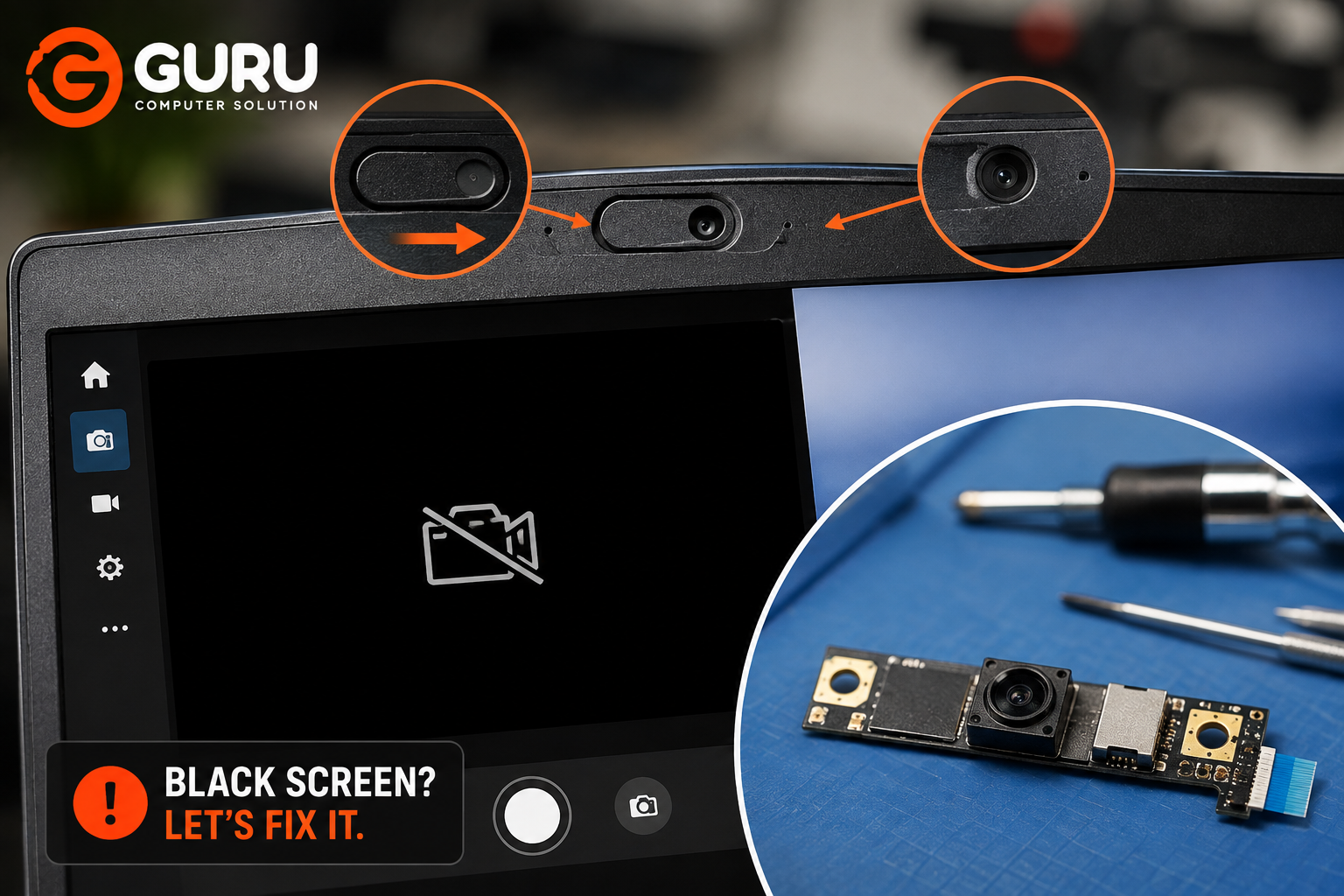
You open Zoom, Google Meet, Microsoft Teams, or the Windows Camera app, expecting to see yourself—but the laptop camera shows nothing except a black screen.
Before assuming that your webcam is dead, don't rush to replace the camera or, worse, the entire display.
A laptop camera that shows a black screen can be caused by something as simple as a physical privacy shutter or Windows permission. It can also result from a driver problem, another application using the webcam, a loose internal cable, a damaged camera module, or a hardware fault.
The good news is that many laptop camera problems can be diagnosed without immediately replacing expensive parts.
This guide explains how to troubleshoot a laptop camera not working, what you can safely check yourself, when the problem is likely hardware-related, and when professional laptop camera repair in Kathmandu makes sense.
Why Is My Laptop Camera Showing a Black Screen?
A black camera screen doesn't necessarily mean the webcam has failed.
The most common causes include:
- Physical privacy shutter is closed
- Camera privacy settings are disabled
- Camera permissions are blocked
- Another application is using the webcam
- Camera driver is corrupted or incompatible
- Windows isn't detecting the camera correctly
- Camera cable is loose or damaged
- Webcam module has failed
- Hinge damage has affected the internal cable
- Display assembly has been damaged
- Motherboard-side camera circuitry has a problem
The easiest way to diagnose the problem is to work from the simplest and cheapest possibilities toward the more complicated hardware causes.
That means you shouldn't start by buying a replacement webcam.
First Check the Tiny Privacy Shutter on Your Laptop
One of the easiest causes of a black laptop camera is also one that many users overlook: the physical privacy shutter.
Some laptops have a tiny sliding mechanism directly over the webcam. When the shutter is closed, it physically blocks the camera lens.
Your laptop may still detect the webcam correctly, but the image will appear completely black.
Look closely at the webcam area at the top of your laptop display.
You may find:
- A small slider
- A plastic camera cover
- A tiny switch
- A physical lens blocker
Move the shutter to the open position and test the camera again.
If the camera immediately starts working, your webcam was never broken in the first place.
This is why checking the privacy shutter should be one of the first steps whenever a laptop camera suddenly shows a black screen.
How to Open a Laptop Camera Privacy Shutter
If your laptop has a physical privacy shutter, opening it is usually straightforward.
- Open your laptop display.
- Locate the webcam above the screen.
- Look for a small slider or cover around the camera.
- Move the shutter away from the camera lens.
- Open the Windows Camera application.
- Check whether the camera image appears.
Don't force the shutter if it doesn't move easily. Different laptop models use different mechanisms, and forcing a damaged shutter can make the problem worse.
Also remember that not every laptop has a physical privacy shutter. Some models use a keyboard key or software-based privacy control instead.
Does Your Laptop Have a Camera Privacy Key Instead?
Some laptops don't have a physical shutter. Instead, the manufacturer may provide a dedicated camera privacy key.
Depending on the laptop, it could be:
- A dedicated camera button
- An Fn-key combination
- A keyboard key with a camera icon
- A privacy-control button
- Manufacturer-specific privacy software
If you accidentally press the camera privacy key, the webcam may stop functioning even though the hardware is completely healthy.
Look at your keyboard for a key showing a camera icon, crossed-out camera, or privacy symbol.
The exact shortcut depends on the laptop manufacturer and model.
Check Windows Camera Privacy Settings
If the physical shutter is open, the next thing to check is Windows' camera privacy settings.
Windows allows users to control which applications can access the camera. If camera access is disabled, an application may open but show no usable camera image.
Check your Windows privacy settings and make sure:
- Camera access is enabled
- Apps are allowed to access the camera
- Desktop applications are allowed to access the camera
This is especially important if the webcam works in one application but doesn't work in another.
For example, if the camera works in the Windows Camera app but doesn't work in Google Meet, the problem may be with the browser or application permissions rather than the webcam itself.
Why Your Camera Works in Zoom but Shows a Black Screen in Another App
Sometimes the webcam isn't actually broken—the application is simply not accessing it correctly.
For example, your laptop camera may work in Zoom but appear black in another application.
Possible causes include:
- Wrong camera selected
- Application permissions
- Browser permissions
- Another application using the webcam
- Application-specific configuration
- Temporary software errors
Test your webcam using another application.
If it works somewhere else, you have already learned something important:
The camera hardware is probably functioning.
You should troubleshoot the application before considering hardware replacement.
Can Another Application Block Your Laptop Camera?
Yes.
Applications such as Zoom, Microsoft Teams, Google Meet, Discord, and browser tabs can access your webcam.
Occasionally, another application may continue using the camera, preventing another program from accessing it correctly.
If your camera shows a black screen:
- Close video-conferencing applications.
- Close browser tabs using the camera.
- Close other webcam-related applications.
- Restart the laptop.
- Test the camera again.
This simple step can sometimes resolve what appears to be a serious webcam problem.
Check Whether Windows Detects Your Laptop Camera
If the camera is still not working, check whether Windows can actually detect the webcam.
Device Manager can provide an important clue.
If the camera appears normally, Windows can at least communicate with the device.
If it appears with a warning symbol, there may be a driver or device problem.
If the camera doesn't appear at all, possible causes include:
- Missing driver
- Disabled camera
- Privacy configuration
- Loose camera cable
- Failed webcam module
- Hardware problem
- BIOS-related configuration
A missing camera doesn't automatically prove that the webcam is physically dead, but it makes further diagnosis necessary.
Can a Camera Driver Cause a Black Screen?
Yes.
The camera relies on software drivers to communicate with Windows. If the driver is corrupted, incompatible, missing, or malfunctioning, the camera may not work correctly.
Driver problems can occur after:
- Windows updates
- Driver updates
- Windows reinstallation
- Operating-system upgrades
- Incorrect driver installation
You can check the camera through Device Manager and troubleshoot the driver.
For laptops with manufacturer-specific camera hardware, using the appropriate driver from the laptop manufacturer's official support resources is generally safer than downloading random drivers from third-party websites.
Why Your Laptop Camera May Stop Working After a Windows Update
A laptop camera can sometimes stop functioning after an operating-system update.
That doesn't necessarily mean the webcam suddenly failed physically.
An update can affect:
- Camera drivers
- Privacy settings
- Device compatibility
- Application permissions
- Camera software
If your camera worked yesterday and stopped immediately after a major Windows update, start with software troubleshooting before opening the laptop.
Check the privacy settings, camera detection, and driver status first.
What If the Camera Is Still Black After All Software Checks?
This is where the diagnosis changes.
If:
- The privacy shutter is open
- Camera permissions are enabled
- Multiple applications show a black screen
- Windows isn't detecting the camera correctly
- Driver troubleshooting hasn't helped
then a hardware problem becomes more likely.
Possible hardware faults include:
- Loose camera connector
- Damaged webcam cable
- Failed camera module
- Damage around the display assembly
- Hinge-related cable damage
- Motherboard-side fault
At this point, repeatedly reinstalling drivers isn't likely to fix a physically damaged component.
Can a Loose Camera Cable Cause a Black Screen?
Yes.
The webcam communicates with the laptop's motherboard through internal wiring and connectors.
If the cable becomes loose or damaged, the camera may:
- Stop working completely
- Work intermittently
- Disappear from Windows
- Show a black screen
- Stop working after the laptop is moved
Cable problems can occur after:
- Laptop screen replacement
- Previous repair
- Physical impact
- Hinge damage
- Repeated display movement
- Incorrect internal cable routing
In some cases, the actual webcam is perfectly healthy—the connection to it is the problem.
That's why replacing the camera without checking the cable can waste money.
Can a Broken Laptop Hinge Damage the Camera Cable?
It can.
Laptop displays move thousands of times throughout their useful life, and cables are routed through or around the display and hinge assembly.
If a hinge is damaged, excessively tight, broken, or incorrectly repaired, it can place additional stress on internal cables.
You may notice other symptoms alongside the camera problem, such as:
- Screen flickering
- Display problems
- Camera working intermittently
- Camera stopping when the display angle changes
- Cracks around the hinge
- Unusual resistance when opening the laptop
If the camera stopped working after a hinge or screen repair, the display assembly and cable routing deserve particular attention.
How Do You Know If the Laptop Camera Module Is Actually Dead?
A failed webcam module is only one possible explanation.
The camera module becomes more suspicious when:
- The privacy shutter is open
- Windows permissions are correct
- Multiple applications fail
- Drivers have been checked
- The camera isn't detected properly
- The cable and connector have been inspected
- There are no obvious software causes
A technician can test the camera hardware and determine whether the module itself needs replacement.
This distinction matters because replacing a working camera won't fix a broken cable or motherboard connector.
Laptop Camera Cable Repair vs Camera Module Replacement
When a laptop camera stops working, the problem may not be the camera module itself. A loose or damaged camera cable or connector can cause a black screen, intermittent camera operation, or make the webcam disappear completely from Windows. In such cases, repairing or reseating the cable can be a much simpler and more affordable solution than replacing the entire camera module.
However, if the cable, connector, privacy shutter, drivers, and software settings are all working correctly but the webcam still produces a black screen, the camera module itself may have failed and require replacement. This is why proper diagnosis is important before purchasing a replacement part. At Guru Computer Solution, technicians can check the camera, internal cable, connector, and related hardware to identify the actual fault and recommend the appropriate repair rather than replacing a component unnecessarily.
Do You Need to Replace the Laptop Screen if the Camera Stops Working?
Not necessarily.
This is one of the most important things to understand before paying for a laptop repair.
A camera problem does not automatically mean the entire laptop screen needs to be replaced.
Depending on the laptop design, the fault could be limited to:
- Webcam module
- Camera cable
- Connector
- Privacy mechanism
- Display assembly wiring
- Motherboard-side circuitry
If someone immediately recommends an expensive display assembly replacement without diagnosing the actual camera fault, it is reasonable to ask what component has been confirmed defective.
A proper diagnosis can sometimes turn an expensive repair into a much simpler one.
How Technicians Diagnose a Laptop Camera Problem
Professional diagnosis generally starts with the easiest possibilities and works toward the hardware.
A technician may:
- Check the physical privacy shutter.
- Check camera privacy settings.
- Test the camera in multiple applications.
- Check Windows device detection.
- Inspect the camera driver.
- Determine whether the webcam is detected.
- Inspect the camera connector.
- Inspect the internal camera cable.
- Check the display and hinge assembly.
- Test the camera module.
- Check motherboard-side connections when necessary.
- Recommend repair or replacement based on the actual fault.
The goal isn't simply to make the camera work by replacing random parts.
The goal is to identify what actually failed.
How Much Does Laptop Camera Repair Cost in Kathmandu?
There isn't one universal laptop camera repair price.
The cost depends on the cause.
A software or privacy-setting problem may require no hardware replacement at all.
A loose connector may be relatively inexpensive to fix, while a proprietary webcam module, display assembly, or motherboard-level problem can cost considerably more.
The final cost can depend on:
- Laptop brand
- Laptop model
- Camera design
- Cable availability
- Camera module availability
- Display assembly design
- Type of hardware failure
- Availability of genuine replacement parts
For this reason, a diagnosis should ideally happen before quoting a final repair price.
Why Choose Guru Computer Solution for Laptop Camera Repair in Kathmandu?
Guru Computer Solution
A laptop camera problem shouldn't automatically turn into an expensive replacement.
At Guru Computer Solution, the useful approach is to diagnose the problem before recommending the repair.
Depending on the laptop and fault, professional diagnosis can cover:
- Camera troubleshooting
- Privacy shutter inspection
- Camera permission and software diagnosis
- Driver-related problems
- Internal camera cable inspection
- Connector problems
- Webcam module replacement
- Display assembly inspection
- Hinge-related cable problems
- Motherboard-level diagnosis where required
The goal is simple:
Repair the part that's actually causing the problem—not the part that isn't broken.
Fix the Privacy Shutter, Software, Cable, or Camera—Not What Isn't Broken
A black laptop camera screen can be frustrating, especially when you need the webcam for an online meeting, class, interview, or business call.
But don't assume that a black screen means you need a new webcam.
Start with the simple checks:
Privacy shutter → camera permissions → application → driver → Windows detection → cable → camera module.
If the camera starts working after opening a privacy shutter or changing a Windows setting, you've saved yourself a repair bill.
If the problem continues after the basic checks, professional diagnosis can determine whether you're dealing with a loose cable, damaged connector, failed webcam module, display-related problem, or motherboard fault.
For laptop camera problems in Kathmandu, bring the laptop to Guru Computer Solution for diagnosis before spending money on unnecessary parts.
Frequently Asked Questions
What should I do if my laptop camera shows a black screen?
First check the physical privacy shutter, camera permissions, application settings, and whether another application is using the webcam. If the camera remains black across multiple applications, investigate the driver and hardware.
How do I open my laptop camera privacy shutter?
Look for a small physical slider or cover around the webcam at the top of the display. Move it away from the lens. Don't force it if it doesn't move.
Does every laptop have a physical camera shutter?
No. Some laptops use physical shutters, while others use keyboard keys or software-based privacy controls.
Why is my laptop camera not working even when the shutter is open?
Possible causes include Windows permissions, driver problems, application conflicts, a loose cable, damaged connector, or a failed camera module.
Why does my camera work in Zoom but not the Camera app?
The webcam may be functioning correctly. Check which camera is selected and review the application's camera permissions and settings.
Can a camera driver cause a black screen?
Yes. A corrupted, missing, or incompatible driver can prevent Windows from communicating properly with the webcam.
How do I know if Windows detects my webcam?
Check Windows' device management tools for the camera. If it appears normally, the system is detecting the hardware. If it is missing or has an error, further software or hardware diagnosis may be required.
Can a loose cable cause a laptop camera to stop working?
Yes. A loose or damaged internal camera cable can cause a black screen, intermittent camera operation, or complete camera detection failure.
Can a broken laptop hinge damage the camera cable?
It can. Hinge damage or incorrect cable routing can put stress on cables in the display assembly and potentially cause camera or display problems.
Does a broken camera require a new laptop screen?
Not necessarily. The problem may be limited to the webcam, cable, connector, or another component. The actual fault should be diagnosed before replacing the display assembly.
Can you replace only the laptop camera?
On many laptop models, the webcam module can be replaced separately. However, the exact repair depends on the laptop's design.
How much does laptop camera repair cost in Kathmandu?
The cost depends on whether the problem is software, a connector, cable, webcam module, display assembly, or motherboard-related. A diagnosis is the best way to determine the actual repair cost.
How long does laptop camera repair take?
Simple software or connector problems may be resolved quickly. Hardware repairs depend on the laptop model, required part, and availability of replacement components.
Do you repair laptop cameras after liquid damage?
A liquid-damaged laptop requires broader inspection because corrosion or damage can affect the webcam, cables, connectors, and motherboard. The repair should be based on the actual affected components.
What laptop brands do you repair?
Laptop camera troubleshooting and repair can be performed across many brands, including Dell, HP, Lenovo, ASUS, Acer, MSI, and Apple MacBook, depending on the model and availability of appropriate parts.
Can Guru Computer Solution repair laptop webcam problems?
Yes. Guru Computer Solution can diagnose laptop webcam problems and determine whether the issue is related to software, privacy settings, cables, connectors, the camera module, display assembly, or motherboard hardware.
When should I bring my laptop for camera repair?
If the privacy shutter is open, permissions are enabled, multiple applications show a black screen, and basic driver troubleshooting hasn't solved the problem, it's time for professional diagnosis. This can help prevent unnecessary replacement of the webcam or entire screen.





