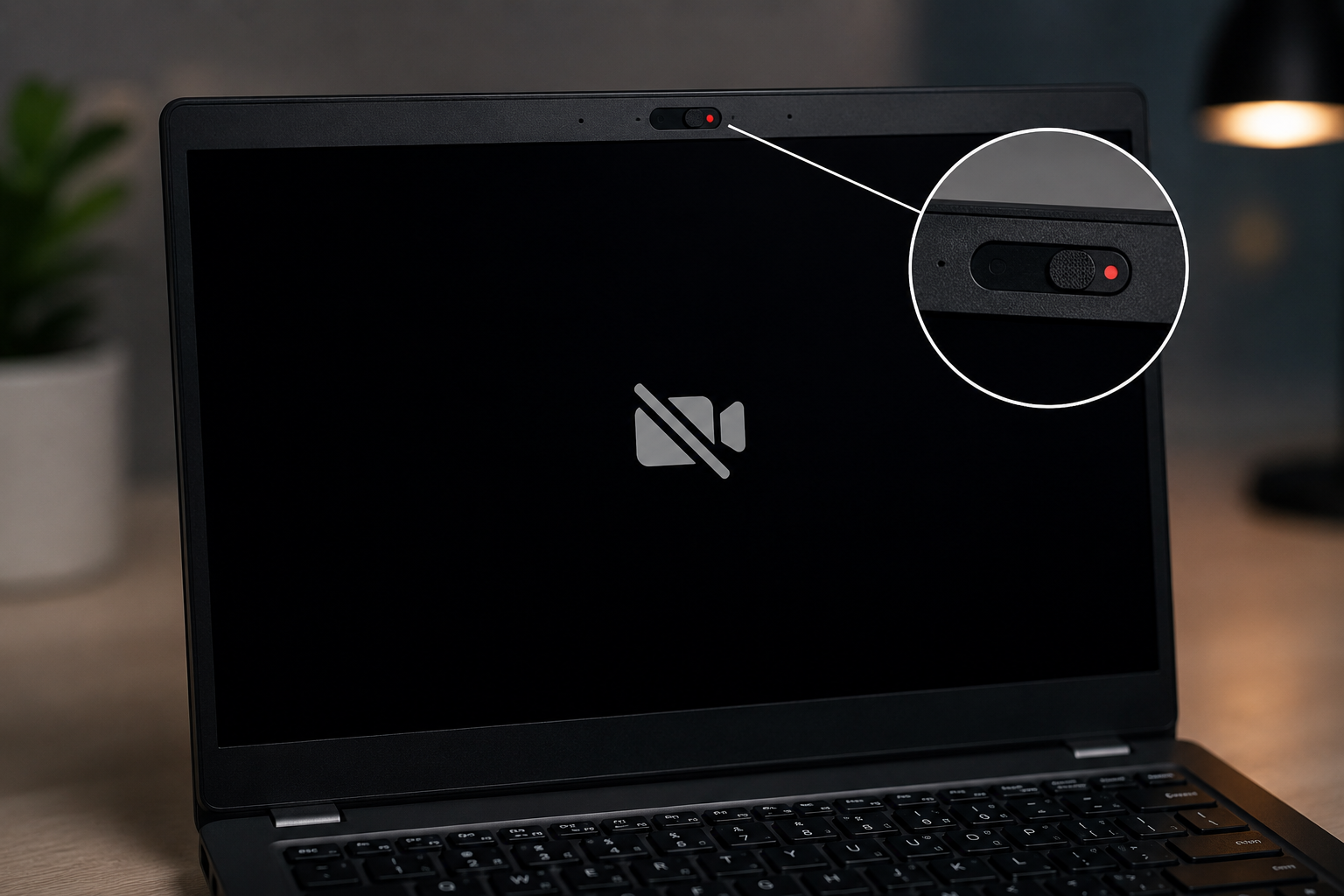
A laptop camera showing a black screen can be frustrating when you're trying to join a video meeting, attend an online class, or make a video call. Although the camera may appear completely dead, the problem is not always a hardware failure. A physical privacy shutter, camera privacy setting, disabled driver, application permission, loose camera cable, or faulty webcam module can all cause similar symptoms.
Before replacing the camera, it's important to identify whether the issue is caused by software or hardware. In this guide, we'll explain the common reasons behind a black laptop camera, how to check the privacy shutter and camera settings, and when professional hardware repair may be necessary.
At Guru Computer Solution, our technicians diagnose laptop camera problems from the software level through the camera module, display cable, and motherboard connections to provide the right repair without unnecessary part replacement.
Problem
A laptop's built-in webcam may show a completely black screen when opened in the Camera app, Zoom, Google Meet, Microsoft Teams, or another video application. Sometimes the application detects the camera but displays no image. In other cases, Windows may show an error such as "Camera not found" or "We can't find your camera."
The issue can be caused by something as simple as a closed privacy shutter or disabled camera permission, but it can also indicate a damaged webcam module or internal camera cable. Proper diagnosis is therefore important before purchasing a replacement camera.
What Problem Is the Customer Facing?
Customers may find that their laptop camera is detected but produces a black image instead of video. The camera indicator may turn on while the screen remains completely black, or the camera may not appear in Windows at all.
The problem may occur suddenly after a Windows update, driver change, privacy setting adjustment, screen repair, or physical impact. Some users also discover that the camera works in one application but not another.
Because the same symptom can come from software, privacy controls, or hardware damage, simply reinstalling Windows or replacing the camera is not always the correct solution.
Root Causes of the Problem
A laptop camera may show a black screen because of:
1. Privacy Shutter Is Closed
Many modern laptops include a physical camera shutter that blocks the webcam lens. If it is closed, the camera may appear completely black even though the hardware is functioning correctly.
2. Camera Privacy Settings Are Disabled
Windows allows users to control camera access for the operating system and individual applications. If camera access is disabled, applications may be unable to display video.
3. Camera Driver Problems
A corrupted, outdated, or incompatible camera driver can prevent Windows from communicating correctly with the webcam.
4. Application Permission Issues
Zoom, Teams, Google Meet, and other applications need permission to access the camera. Incorrect application settings can make the camera appear unavailable or black.
5. Camera Disabled in Device Manager
The webcam may have been disabled in Windows Device Manager. Re-enabling the device can restore normal operation.
6. Loose Camera Cable
The webcam module is connected to the motherboard through a small internal cable. A loose or damaged connection can cause a black screen or intermittent camera failure.
7. Damaged Camera Module
The webcam itself can fail due to age, electrical damage, moisture, or physical impact.
8. Display Hinge or Bezel Damage
Because the webcam cable is commonly routed through the display assembly, previous screen or hinge damage can affect the camera connection.
9. Motherboard Fault
In less common cases, the problem may involve the motherboard's USB or camera circuitry and require board-level diagnosis.
How Can Customers Identify the Issue?
Common symptoms include:
- Camera shows a black screen
- Camera app opens but shows no image
- Camera works intermittently
- "Camera not found" error
- Webcam is missing from Device Manager
- Camera works in one application but not another
- Camera freezes during video calls
- Camera indicator turns on but no image appears
- Camera stopped working after a Windows update
- Webcam stopped working after screen or hinge repair
- Camera works when the laptop lid is positioned at a certain angle
Possible Solutions
1. Check the Privacy Shutter
First, inspect the area around the webcam. If your laptop has a physical privacy slider, make sure it is open and the camera lens is not blocked.
2. Check Windows Camera Permissions
Go to Windows privacy settings and confirm that:
- Camera access is enabled.
- Apps are allowed to access the camera.
- Your video-conferencing application has camera permission.
3. Test the Camera in Another Application
Open the built-in Windows Camera application. If the camera works there but not in Zoom or Teams, the problem is likely related to application settings or permissions rather than the webcam hardware.
4. Check Device Manager
Technicians can check whether the webcam appears under Cameras or Imaging Devices.
If the camera is disabled, enabling it may solve the problem. If it is missing completely, further hardware diagnosis may be required.
5. Update or Reinstall the Camera Driver
A corrupted or incompatible driver can prevent the webcam from working correctly. Installing the correct driver for the laptop model may restore camera functionality.
6. Inspect the Camera Cable
If software troubleshooting doesn't help, the internal camera cable and connector should be inspected for:
- Loose connections
- Broken wires
- Pinching
- Corrosion
- Damage around the hinge
7. Replace the Webcam Module
If the cable and software are functioning correctly but the camera still produces a black screen, the camera module itself may need replacement.
8. Perform Motherboard-Level Diagnosis
If a known-good camera and cable also fail, technicians may inspect the motherboard's camera/USB circuitry for damaged components or connection faults.
Why Choose Guru Computer Solution?
1. Certified Technicians
Our technicians diagnose camera problems from software settings to internal hardware connections.
2. Genuine Parts
When replacement is necessary, we use compatible, high-quality webcam modules and cables.
3. Fast Turnaround
Camera diagnostics and many webcam replacements can be completed quickly, depending on the laptop model and parts availability.
4. Warranty Support
Eligible repairs and replacement components come with warranty support.
5. Affordable Pricing
We diagnose the actual cause first, helping you avoid unnecessary camera, display, or motherboard replacement.





