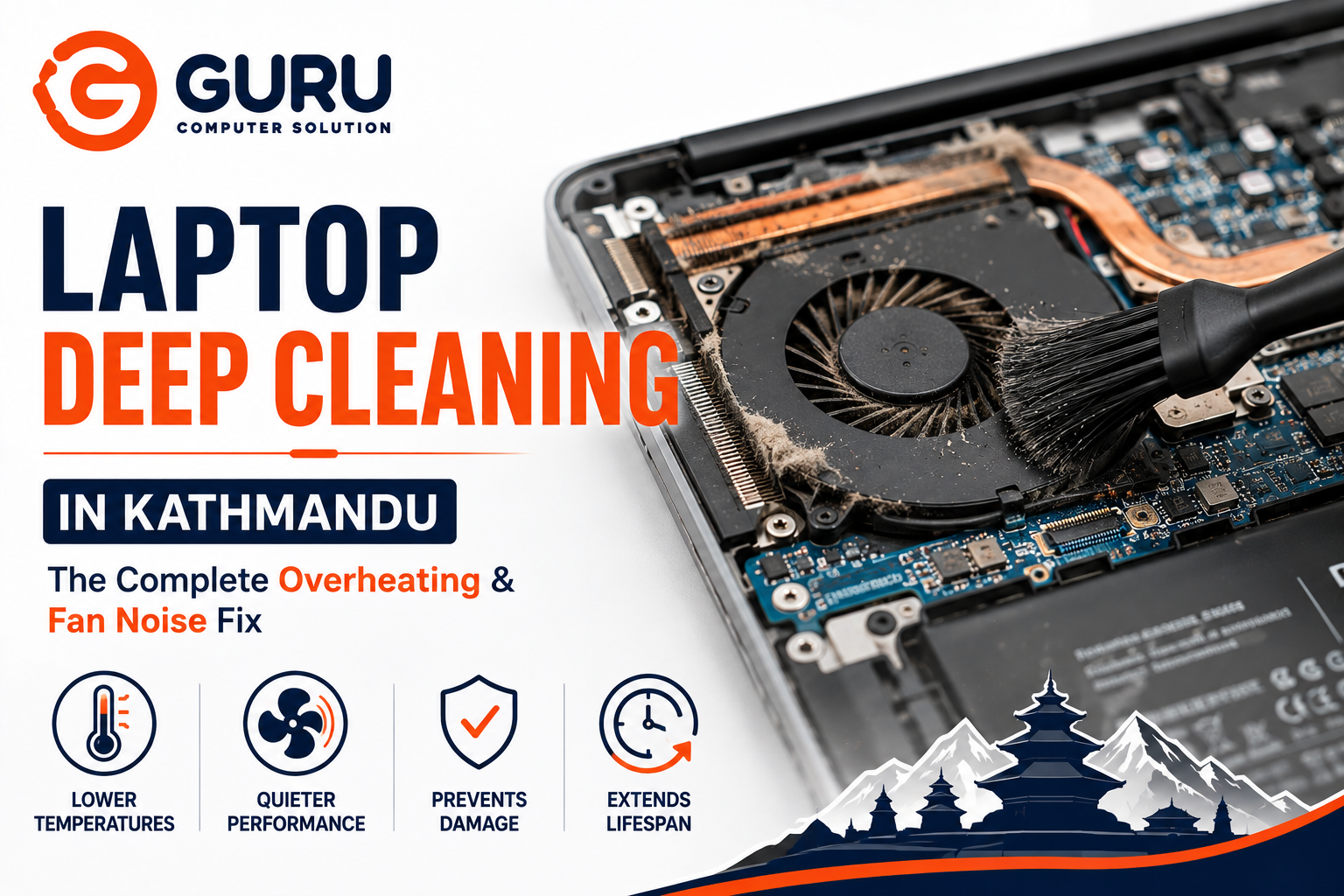
A laptop that's suddenly loud, hot, or sluggish usually hasn't developed a mysterious new fault — it's telling you it needs a deep clean. Dust buildup is one of the most common, most preventable causes of overheating and fan noise, and it's also one of the easiest to fix properly once you understand what's actually happening inside the machine.
Why Laptop Deep Cleaning Is Essential for Long-Term Performance
Laptops are sealed, compact systems with limited internal airflow to begin with. Over months of normal use, dust and debris steadily accumulate in the vents, fans, and heatsink fins — the exact components responsible for moving heat out of the machine. Regular professional laptop cleaning isn't just about tidiness; it directly protects performance, extends the lifespan of internal components, and prevents the kind of preventive laptop care neglect that eventually turns into a repair bill.
How Dust Causes Laptop Overheating and Loud Fan Noise
A laptop's cooling system relies on a straightforward principle: fans pull cool air in, direct it across the CPU/GPU heatsink, and push heated air back out through the exhaust vents. Dust buildup interrupts this process at nearly every stage.
Blocked cooling vents restrict how much air can enter or exit the system, reducing overall airflow even if the fan itself is working perfectly.
Dust-clogged heatsink fins reduce the surface area available for heat transfer, meaning the same fan speed removes less heat than it should.
Laptop thermal issues compound over time — as internal temperatures rise, fans spin faster to compensate, which is exactly why a dusty laptop often sounds louder before it starts showing other overheating symptoms.
The result is a laptop working harder to achieve less cooling, which shows up as both rising temperatures and rising fan noise long before any component actually fails.
Common Signs Your Laptop Needs a Professional Deep Cleaning
Laptop overheating symptoms:
- The chassis feels noticeably hot, particularly near the vents or underside
- Performance drops during demanding tasks (thermal throttling)
- The system shuts down unexpectedly under load
Loud laptop fan behavior:
- Fans running at high speed even during light tasks like browsing
- A whirring or grinding noise that wasn't present when the laptop was new
- Fan noise that doesn't settle down even after the workload finishes
Slow laptop performance:
- General sluggishness that improves temporarily after a restart but returns quickly
- Programs taking longer to open than they used to
Excessive heat and other maintenance warning signs:
- Warm air from the exhaust vent feels stronger or hotter than usual
- Visible dust visible at the vent openings when you look closely
If more than one of these signs is present at the same time, dust buildup restricting airflow is very often the underlying cause.
What Happens During a Professional Laptop Deep Cleaning Service?
A proper laptop internal cleaning goes well beyond wiping the exterior or blowing compressed air into the vents from outside — most accumulated dust sits deeper inside the chassis than external air alone can reach.
The typical process includes:
- Full disassembly to access the fan, heatsink, and internal vents directly, rather than cleaning blind through external openings
- Laptop fan cleaning — removing dust and debris built up on the fan blades and housing, which affects both airflow and noise
- Heatsink cleaning — clearing dust from the heatsink fins where heat transfer actually happens, since this is the area most affected by long-term buildup
- Motherboard dust cleaning — carefully clearing dust from the surrounding board and components using appropriate tools, not just compressed air, to avoid static or physical damage
- Thermal paste replacement where needed (covered in more detail below)
- Reassembly and testing under load to confirm temperatures and fan behavior have actually improved before the laptop is returned
Why Replacing Thermal Paste Is Important During Deep Cleaning
Thermal paste replacement is a key part of any thorough deep cleaning, not an optional add-on. The paste between the CPU/GPU and their heatsinks is what actually transfers heat away from the chip — and over time, this compound dries out and loses effectiveness, regardless of how clean the surrounding vents and fans are.
Why this matters even after a full cleaning:
- Degraded CPU thermal paste can leave a chip running hot even with perfectly clean vents and fans
- GPU thermal paste degrades on the same timeline and is just as easily overlooked, especially on laptops where the GPU sits under a separate section of the cooling assembly
- Restoring proper thermal paste often produces a more noticeable improvement in laptop cooling performance than cleaning dust alone, particularly on laptops that are 2+ years old
Skipping this step during a deep clean is one of the most common reasons a laptop still runs warm shortly after an otherwise thorough cleaning.
Risks of Ignoring Laptop Overheating and Fan Noise
Treating overheating or fan noise as background annoyance rather than a maintenance signal carries real risk over time:
CPU throttling becomes more frequent and more aggressive, meaning the laptop delivers less performance than its hardware is actually capable of.
Laptop shutdown issues develop as internal temperatures repeatedly hit protective thresholds, interrupting work at increasingly inconvenient moments.
Motherboard overheating from sustained high temperatures can accelerate wear on surrounding components, not just the CPU and GPU themselves.
Hardware failure becomes a realistic long-term outcome — sustained thermal stress shortens the effective lifespan of components that would otherwise last considerably longer under normal operating temperatures.
A dust-related overheating issue caught early is almost always a straightforward cleaning job. Left unaddressed for months or years, it can contribute to genuine component-level hardware failure.
DIY Laptop Cleaning vs Professional Deep Cleaning: What's the Difference?
DIY laptop cleaning typically means compressed air through external vents without opening the chassis. This can offer modest, temporary relief by clearing the most accessible dust, but it doesn't reach the fan blades, heatsink fins, or areas deeper inside the system where the most performance-affecting buildup accumulates. It also doesn't address degraded thermal paste at all.
Professional laptop cleaning involves full disassembly, direct cleaning of the fan and heatsink, thermal paste replacement where needed, and testing under load to confirm the fix actually worked — not just assuming it did.
The practical difference: DIY cleaning can delay symptoms temporarily; professional deep cleaning addresses the actual accumulated buildup and aging thermal compound causing them. For a laptop already showing clear overheating or fan noise symptoms, DIY cleaning alone is unlikely to fully resolve the underlying cause.
How Often Should You Deep Clean Your Laptop?
Laptop cleaning frequency depends on usage pattern and environment:
General office laptop maintenance: roughly once every 12 months for typical use in a relatively clean indoor environment.
Gaming laptop cleaning: every 6–9 months, since gaming laptops run hotter and their higher fan speeds tend to pull in more dust over the same period compared to lighter-use laptops.
Dusty environments: homes or offices with higher ambient dust, pets, or construction nearby may need cleaning closer to every 6 months regardless of laptop type.
Waiting until symptoms are already obvious means dust has had significant time to accumulate — a proactive schedule catches buildup before it noticeably affects performance.
Why Choose Guru Computer Solution for Laptop Deep Cleaning in Kathmandu?
At Guru Computer Solution, our laptop repair experts perform complete, disassembly-based deep cleaning rather than surface-level servicing. We understand that overheating and fan noise are symptoms with a specific, fixable cause, and we address that cause directly rather than offering a temporary fix.
Our laptop deep cleaning Kathmandu service includes:
- Full disassembly and internal fan and heatsink cleaning
- Thermal paste replacement using proper compound, not a generic substitute
- Motherboard dust cleaning using safe, appropriate tools
- Post-service testing under load to confirm temperature and noise improvement
- Chip-level repair capability if cleaning reveals additional underlying damage
Keep Your Laptop Cool, Quiet, and Fast with Professional Deep Cleaning
An overheating, noisy laptop isn't something to work around — it's a maintenance need with a clear, addressable cause. Professional deep cleaning restores the airflow and heat transfer your laptop was designed to have, protecting both its performance today and its component lifespan going forward.
Frequently Asked Questions
What Is Laptop Deep Cleaning?
Laptop deep cleaning is a professional laptop maintenance service involving full disassembly to clean internal components — fans, heatsinks, vents, and surrounding areas — that external cleaning methods can't reach, often paired with thermal paste replacement.
How Does Dust Cause Laptop Overheating?
Dust accumulates in vents, fan blades, and heatsink fins, restricting airflow and reducing the surface area available for heat transfer. This causes internal temperatures to rise even though the cooling system is otherwise functioning normally.
Why Is My Laptop Fan So Loud?
Loud laptop fan noise usually means the fan is compensating for reduced cooling efficiency, most often caused by dust buildup restricting airflow. The fan spins faster to try to maintain normal operating temperature.
Can Deep Cleaning Improve Laptop Performance?
Yes. Removing airflow-restricting dust and replacing degraded thermal paste reduces thermal throttling, allowing the CPU and GPU to sustain higher performance for longer during demanding tasks.
Does Deep Cleaning Include Thermal Paste Replacement?
A thorough deep cleaning service should include thermal paste replacement where needed, since dried, degraded paste is a common cause of ongoing heat issues even after the surrounding components are cleaned.
How Often Should I Get My Laptop Professionally Cleaned?
Roughly every 12 months for typical office use, and every 6–9 months for gaming laptops or laptops used in dustier environments.
Can Gaming Laptops Benefit from Deep Cleaning?
Yes, often more than typical laptops. Gaming laptop cleaning is particularly important since these systems run hotter and their fans pull in dust faster due to higher average fan speeds.
Is Laptop Deep Cleaning Safe?
When performed by an experienced technician using proper tools and anti-static precautions, deep cleaning is safe and carries minimal risk. It's generally safer for the laptop's long-term health than continuing to run it in an overheating state.
How Long Does a Laptop Deep Cleaning Service Take?
Most laptop deep cleaning services can be completed same-day, though exact timing depends on the specific model's disassembly complexity and whether thermal paste replacement or additional issues are involved.
How Much Does Laptop Deep Cleaning Cost in Kathmandu?
Laptop deep cleaning cost in Kathmandu varies depending on the laptop model and whether thermal paste replacement is included. Contact Guru Computer Solution directly for a specific quote based on your laptop's make and model.
Can Deep Cleaning Prevent Future Laptop Repairs?
Yes. Addressing dust buildup and degraded thermal paste proactively reduces the sustained thermal stress that contributes to component wear, helping avoid more serious hardware failures down the line.
What Laptop Brands Do You Clean?
We service all major brands, including Dell, HP, Lenovo, ASUS, Acer, MSI, and Apple MacBook laptops.
When Should I Bring My Laptop to Guru Computer Solution?
Bring your laptop in as soon as you notice consistent overheating, unusually loud fan noise, or performance drops during normal use — catching dust-related issues early typically means a simpler, faster, and less expensive service.