You plug your laptop into the office projector or your bedroom TV, and — nothing. No signal, no display, just a blank screen staring back at you. A dead HDMI port is one of the most frustrating laptop problems in Kathmandu, because it usually shows up right when you need to present, stream, or connect to an external monitor. The good news: it's rarely as serious as it feels, and there's almost always a fix that doesn't involve buying a new laptop.
What Problem Is the Customer Facing?
A laptop HDMI port that suddenly stops working can be frustrating, especially when you rely on an external monitor, TV, projector, or digital display for work, study, gaming, or presentations. Instead of extending your desktop or mirroring your screen, the external display may show a "No Signal" message, remain completely black, or fail to detect the laptop altogether. In some cases, the display may connect intermittently, flicker continuously, or disconnect whenever the HDMI cable is slightly moved.
Many users assume the HDMI port itself is damaged, but the actual problem can originate from several different components. A faulty HDMI cable, outdated graphics driver, incorrect display settings, damaged HDMI connector, failed HDMI controller IC, graphics chip malfunction, or even a motherboard circuit failure can all produce similar symptoms. Because these issues appear almost identical, replacing random parts without proper diagnosis often leads to unnecessary expenses and does not solve the problem.
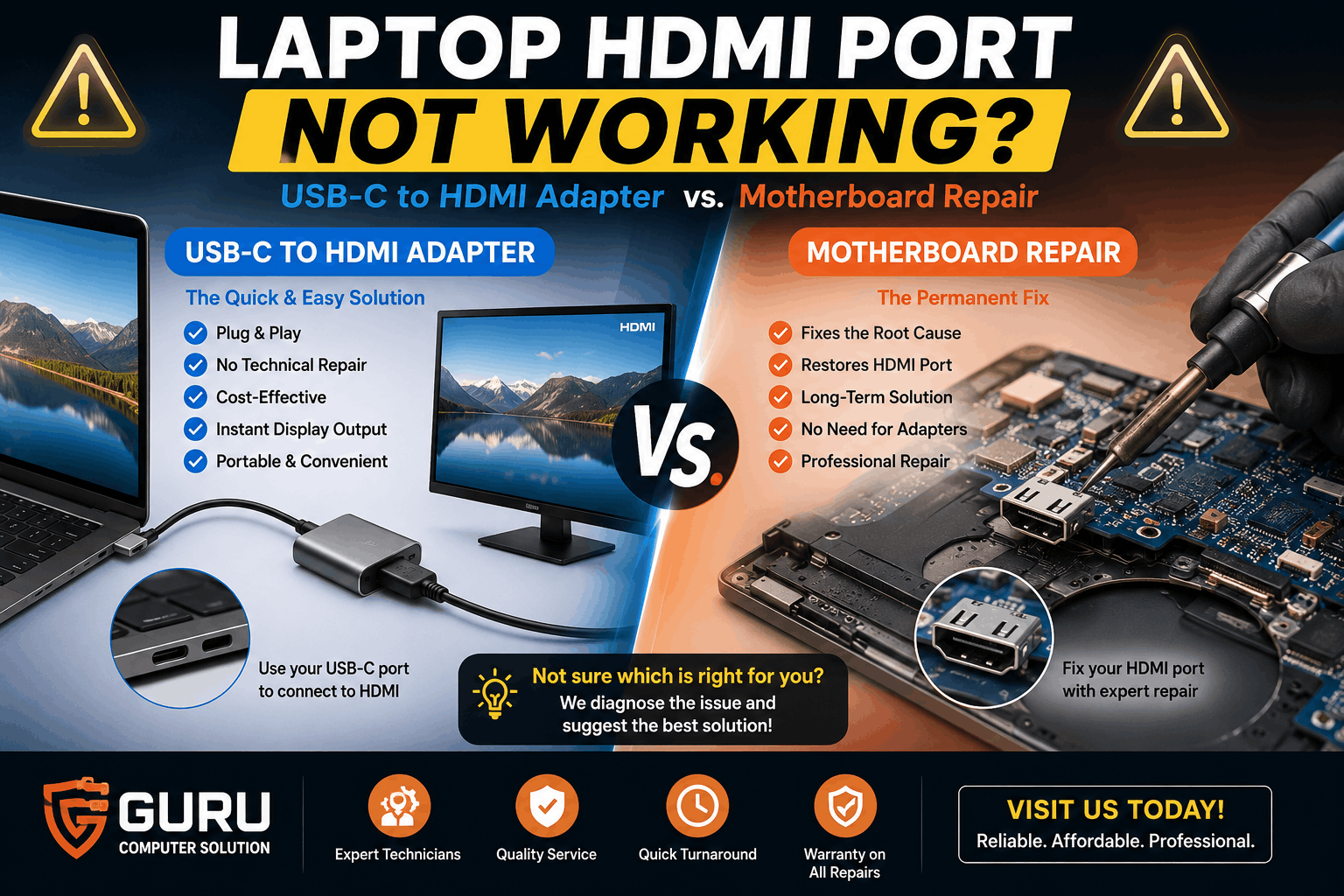
For laptops equipped with USB-C ports that support DisplayPort Alt Mode or Thunderbolt, a USB-C to HDMI adapter may provide a temporary or alternative display output if only the physical HDMI port is damaged. However, if the underlying fault lies within the graphics processor, display circuitry, or motherboard, an adapter alone will not restore video output. In such cases, professional chip-level diagnostics and motherboard repair become essential.
At Guru Computer Solution, we perform comprehensive HDMI port and motherboard diagnostics to accurately identify the root cause of the problem. Our experienced technicians inspect the HDMI connector, motherboard display circuits, graphics components, and related hardware before recommending the most cost-effective solution—whether that's replacing the HDMI port, using a compatible USB-C to HDMI adapter, or performing advanced motherboard repair. This ensures your laptop is repaired correctly without unnecessary replacements or additional costs.
Why Does It Happen?
An HDMI port can stop working for several reasons, ranging from simple software issues to complex motherboard failures. Since the HDMI port relies on multiple hardware and software components to transmit video and audio signals, a fault in any part of the display system can interrupt the connection. While some issues can be resolved with basic troubleshooting, others require professional chip-level diagnostics and repair.
1. Physical Damage to the HDMI Port
Repeated plugging and unplugging of HDMI cables can wear out the connector over time. Bent pins, a loose HDMI socket, or physical impact can prevent proper contact between the laptop and the external display, resulting in intermittent or complete signal loss.
2. Loose or Broken Solder Joints
The HDMI connector is soldered directly onto the motherboard. Frequent cable movement, accidental drops, or excessive force can crack these solder joints, causing the HDMI port to stop functioning even if the connector appears undamaged.
3. Faulty HDMI Controller IC
The HDMI controller integrated circuit (IC) manages the transmission of video and audio signals from the graphics processor to the HDMI port. If this chip becomes damaged due to electrical faults, overheating, or component failure, the laptop may fail to output any signal through the HDMI connection.
4. Graphics Processor (GPU) Failure
The graphics processing unit generates the display signal sent through the HDMI port. A failing or damaged GPU can prevent both the laptop screen and external monitor from functioning correctly, particularly during high-performance tasks such as gaming, video editing, or graphic design.
5. Motherboard Display Circuit Damage
The display signal travels through dedicated circuits on the motherboard before reaching the HDMI connector. Damaged traces, failed capacitors, burnt resistors, or power delivery issues can interrupt this signal, requiring advanced motherboard repair rather than simple HDMI port replacement.
6. Outdated or Corrupted Graphics Drivers
Software issues can also cause HDMI problems. Corrupted graphics drivers, failed operating system updates, or incompatible display drivers may prevent Windows from detecting external monitors even when the hardware is functioning properly.
7. Incorrect Display Configuration
Sometimes the HDMI hardware is fully functional, but incorrect display settings prevent the external monitor from displaying an image. Selecting the wrong projection mode, unsupported screen resolution, or refresh rate can cause the monitor to show a blank screen or "No Signal" message.
8. Faulty HDMI Cable or External Display
Not every HDMI problem originates from the laptop. Damaged HDMI cables, defective monitors, TVs, or projectors can produce the same symptoms as a faulty HDMI port. Testing with another cable or display device is an important part of the diagnostic process.
9. Liquid Damage or Electrical Surges
Liquid spills and power surges can damage sensitive motherboard components, including the HDMI controller and display circuits. Corrosion or burnt electronic components may lead to permanent HDMI failure if not repaired promptly.
10. Dust, Debris, and Connector Contamination
Dust accumulation or foreign particles inside the HDMI port can interfere with proper contact between the cable and connector. Although less common, cleaning the port may restore normal functionality if contamination is the only issue.
11. USB-C Display Output Limitations
Many modern laptops support video output through USB-C using DisplayPort Alt Mode or Thunderbolt. However, not every USB-C port supports video transmission. If the laptop lacks these features or the USB-C controller is faulty, a USB-C to HDMI adapter will not produce any display output.
Root Causes of the Problem
Several hardware and software issues can prevent your HDMI port from working:
- Physically damaged HDMI port
- Bent or broken HDMI connector pins
- Loose solder joints on the motherboard
- Faulty HDMI controller IC
- Graphics chip (GPU) malfunction
- Damaged motherboard display circuit
- Outdated or corrupted graphics drivers
- Incorrect display settings
- Faulty HDMI cable
- Defective external monitor or TV
- Liquid damage near the HDMI port
- Power surge damage
- Dust or debris inside the HDMI connector
- Failed USB-C DisplayPort Alt Mode (for USB-C video output)
How Can Customers Identify the Issue?
Your laptop may require HDMI diagnosis if you notice any of these symptoms:
- External monitor displays "No Signal"
- TV or projector cannot detect the laptop
- HDMI connection works intermittently
- Display flickers continuously
- Image disappears after a few seconds
- Screen resolution cannot be adjusted properly
- Windows fails to detect a second display
- HDMI port feels loose
- Physical damage around the connector
- Audio does not pass through HDMI
- External display works only after moving the cable
- USB-C to HDMI adapter also fails to output video
Possible Solutions
The right solution depends on the actual cause of the problem.
1. Basic Troubleshooting
Before repairing the laptop, check:
- Test with another HDMI cable
- Connect to a different monitor or TV
- Update graphics drivers
- Restart the graphics driver (Win + Ctrl + Shift + B)
- Update BIOS if available
- Change display settings
- Clean dust from the HDMI port
2. Use a USB-C to HDMI Adapter
If your laptop supports USB-C DisplayPort Alt Mode or Thunderbolt, a USB-C to HDMI adapter can bypass a damaged HDMI port.
This is a good option when:
- Only the HDMI connector is damaged
- USB-C video output is supported
- You need an immediate temporary solution
- Motherboard repair is not urgent
However, this will not solve problems caused by:
- GPU failure
- Motherboard display circuit damage
- Graphics IC faults
- USB-C controller failure
3. HDMI Port Replacement
If only the physical HDMI connector is damaged, technicians can:
- Remove the damaged HDMI socket
- Install a new compatible HDMI port
- Reinforce solder connections
- Test display output
This is usually more affordable than replacing the entire motherboard.
4. Motherboard Repair
Motherboard repair becomes necessary if diagnostics reveal:
- Burnt HDMI controller IC
- Damaged display signal lines
- GPU-related faults
- Power rail issues
- Broken motherboard traces
- Liquid damage affecting video circuits
Experienced technicians perform board-level diagnostics using professional tools to repair the faulty components instead of replacing the whole motherboard whenever possible.
Why Choose Guru Computer Solution?
At Guru Computer Solution, we provide professional laptop HDMI port diagnostics and motherboard repair services in Kathmandu for all major laptop brands.
1. Certified Technicians
Our experienced technicians perform advanced board-level diagnostics to accurately identify HDMI-related faults.
2. Genuine Parts
We use high-quality replacement HDMI ports and reliable electronic components for long-lasting repairs.
3. Fast Turnaround
Most HDMI port repairs and diagnostics are completed quickly to minimize downtime.
4. Warranty Support
We provide warranty coverage on eligible HDMI port replacements and repair services for added peace of mind.
5. Affordable Pricing
Transparent pricing with cost-effective repair solutions, helping you avoid unnecessary motherboard replacement whenever possible.





