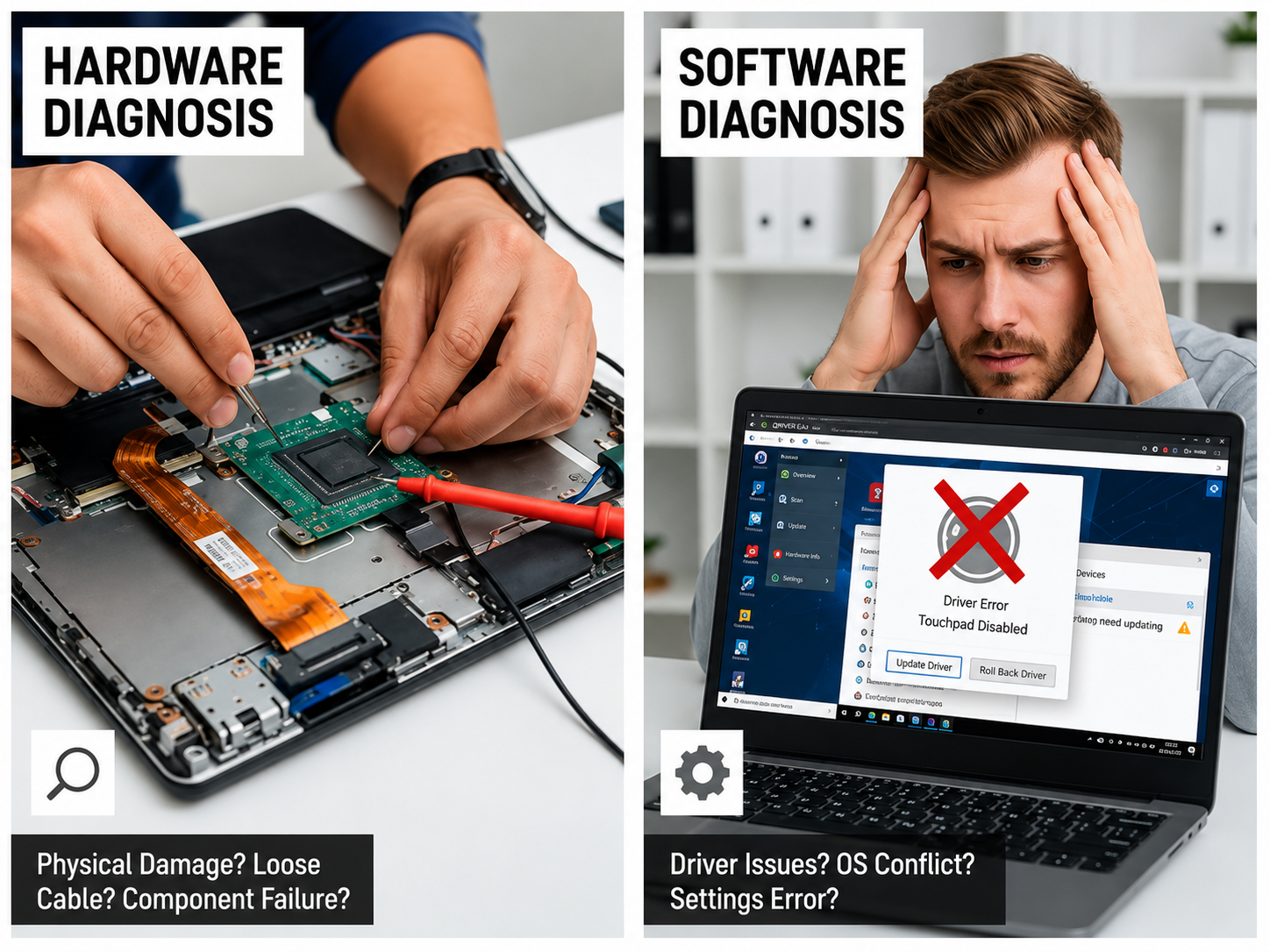
A laptop touchpad that stops responding can bring your entire workflow to a halt, especially if you don't have a mouse handy. The tricky part is that touchpad problems can come from two very different sources a physical hardware fault or a software/driver glitch and the fix for one won't solve the other. Knowing how to tell them apart can save you time, money, and an unnecessary trip to a repair shop.
Root Causes of the Problem
Touchpad issues can be traced back to several causes, including:
- Outdated, corrupted, or missing touchpad drivers
- Touchpad accidentally disabled via a function key or settings toggle
- Windows/OS updates that reset driver configurations
- Loose or damaged internal touchpad ribbon cable
- Physical damage from drops, spills, or pressure on the palm rest
- Dust, debris, or moisture trapped under the touchpad surface
- Conflicting software (external mouse drivers, gesture apps)
- Motherboard-level faults affecting input connectors
- General wear and tear over time
How Can You Identify the Issue?
You're likely dealing with a touchpad problem if you notice:
- The cursor doesn't move at all when you touch the pad
- The cursor moves erratically or jumps around the screen
- Clicking or tapping doesn't register
- Multi-finger gestures (scrolling, zooming) stop working
- The touchpad works intermittently, cutting in and out
- Physical clicking feels loose, unresponsive, or makes unusual sounds
- The touchpad only works after a restart, then fails again
- An external mouse works fine, but the touchpad remains dead
If you notice any of these symptoms, it helps to run through a few basic checks before assuming the worst many touchpad issues turn out to be software related and can be fixed without opening the laptop.
Hardware vs. Driver: How to Tell the Difference
Signs it's a driver/software issue:
- The touchpad worked before a recent Windows update or driver update
- Device Manager shows a warning icon, missing driver, or "Unknown Device" next to the touchpad
- The touchpad is listed as disabled in Settings or Device Manager
- An external mouse and keyboard function normally
- The issue appeared suddenly with no physical damage to the laptop
Signs it's a hardware issue:
- The touchpad stopped working after a drop, spill, or pressure on the laptop
- The cursor movement is inconsistent even after reinstalling drivers
- Clicking feels physically different (spongy, stuck, or silent when it used to click)
- The problem started gradually and worsened over time
- Reformatting or reinstalling the OS doesn't resolve it
Possible Solutions
Depending on the root cause, here are the most effective fixes:
Check the Function Key Toggle Most laptops have a dedicated key (often F5, F6, F9, or similar, paired with Fn) that enables or disables the touchpad. This is the simplest thing to check first.
Update or Reinstall Touchpad Drivers Outdated or corrupted drivers are one of the most common causes of touchpad failure. Updating through Device Manager or the manufacturer's official support page often resolves the issue instantly.
Enable the Touchpad in Settings On Windows, touchpad settings can sometimes get toggled off after an update. Checking Settings > Bluetooth & Devices > Touchpad ensures it hasn't been switched off in software.
Roll Back a Recent Driver Update If the problem started right after a Windows update, rolling back to the previous driver version can restore functionality while a proper fix is released.
Ribbon Cable Inspection and Reseating If the issue is physical, a technician can open the laptop to check whether the internal ribbon cable connecting the touchpad to the motherboard has come loose or been damaged.
Touchpad Replacement When the touchpad module itself is faulty due to physical damage or wear, replacing the component restores full functionality.
Motherboard Level Diagnosis In rare cases, touchpad failure points to a broader motherboard issue. A professional diagnostic can confirm whether this is the case before any parts are replaced.
Why Choose Guru Computer Solution?
1. Certified Technicians
Our experienced technicians can quickly tell whether your touchpad issue is software or hardware related, saving you from unnecessary part replacements.
2. Genuine Parts
When a physical replacement is needed, we use genuine or premium-quality touchpad modules and cables for lasting reliability.
3. Fast Turnaround
Most touchpad diagnostics and repairs are completed quickly, minimizing downtime for work or study.
4. Warranty Support
Our repair services include warranty coverage for added peace of mind.
5. Affordable Pricing
We offer transparent, competitive pricing for touchpad diagnostics and repair in Kathmandu.
Conclusion
Not every touchpad problem needs a repair sometimes it's just a driver or a settings toggle. But if the issue sticks around after a software fix, it's likely hardware, and that's when it's time to get it checked. Guru Computer Solution can quickly tell you which one you're dealing with and fix it fast, so you're not stuck without a working touchpad for long.





