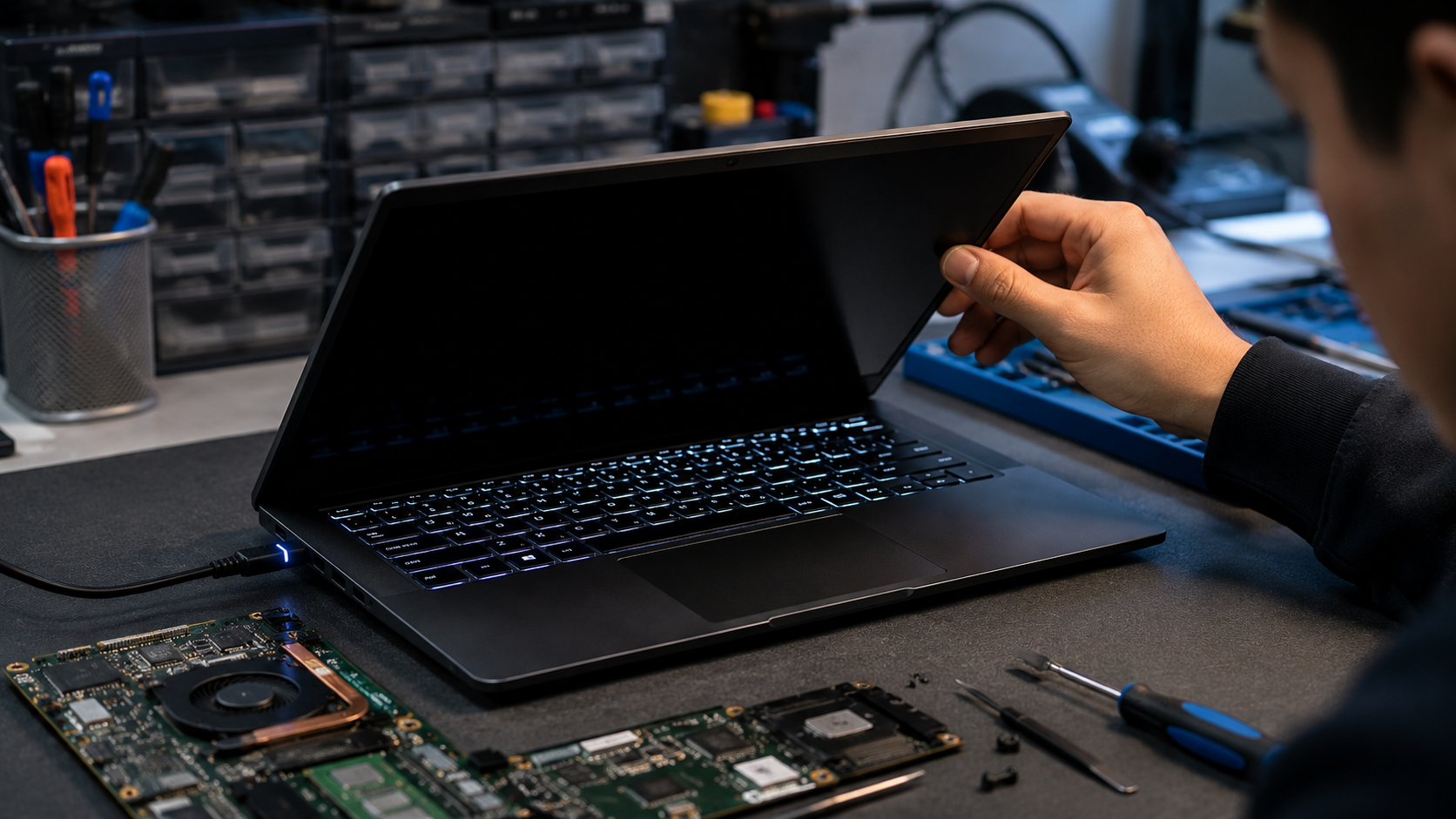
A laptop that refuses to wake from sleep mode can be frustrating, especially when important work is interrupted. You may open the lid, press the power button, or move the mouse, only to find a black screen or an unresponsive system. While this issue often appears to be a hardware failure, it is commonly caused by incorrect power settings, BIOS configuration problems, outdated drivers, or a faulty lid sensor. Understanding the cause can help restore normal operation and prevent future sleep-related problems.
What problem is the customer facing?
The laptop enters sleep mode normally but fails to wake up when the user attempts to resume operation. In some cases, the keyboard lights turn on while the display remains black, requiring a forced shutdown.
Why Does It Happen?
- Incorrect Windows power plan settings.
- Outdated BIOS or firmware.
- Corrupted chipset or graphics drivers.
- Faulty laptop lid sensor.
- Fast Startup conflicts.
- Sleep and hibernation configuration issues.
- External devices preventing proper wake-up.
- Motherboard power management faults.
How can customers identify the issue?
- Black screen after opening the laptop lid.
- Laptop powers on but display remains blank.
- Keyboard backlight works but system is unresponsive.
- Need to hold the power button to restart.
- Sleep mode works inconsistently.
- Laptop wakes only after multiple attempts.
- External monitor displays normally while laptop screen stays black.
Possible solutions
1. Adjust Power Plan Settings
Reset Windows power settings and configure sleep options properly.
2. Update BIOS
Install the latest BIOS version recommended by the manufacturer.
3. Update Device Drivers
Update chipset, graphics, and power management drivers.
4. Disable Fast Startup
Fast Startup can sometimes interfere with sleep and wake functions.
5. Check the Lid Sensor
Inspect and test the magnetic or mechanical lid sensor.
6. Test External Devices
Disconnect USB devices, docking stations, and peripherals.
7. Professional Diagnosis
If software fixes fail, motherboard-level power circuitry may require repair.
Why Choose Guru Computer Solution?
1.Certified Technicians
Experienced in laptop hardware and power management troubleshooting.
2.Genuine Parts
High-quality replacement components when repairs are required.
3.Fast Turnaround
Quick diagnostics and repair services.
4.Warranty Support
Warranty coverage on selected repairs and replacement parts.
5.Affordable Pricing
Professional service at competitive rates.
Conclusion
A laptop that won't wake from sleep mode is often caused by power settings, outdated BIOS firmware, driver conflicts, or a faulty lid sensor rather than a major hardware failure. Identifying the root cause early can prevent unnecessary frustration, data loss, and repeated forced shutdowns. In many cases, updating drivers, adjusting power settings, or repairing a faulty sensor can restore normal operation.
If your laptop frequently gets stuck in sleep mode, displays a black screen after waking, or becomes unresponsive, Guru Computer Solution can diagnose the issue and provide a reliable repair solution to get your laptop working properly again.





