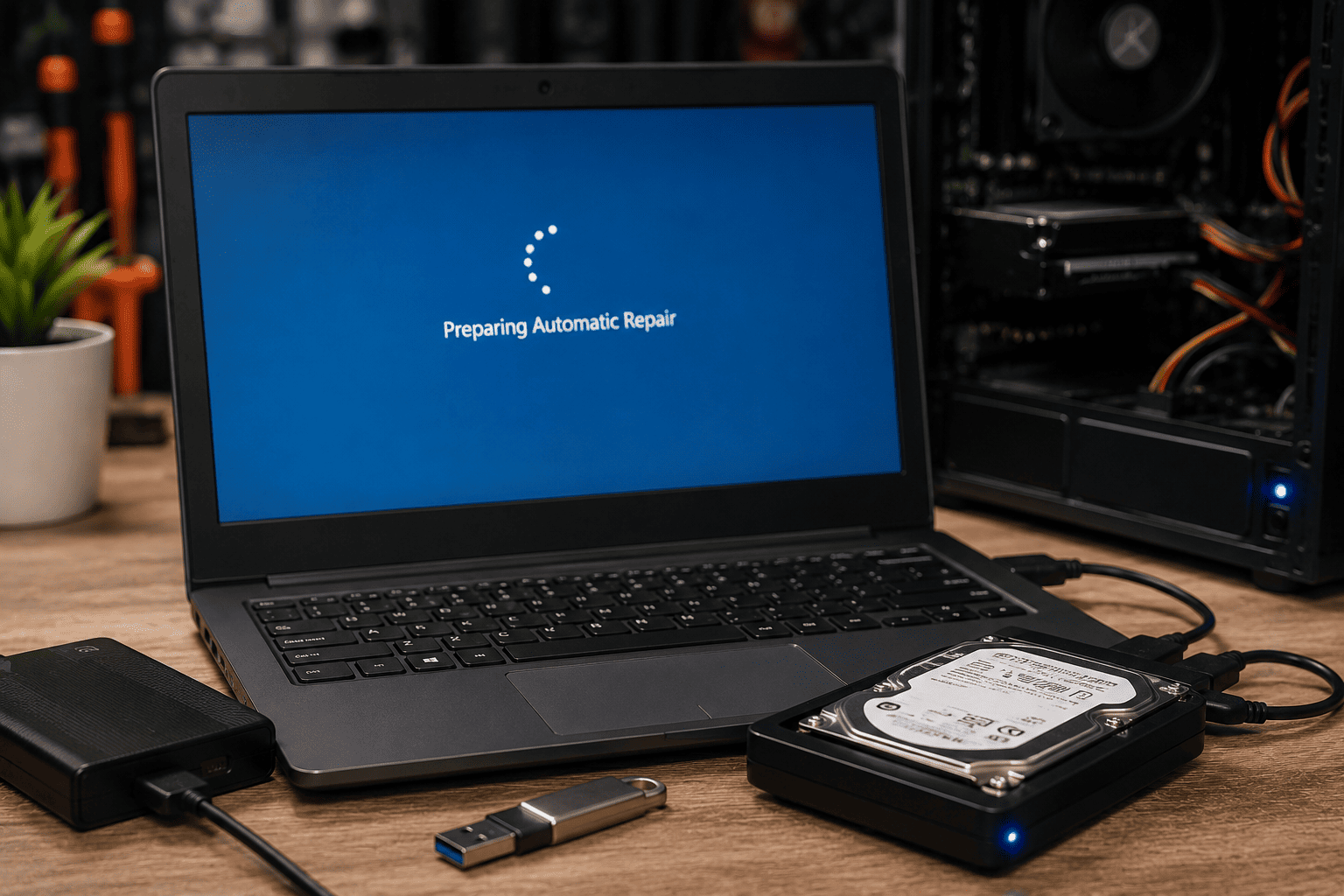
When Windows gets stuck on “Preparing Automatic Repair”, the computer may repeatedly restart without reaching the desktop. This can happen because of corrupted system files, failed updates, damaged boot configuration, drive errors, or hardware problems.
For customers with important documents, photos, business files, or other valuable data, the priority should be data recovery before attempting aggressive repairs or reinstalling Windows. If the storage drive is failing, repeated boot attempts or repair operations can potentially make recovery more difficult.
Problem
The customer's Windows PC is stuck at the “Preparing Automatic Repair” screen and cannot boot normally.
The computer may repeatedly enter the automatic repair process, show a black or blue screen, restart continuously, or remain stuck without reaching Windows.
If important data is stored on the affected drive, attempting random repair commands, formatting, or reinstalling Windows without a backup can create additional risk.
What Problem Is the Customer Facing?
Customers may experience:
- Windows stuck at “Preparing Automatic Repair”
- Automatic Repair keeps running repeatedly
- PC restarts before reaching Windows
- Windows shows “Diagnosing your PC”
- Automatic Repair cannot repair the PC
- Blue screen after the repair process
- Windows fails to boot after an update
- Important files cannot be accessed
- Desktop and Documents folders are inaccessible
- PC becomes stuck in a boot loop
- Hard drive or SSD is not detected correctly
- Windows recovery options fail
- Customer needs data recovered before reinstalling Windows
Root Causes of the Problem
1. Corrupted Windows System Files
Damaged or missing system files can prevent Windows from loading correctly.
This may happen after an unexpected shutdown, malware infection, failed update, or storage problem.
2. Damaged Boot Configuration
Windows relies on boot configuration data to locate and start the operating system.
If the boot configuration becomes damaged, the computer may repeatedly enter Automatic Repair.
3. Failed Windows Update
An interrupted or unsuccessful Windows update can leave system components in an inconsistent state.
The computer may then fail to boot normally and enter recovery mode.
4. Storage Drive Errors
Bad sectors, filesystem corruption, SSD problems, or other storage errors can prevent Windows from reading important boot files.
A drive showing unusual noises, disappearing from BIOS, or becoming extremely slow requires additional caution.
5. Failing SSD or Hard Drive
A physically failing storage device can cause Windows to become stuck during startup.
In these situations, repairing Windows may not be the first priority. Recovering important data should be considered before putting additional stress on the drive.
6. Incorrect BIOS/UEFI Storage Configuration
Changes to storage mode, boot mode, or other BIOS/UEFI settings can sometimes prevent Windows from booting correctly.
7. Damaged File System
File-system corruption can prevent Windows from accessing required files and may result in repeated recovery attempts.
8. RAM or Other Hardware Problems
Faulty RAM, motherboard issues, unstable overclocking, or other hardware problems can cause repeated crashes that eventually lead to Automatic Repair.
How Can Customers Identify the Issue?
Look for:
- “Preparing Automatic Repair” remains on screen for a long time
- PC repeatedly restarts
- Windows never reaches the login screen
- “Diagnosing your PC” appears repeatedly
- Automatic Repair reports that it couldn't repair the PC
- Windows started failing after a power outage or forced shutdown
- The problem started after a Windows update
- SSD or HDD is unusually slow
- Files were already showing errors before the boot problem
- Storage drive disappears from BIOS/UEFI
- Important files are still stored on the affected drive
- Windows recovery tools cannot resolve the startup problem
Possible Solutions
1. Stop and Assess the Data First
Before reinstalling Windows or formatting the drive, determine whether the customer has important files that need to be preserved.
Check for:
- Documents
- Desktop files
- Downloads
- Photos and videos
- Business files
- Email data
- Project files
- Accounting or database files
- Browser data
If the data is important and there is a possibility of drive failure, avoid unnecessary write operations.
2. Check Whether the Drive Is Detected
Enter the computer's BIOS/UEFI setup and check whether the SSD or hard drive is detected.
If the drive is missing, further diagnosis is required before attempting normal Windows repair.
A missing drive can indicate a connection problem, drive failure, controller issue, or other hardware fault.
3. Use a Recovery Environment
A technician can boot the computer using an appropriate Windows recovery environment or other trusted recovery media.
This can allow access to diagnostic and recovery tools without relying on the damaged Windows installation to start normally.
4. Back Up or Recover Important Files
If the drive is readable, prioritize copying important data to a separate healthy storage device.
For example:
- Documents
- Photos
- Videos
- Desktop files
- Downloads
- Work folders
- Customer databases
- Other essential files
Do not use the same failing drive as the destination for recovered data.
5. Check Drive Health
A technician can inspect the SSD or HDD for signs of failure.
Depending on the drive and situation, diagnostic checks may include:
- SMART information
- Drive health status
- Read errors
- Bad sectors
- Connection issues
- Abnormal drive behavior
If the drive is physically failing, continued troubleshooting can increase the risk of data loss.
6. Repair the Windows File System
If the drive is healthy and the data is safely backed up, appropriate Windows recovery tools may be used to check and repair filesystem problems.
The repair approach should depend on the specific error and condition of the storage device.
7. Repair Boot Configuration
If the storage drive is healthy but Windows cannot find or load its boot configuration, a technician can diagnose the boot environment and rebuild or repair the appropriate boot files where applicable.
The exact procedure depends on the Windows installation and partition configuration.
8. Check Recent Windows Updates
If the problem started immediately after a Windows update, recovery options may allow the problematic update to be removed or the system restored to an earlier working state.
This should be performed carefully, particularly when important data has not yet been backed up.
9. Use System Restore When Available
If System Restore points are available, restoring Windows to an earlier working state may resolve certain software-related startup problems.
System Restore does not replace a proper backup of personal data.
10. Reinstall Windows Only After Data Recovery
If Windows remains unbootable and repair options do not work, reinstalling Windows may be considered.
However, do not immediately format the drive if important files have not been recovered.
A clean installation can overwrite existing data and make recovery more difficult.
11. Handle a Failing Drive Carefully
If the SSD or HDD shows signs of physical failure, the priority should shift from Windows repair to data recovery.
In serious cases, creating a suitable sector-level copy or using professional data-recovery procedures may be safer than repeatedly attempting to boot Windows.
12. Check RAM and Other Hardware
If the storage drive appears healthy but Windows continues crashing, check:
- RAM seating
- RAM stability
- Motherboard diagnostic indicators
- Power supply connections
- CPU temperatures
- Storage connections
- BIOS/UEFI settings
A hardware fault can repeatedly corrupt Windows even after successful software repair.
Why Choose Guru Computer Solution?
1. Experienced Technicians
Our technicians can diagnose Windows boot failures, storage problems, filesystem corruption, and hardware-related startup issues.
2. Data-First Approach
When important files are involved, we prioritize protecting and recovering customer data before recommending major Windows repairs.
3. SSD and HDD Diagnosis
We can check storage drives for health issues, connection problems, and signs of failure before proceeding with further troubleshooting.
4. Windows Recovery Support
Our technicians can troubleshoot Automatic Repair loops, boot configuration problems, system corruption, and other Windows startup issues.
5. Professional Data Recovery Assistance
If Windows cannot start but the storage drive remains readable, we can help recover important files before reinstalling the operating system.
6. Affordable Repair
We diagnose the actual cause of the startup problem before recommending unnecessary drive replacement or Windows reinstallation.





