Introduction
A weak or unstable Wi-Fi connection is not always caused by the router, Wi-Fi card, or drivers. A damaged Wi-Fi antenna cable inside the laptop can cause poor signal strength, frequent disconnections, slow speeds, or complete loss of wireless connectivity.
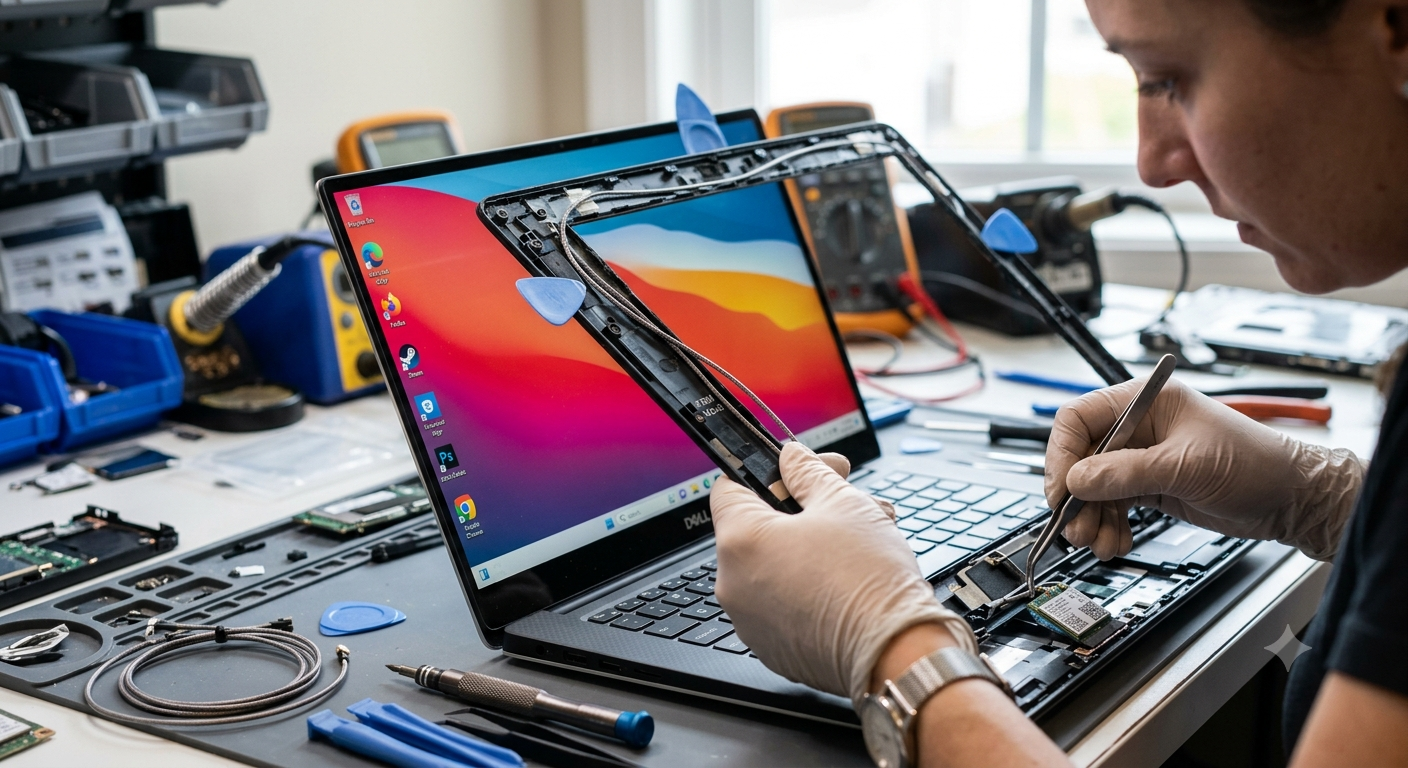
In many laptop models, the Wi-Fi antenna cables are routed through the display hinge and connected to antennas inside the screen bezel. When the cable becomes pinched, cut, loose, or damaged near the hinge, replacing it may seem like the entire display assembly needs to be removed. However, depending on the laptop design, technicians can sometimes replace or reroute the antenna cable without removing the entire screen assembly.
This guide explains the common causes and symptoms of Wi-Fi antenna cable damage, how technicians diagnose the problem, and when professional repair is recommended.
Problem
A damaged Wi-Fi antenna cable can significantly reduce wireless performance even when the laptop's Wi-Fi card is working correctly. Users may notice that Wi-Fi works normally when close to the router but becomes extremely weak at a distance. The connection may also disconnect when the laptop lid is moved.
Because antenna cables are routed through narrow spaces around the hinges, they can become damaged through repeated opening and closing of the display. Improper previous repairs, pinching, sharp hinge edges, or accidental impact can also damage the cable.
What Problem Is the Customer Facing?
Customers may experience weak Wi-Fi signals, random disconnections, slow wireless speeds, or difficulty detecting nearby networks. In some cases, Bluetooth may also become weaker if the antenna system shares connections with the wireless module.
A common clue is that Wi-Fi performance changes when the laptop screen is moved. For example, the connection may work properly when the display is at one angle but become weak or disappear when the lid is opened or closed further.
Many users replace the Wi-Fi card or reinstall drivers without realizing that the actual problem is a physically damaged antenna cable. Proper diagnosis is therefore important before replacing expensive components.
Root Causes of the Problem
A laptop Wi-Fi antenna cable can become damaged due to:
Repeated Hinge Movement
The antenna cable often passes through or near the display hinge. Thousands of opening and closing cycles can eventually weaken the cable.
Cable Pinching
A cable can become trapped between the hinge, display frame, or bottom case, damaging its internal conductors.
Physical Damage
Drops, impacts, or pressure around the display can damage the antenna wire or its connector.
Previous Screen or Hinge Repair
Incorrect cable routing during a previous repair can cause the antenna wire to rub against the hinge or become stretched.
Loose Antenna Connector
The tiny connector attached to the Wi-Fi card can become loose during servicing or after physical impact.
Damaged Antenna Element
The antenna itself, usually located inside the display bezel, can become damaged or disconnected.
Corrosion or Liquid Damage
Moisture can affect the antenna connector or cable, resulting in unstable wireless connectivity.
How Can Customers Identify the Issue?
Common symptoms of a damaged Wi-Fi antenna cable include:
- Wi-Fi signal is unusually weak
- Wi-Fi disconnects frequently
- Internet speed is much slower than expected
- Laptop detects fewer Wi-Fi networks than other devices
- Wi-Fi works only when close to the router
- Connection changes when the laptop lid is moved
- Wi-Fi disappears intermittently
- Wi-Fi card appears correctly in Device Manager but signal remains poor
- Bluetooth range may also be reduced
- One antenna connection is missing or disconnected
- Wireless performance suddenly became poor after a screen or hinge repair
Possible Solutions
1. Check the Wi-Fi Drivers
Before opening the laptop, technicians verify that the wireless driver is correctly installed and functioning. Driver problems can sometimes produce symptoms similar to antenna failure.
2. Check the Wi-Fi Card
The Wi-Fi card is inspected to ensure that it is properly seated and that its antenna connectors are securely attached.
3. Test the Antenna Signal
If the Wi-Fi card is working but signal strength remains unusually low, technicians can test the antenna connections and compare the performance of the available antenna lines.
4. Inspect the Cable Around the Hinge
The technician carefully checks the cable routing around the display hinge for:
- Pinching
- Cuts
- Kinks
- Exposed wires
- Stretching
- Broken connectors
- Incorrect routing
5. Replace the Damaged Antenna Cable
Depending on the laptop design, the damaged cable can sometimes be accessed and replaced without removing the complete screen assembly.
The technician carefully:
- Powers down and disconnects the laptop battery.
- Removes the necessary bottom or hinge covers.
- Disconnects the antenna cable from the Wi-Fi card.
- Accesses the damaged section.
- Routes the replacement cable correctly.
- Secures it away from moving hinge components.
- Reconnects the antenna connector.
- Tests Wi-Fi signal strength and stability.
6. Replace the Antenna Assembly When Necessary
Some laptops have antennas integrated into the display bezel or screen assembly. If the antenna itself is damaged rather than just the cable, the complete antenna assembly may need replacement.
Can the Wi-Fi Antenna Cable Be Replaced Without Removing the Entire Screen?
In some laptop models, yes.
The exact repair method depends on how the manufacturer routes the antenna cable. Some laptops provide access to the cable through the bottom cover and hinge area, allowing technicians to replace or reroute it without completely removing the display.
However, other models route the cable deep inside the display assembly. In those cases, partial or complete display disassembly may be necessary.
A technician should inspect the laptop model before deciding on the repair method.
Why Choose Guru Computer Solution?
1. Certified Technicians
Our technicians have experience handling delicate laptop antenna cables, Wi-Fi cards, hinges, and display assemblies.
2. Genuine Parts
We use compatible, high-quality antenna cables and replacement components.
3. Fast Turnaround
Antenna cable replacement can often be completed quickly, depending on the laptop model and parts availability.
4. Warranty Support
Eligible repair services and replacement parts come with warranty support.
5. Affordable Pricing
We diagnose the actual cause before recommending replacement, helping customers avoid unnecessary Wi-Fi card or screen replacement.
Laptop Brands We Repair
Guru Computer Solution provides Wi-Fi antenna and wireless connectivity repairs for major laptop brands, including:
- Dell
- HP
- Lenovo
- ASUS
- Acer
- MSI
- Apple MacBook
- LG
- Samsung
- Huawei
- Microsoft Surface
- Gigabyte
- Razer
- Alienware





