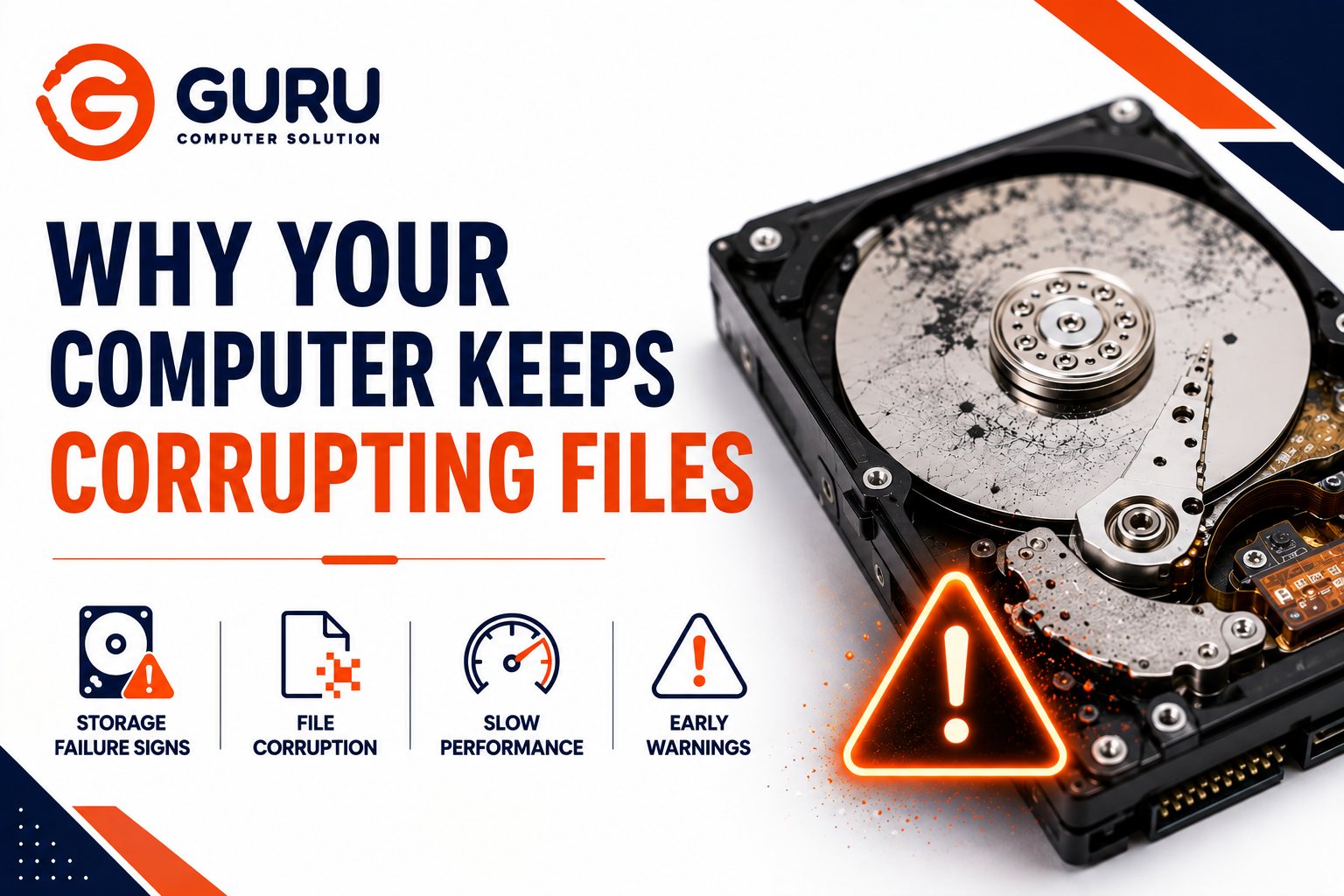
A file that won't open, a folder that suddenly shows as empty, a photo that displays as gray static — and it keeps happening, on different files, with no clear pattern. Most people blame the specific app or file type. In a large share of cases, the actual cause is the storage drive itself quietly failing underneath everything else.
Why Recurring Corruption Points to Storage, Not Software
A single corrupted file is usually just bad luck — an interrupted download, an app crash mid-save. Recurring corruption across unrelated files, unrelated applications, and unrelated file types is a different pattern entirely. When the common factor across every corrupted file is simply "it was stored on this drive," the drive itself becomes the prime suspect, not any individual program.
How HDDs and SSDs Actually Fail — And Why the Pattern Looks Different
Understanding which type of drive you have changes what warning signs to watch for, because the two fail in fundamentally different ways.
Hard Disk Drives (HDDs): Usually Gradual
HDDs tend to give more warning before catastrophic failure. As the magnetic platters or read/write head degrade, the drive typically develops bad sectors — small areas of the disk that can no longer reliably store data — before failing completely. The drive's internal health monitoring tracks this degradation over time, which is why HDD failure often comes with a runway of warning signs rather than a sudden, total loss.
Solid State Drives (SSDs): Often Sudden
SSDs behave very differently, and this is worth understanding even if you're not sure which type you have. Most SSD failure modes happen suddenly rather than gradually — the drive can work completely normally one moment and become totally inaccessible the next, often with little to no gradual degradation you'd notice beforehand.
A specific and common cause is damage to the drive's Flash Translation Layer (FTL) — the internal index that tracks where every piece of data actually lives across the SSD's memory chips. Sudden power loss during a write operation is one of the most common ways this index gets corrupted, which is exactly why an SSD-based system that loses power unexpectedly (outage, battery death, forced shutdown) is at meaningfully higher risk of corruption than the same event on an HDD.
Why this distinction matters for recovery, not just diagnosis: when an HDD's mechanical components fail, the data stored on the platters is frequently still physically intact — recovery mainly involves fixing or bypassing the failed hardware to read it. When an SSD's controller or FTL fails, the data is effectively scrambled across memory chips in a pattern only that specific controller understood, which makes recovery considerably more specialized and often more expensive.
The Warning System Built Into Your Drive: SMART
Both HDDs and SSDs include a built-in health monitoring system called SMART (Self-Monitoring, Analysis, and Reporting Technology), which tracks specific internal metrics and can surface a warning before a full failure occurs.
What SMART actually monitors varies somewhat between HDD and SSD, but commonly includes:
- Reallocated sector count (HDD) — sectors the drive has already had to retire and replace with spares, a direct sign of physical media degradation
- Media wear level (SSD) — how much of the drive's rated write endurance has been consumed
- Unexpected power loss and power-loss-protection failure counts (SSD) — directly relevant to the FTL corruption issue above
- Uncorrectable error counts — errors severe enough that the drive's own error correction couldn't fix them
A SMART warning is not a suggestion to monitor casually — it's a strong signal to act. If your system displays a message like "SMART failure predicted on hard disk" or a similar SMART status warning, this means the drive's own internal monitoring has detected it is at meaningfully elevated risk of failure, not that something might theoretically go wrong eventually.
Storage-Specific Warning Signs to Watch For
Recurring, unrelated file corruption — the core symptom this article addresses. Files across different applications and formats becoming unreadable, corrupted, or unexpectedly empty, with no consistent single cause other than the storage drive itself.
Unusual clicking, grinding, or repetitive noise (HDD only) — a mechanical warning sign specific to hard drives, since SSDs have no moving parts and produce no operational noise at all.
Brief total freezes that resolve on their own — the system locks up completely, the cursor stops responding, and then after several seconds to half a minute it resumes normally. This pattern can occur when a drive controller encounters bad sectors or blocks and needs extra time processing read/write requests through error correction before recovering.
Files or folders that intermittently disappear and reappear — inconsistent visibility of the same data across reboots or sessions points toward the drive's internal mapping becoming unreliable, rather than anything user-caused.
Noticeably slower read/write performance than the drive's normal baseline — especially when this slowdown develops gradually over weeks or months rather than being present from day one.
A SMART warning message on boot — this is the most direct and most serious signal, and should never be dismissed or postponed.
What To Do the Moment You Notice These Signs
Back up immediately — before running any diagnostics or repair attempts. This is the single most important action, and the order matters: every additional read or write operation on a failing drive carries risk, so prioritize copying your important files to an external drive or cloud storage before doing anything else, including running "fix" or repair utilities.
Don't run repair tools as a first response on a drive you suspect is failing. Disk repair and optimization utilities can themselves involve writes to a drive that's already struggling, and on a genuinely failing drive, this can accelerate data loss rather than resolve the underlying issue.
Check SMART status using a proper monitoring tool. Utilities like CrystalDiskInfo (or your drive manufacturer's own diagnostic tool) show the drive's actual health status and specific SMART attributes, giving you real data rather than guessing based on symptoms alone.
Treat any status beyond "Good" as a serious signal, not just informational. If SMART reports a Caution or Bad status, avoid trusting that drive with any data you're not prepared to lose, even if it currently still appears to be working.
Common Causes Behind Storage Failure and Corruption
Age and accumulated wear. HDDs wear mechanically over years of use; SSDs wear as their NAND memory cells reach their rated write endurance limit, a natural process rather than a defect.
Excessive heat. Both drive types are sensitive to sustained high operating temperatures, which accelerate the underlying degradation processes in different ways depending on drive type.
Unexpected power loss. Particularly significant for SSDs, given the FTL corruption risk described above — an unclean shutdown during active read/write operations is a genuine risk factor, not just a minor inconvenience.
Physical shock or vibration (HDD specifically). Since HDDs rely on a mechanical read/write head positioned extremely close to a spinning platter, physical impact carries real risk of direct, immediate damage in a way that doesn't apply to SSDs at all.
Manufacturing defects or early-life failure. A drive can occasionally show failure signs well before its expected lifespan due to a defect — this is precisely why warranty coverage exists, and worth checking before assuming failure means the drive was simply "used up."
Prevention: What Actually Reduces Risk Going Forward
Maintain a genuine backup routine, not just an occasional one — cloud storage or a separate external drive, updated regularly rather than only when you remember.
Monitor SMART status periodically, not only after symptoms appear. Catching a developing issue during routine monitoring is meaningfully better than discovering it only once corruption has already started.
Keep the system's cooling adequate. Proper airflow and regular dust cleaning reduce sustained thermal stress on the drive, particularly relevant for laptops and compact desktops with more limited internal airflow.
Use a UPS or otherwise minimize unclean shutdowns, especially on SSD-based systems, given how directly power loss ties to FTL corruption risk.
Why Choose Guru Computer Solution
Accurate Storage Diagnosis We assess actual SMART data and drive health rather than guessing based on symptoms, so you know definitively whether the drive itself is the cause.
Data-Safe Handling of Failing Drives Where a drive shows failure signs, we prioritize safely copying accessible data before any further diagnostic or repair steps that could risk it.
Professional Data Recovery For both HDD and SSD failures, including physically damaged and controller-failed drives, we handle recovery with the appropriate specialized approach for each drive type.
Replacement and Migration Support When replacement is the right call, we handle drive cloning and migration to minimize downtime and avoid a disruptive fresh setup.
Conclusion
Recurring file corruption across unrelated files and applications is rarely coincidence — it's very often the storage drive itself signaling that it's failing, whether gradually (typical of HDDs) or suddenly (more typical of SSDs). The single most important response, the moment you notice this pattern or see a SMART warning, is backing up immediately, before running any repair tools or further stressing a drive that may already be compromised. Recognizing the signs early is what separates a straightforward backup-and-replace situation from a genuine, costly data loss event.
If your computer is showing signs of storage failure or repeated file corruption, contact Guru Computer Solution for accurate diagnosis and safe data recovery.