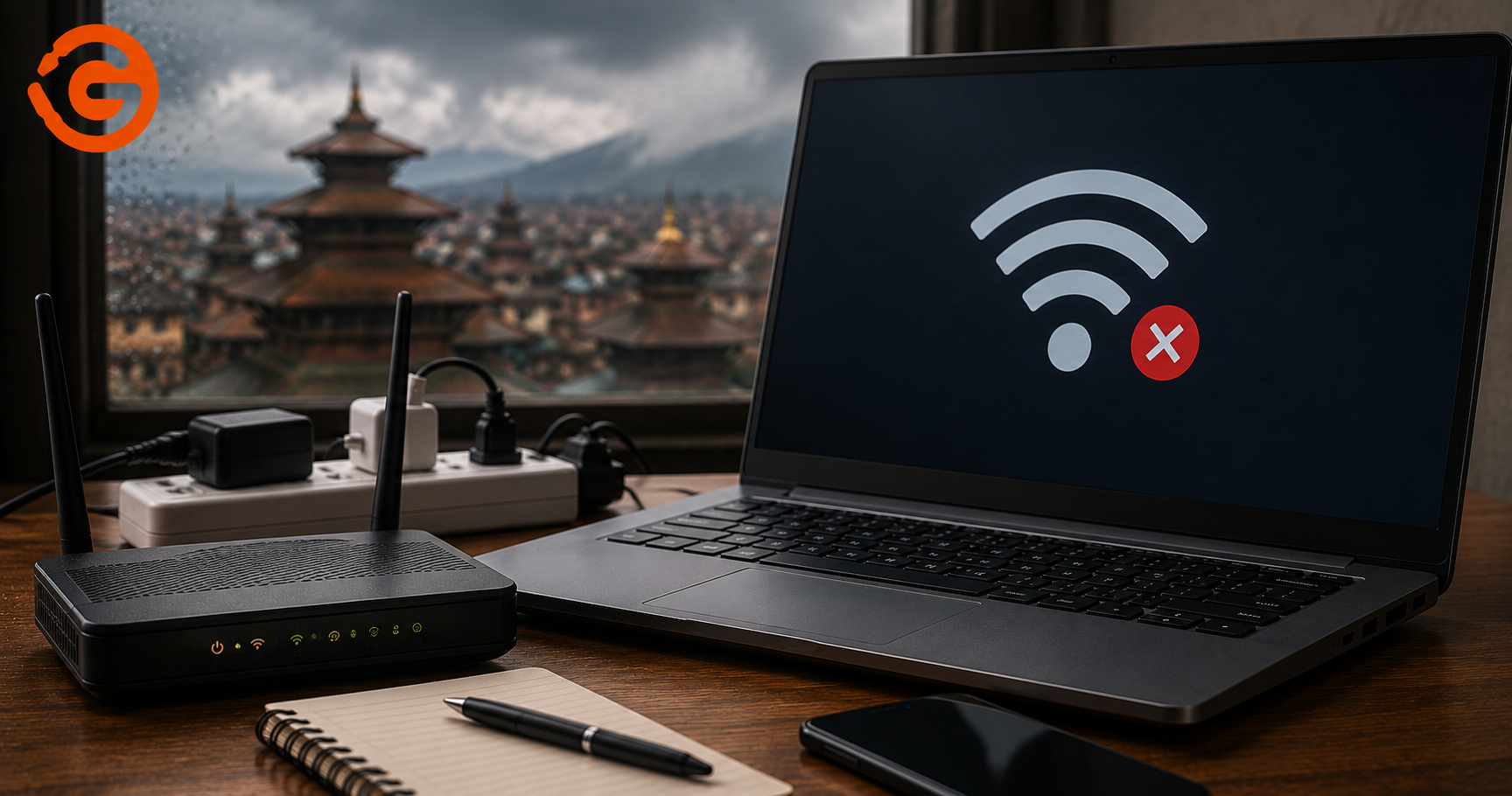
"It must be the router." That's the first, almost automatic assumption whenever Wi-Fi starts dropping. Sometimes it's true. Often it isn't, and the actual cause is sitting inside the laptop itself, not the router across the room.
Why Your Laptop Keeps Disconnecting From Wi-Fi
Intermittent Wi-Fi has more possible causes than most people assume, and the router is only one of them. The real list includes router or network issues, Windows or network configuration settings, outdated or corrupted Wi-Fi drivers, a genuinely faulty Wi-Fi card, damaged internal antenna cables, a loose connector, physical damage from a previous repair or drop, heat affecting the wireless module, and in less common cases, broader laptop motherboard circuitry.
The key diagnostic message worth remembering before anything else: if every other device in the house or office stays connected normally while only your laptop keeps disconnecting, the laptop itself deserves real investigation, not another round of router troubleshooting.
Is the Problem Your Router or Your Laptop?
A simple pattern-matching test tells you more than most people expect. If every device on the network disconnects at the same time, the router, ISP, or broader network is the likely cause. If only your laptop disconnects while everything else stays connected, the problem is on the laptop side, whether software or hardware. If your laptop disconnects across every Wi-Fi network you try, not just one specific network, that's a strong signal pointing at the laptop rather than any particular router. If your laptop works fine near the router but struggles or drops the connection farther away, that points toward an antenna or signal-related issue specifically. If Wi-Fi disappears from the laptop entirely rather than just weakening, that suggests a driver, card, or hardware problem. And if Bluetooth also starts behaving strangely alongside Wi-Fi issues, that points toward the wireless module or its antenna specifically, since Wi-Fi and Bluetooth commonly share the same physical hardware.
Common Reasons a Laptop Wi-Fi Connection Keeps Dropping
The full list of realistic causes spans both software and hardware: weak signal strength, interference from other routers or devices nearby, driver problems, power management settings that aggressively power down the wireless adapter, Windows network configuration issues, an outdated Wi-Fi driver, a genuinely faulty Wi-Fi card, a damaged antenna cable, a loose antenna connector, heat-related hardware stress, and in less common cases, a broader motherboard issue. Working through these in a sensible order, starting with the cheapest and easiest to rule out, is what an efficient troubleshooting process actually looks like.
How Laptop Wi-Fi Antenna Wires Actually Work
Most laptops route small antenna cables from the wireless module through the hinge area and into the display assembly, where the actual antenna elements are typically positioned around the screen bezel for better reception. This physical routing matters because these cables directly affect signal strength, effective range, connection stability, and overall wireless performance. A wireless card can be in perfect working condition and still produce weak, unstable Wi-Fi if the antenna cables connecting it to the actual antenna elements aren't functioning correctly. This is exactly the detail that separates a genuine diagnosis from a generic "just restart your router" response.
How a Pinched or Damaged Wi-Fi Antenna Can Cause Disconnecting
Repeated movement around the hinge over years of normal use, a previous repair that didn't route the cables back correctly, physical impact, or improper cable routing to begin with can all affect the antenna connection over time. Watch for Wi-Fi that works fine close to the router but degrades quickly with distance, signal strength that's suddenly and noticeably weaker than it used to be, Wi-Fi that drops specifically when the screen is opened, closed, or moved to a different angle, the laptop detecting noticeably fewer available networks than it used to, an overall unstable connection, or other devices in the exact same location consistently showing a stronger signal than your laptop does.
Can a Faulty Wi-Fi Card Cause Laptop Internet Problems?
Yes, and this is a distinct failure point from the antenna cables described above. The Wi-Fi card is the actual internal wireless adapter responsible for sending and receiving the signal in the first place. Watch for the Wi-Fi adapter disappearing entirely from Windows device listings, Wi-Fi turning off randomly without you doing anything, the connection repeatedly dropping regardless of router quality or proximity, notably poor performance despite testing next to a router with a strong, verified signal, or Wi-Fi and Bluetooth problems appearing together, since they frequently share the same physical module. Where these symptoms point toward the card itself, proper diagnosis, and sometimes replacement, becomes the relevant next step rather than continuing to troubleshoot software settings.
Can Laptop Heat Cause Wi-Fi Problems?
There's a genuine connection here worth understanding without overstating it. Excessive heat can affect the stability of electronic components generally, and this can contribute to instability in a wireless module that's already stressed or beginning to fail, though heat alone isn't typically the sole cause of a healthy Wi-Fi card failing outright. Overheating showing up alongside Wi-Fi instability is also often a signal of a broader cooling problem in the laptop, dust buildup, degraded thermal paste, or restricted airflow, worth addressing for its own sake regardless of whether it's directly connected to the Wi-Fi symptoms you're seeing.
Why Your Laptop Wi-Fi May Disconnect After Sleep or Standby
Before jumping to any hardware explanation, it's worth ruling out software and power management causes, since these are common and don't require opening the laptop at all. Aggressive power-saving settings can prevent the wireless adapter from properly reactivating after sleep. Driver issues can cause the adapter to not fully reinitialize on wake. Windows' own network adapter behavior sometimes needs a manual nudge, disabling and re-enabling the adapter, after waking from sleep. Driver compatibility issues, particularly after a Windows update, are a common and often overlooked cause. And in some cases, a full network reset resolves lingering configuration issues that build up over time. This keeps the diagnostic process appropriately balanced rather than assuming hardware failure the moment sleep-related symptoms appear.
Wi-Fi Driver Problems vs Hardware Problems: How to Tell the Difference
A few patterns reliably point toward one side or the other. Wi-Fi that disappears specifically after a Windows update points toward a driver or software cause. A Wi-Fi adapter that's still visible in Windows but behaves unstably could be either driver or hardware related, needing further testing to isolate. An adapter that's missing from Windows entirely points more toward driver, card, or board-level causes. Weak signal across every network you test points toward the antenna or card rather than software. A problem isolated to just one specific router points toward that network rather than the laptop at all. Wi-Fi and Bluetooth both failing together points toward the wireless module or its driver specifically. And a problem that persists even after a completely clean driver reinstall makes a genuine hardware cause considerably more likely, since you've effectively ruled out the software side at that point.
Simple Wi-Fi Troubleshooting You Can Try Before Visiting a Repair Center
A few safe first steps worth trying yourself: restart the laptop, restart the router, test connecting to a completely different Wi-Fi network to see if the problem follows the laptop, check actual signal strength rather than assuming, update or fully reinstall the Wi-Fi driver, review Windows power management settings for the wireless adapter specifically, test using a phone's mobile hotspot as an alternative network, and check whether Bluetooth is showing similar problems alongside Wi-Fi.
Once you've worked through these steps and the problem persists across different networks, survives a clean driver reinstall, and shows a consistent pattern rather than resolving itself, that's the point where troubleshooting has reasonably reached its limit and a hardware inspection makes more sense than continuing to try software fixes.
When Should You Suspect a Physical Wi-Fi Antenna Problem?
Consider the antenna a likely suspect specifically when signal strength is consistently and noticeably weaker than other devices in the exact same location, Wi-Fi only works reliably very close to the router, the problem visibly changes as you open, close, or adjust the angle of the screen, the laptop has recently had hinge or display work done, the laptop has been dropped or taken a physical impact, or internal display and hinge cables have been worked on or repaired previously. Any one of these alone is worth noting; more than one together makes an antenna cable issue considerably more likely.
Can a Laptop Hinge Damage the Wi-Fi Antenna Cable?
Yes, this is a real and fairly common mechanism. Antenna cables are frequently routed through tight spaces around the display and hinge assembly, and a damaged hinge, or cable routing that wasn't done correctly during a previous repair, can place ongoing physical stress on these cables. Over time, that stress can degrade the connection even without any single dramatic event causing it. This is exactly why a laptop with any prior hinge or display work, or visible hinge damage, deserves antenna cable inspection specifically, not just a generic Wi-Fi card check.
How Technicians Diagnose a Laptop Wi-Fi Problem
A proper diagnostic process works through this sequence: testing the laptop across multiple Wi-Fi networks, checking actual signal strength rather than relying on the on-screen icon alone, inspecting the Windows network adapter listing directly, checking driver status and version, testing Wi-Fi and Bluetooth together since they often share hardware, physically inspecting the wireless module itself, checking antenna connector condition, inspecting how the antenna cables are routed, checking specifically for physical or hinge-related damage, and finally testing or replacing the specific faulty component identified through this process, rather than guessing and replacing parts speculatively.
Wi-Fi Card Replacement vs Antenna Cable Repair: What's the Difference?
These sit at genuinely different points on the cost and complexity scale, and it's worth understanding where each falls before assuming the most expensive fix is necessary.
A driver issue is the cheapest and simplest to resolve, fixed through a driver repair or update at low cost. A loose antenna connector is similarly straightforward, often resolved by simply reconnecting it properly, also at low cost. A damaged antenna cable sits a step up, typically requiring cable replacement or repair at a low to medium cost. A genuinely faulty Wi-Fi card requires module replacement, landing at a medium cost. And a motherboard-level fault is the most involved and most expensive scenario, requiring board-level diagnosis and repair at a medium to high cost.
The core message underneath this breakdown: a weak or unstable Wi-Fi connection does not automatically mean you need an entirely new Wi-Fi card. The cheaper causes, driver issues and loose or damaged cables, are also among the most common, and skipping past proper diagnosis straight to a card replacement risks paying for a fix that was never actually needed.
How Much Does Laptop Wi-Fi Repair Cost in Kathmandu?
Rather than one generic figure that wouldn't reflect your actual situation, real cost depends on whether the issue turns out to be a driver or software problem, an antenna cable, the Wi-Fi module itself, your specific laptop model, connector damage, a motherboard-level problem, and general parts availability for your model. Get the problem properly diagnosed before replacing the Wi-Fi card, since the cheaper causes are common enough that jumping straight to a card replacement often means paying for more than the actual fix required.
Why Choose Guru Computer Solution for Laptop Wi-Fi Repair in Kathmandu
Full Internal Diagnosis, Not Just Router Advice, We investigate the actual internal causes, driver, antenna, card, or connector, rather than simply telling you to restart your router.
Wi-Fi Card Testing, We test the wireless module directly to confirm whether it's actually the source of the problem before recommending replacement.
Antenna Cable and Connector Inspection, We check cable routing and connector condition specifically, catching issues that a card-only inspection would miss entirely.
Driver and Software Troubleshooting, We rule out the software side thoroughly before assuming a hardware cause, avoiding unnecessary part replacement.
Hinge-Related Cable Inspection, Where hinge damage or prior repair work is a factor, we check antenna cable condition specifically in that context.
Motherboard-Level and Chip-Level Repair, Where the fault traces back to the board itself, we diagnose and repair at that level.
Support for Major Laptop Brands, Dell, HP, Lenovo, ASUS, Acer, MSI, and MacBook Wi-Fi diagnosis and repair.
Stop Blaming Your Router: Find the Real Cause of Your Laptop Wi-Fi Problem
If every other device in the house or office works normally but your laptop keeps disconnecting, the router probably isn't the actual problem. A faulty driver, a failing Wi-Fi card, a damaged antenna cable, a loose connector, or a deeper internal hardware issue could be responsible instead, and only proper diagnosis tells you which one.
Bring your laptop to Guru Computer Solution for proper Wi-Fi diagnosis before replacing parts unnecessarily.
Frequently Asked Questions
Why Does My Laptop Keep Disconnecting From Wi-Fi?
It can be caused by router or network issues, outdated drivers, power management settings, a damaged antenna cable, a faulty Wi-Fi card, or in less common cases, a motherboard issue. If only your laptop disconnects while other devices stay connected, the cause is likely on the laptop side.
How Do I Know If the Problem Is My Laptop or Router?
Test whether other devices disconnect at the same time. If only your laptop drops the connection while everything else stays connected, and this happens across multiple different networks, the issue is almost certainly with the laptop rather than any specific router.
Why Does My Laptop Wi-Fi Work Near the Router but Not Far Away?
This pattern points toward an antenna or signal-related issue, often a damaged or poorly connected internal antenna cable, rather than a Wi-Fi card or driver problem.
Can a Damaged Wi-Fi Antenna Cause Disconnecting?
Yes. A damaged or poorly connected antenna cable can cause weak signal, unstable connections, and disconnecting that often changes when the laptop screen is moved or adjusted.
Can a Laptop Hinge Damage the Wi-Fi Antenna?
Yes. Antenna cables often route through the hinge and display assembly, and hinge damage or improper cable routing from a previous repair can place ongoing stress on these cables, degrading the connection over time.
How Do I Know If My Laptop Wi-Fi Card Is Failing?
Watch for the Wi-Fi adapter disappearing from Windows, Wi-Fi turning off randomly, connections repeatedly dropping despite strong router signal, or Wi-Fi and Bluetooth problems occurring together, since they often share the same hardware module.
Can Laptop Overheating Cause Wi-Fi Disconnects?
Excessive heat can contribute to instability in a wireless module that's already stressed or beginning to fail, though it's rarely the sole cause on its own. Overheating alongside Wi-Fi issues is also often a sign of a broader cooling problem worth addressing separately.
Why Does Wi-Fi Stop Working After My Laptop Wakes From Sleep?
This is often caused by power-saving settings, driver issues, or Windows network adapter behavior after waking from sleep, rather than a hardware fault. Checking power management settings for the wireless adapter is a good first step.
Can a Wi-Fi Driver Cause Frequent Disconnections?
Yes. Outdated, corrupted, or incompatible drivers are one of the most common software causes of frequent Wi-Fi disconnections, and are worth ruling out before assuming a hardware problem.
Should I Replace the Wi-Fi Card or Antenna?
This depends on proper diagnosis. A weak or unstable connection doesn't automatically mean the card itself has failed, since a damaged antenna cable produces similar symptoms at a lower repair cost.
Can You Repair a Laptop Wi-Fi Antenna Cable?
Yes. Depending on the damage, this can mean reconnecting a loose cable or replacing a damaged one, both of which are typically less expensive than a full Wi-Fi card replacement.
How Much Does Laptop Wi-Fi Repair Cost in Kathmandu?
Cost depends on whether the issue is software, an antenna cable, the Wi-Fi module, or a motherboard-level problem. Contact Guru Computer Solution for a proper diagnosis and accurate quote.
Does Guru Computer Solution Repair Laptop Wi-Fi Problems?
Yes, including driver troubleshooting, antenna cable inspection and repair, Wi-Fi card testing and replacement, and motherboard-level diagnosis where needed.
What Laptop Brands Do You Repair?
We repair Dell, HP, Lenovo, ASUS, Acer, MSI, and Apple MacBook laptops for Wi-Fi and wireless issues.
Can You Replace a Faulty Laptop Wi-Fi Card?
Yes, once testing confirms the card itself is actually the cause rather than a cable, driver, or connector issue.
When Should I Bring My Laptop for Wi-Fi Repair?
Once you've tried basic troubleshooting, restarting devices, testing another network, updating drivers, and the problem persists, or if you notice a pattern suggesting antenna or hardware involvement, such as the connection changing when you move the screen.