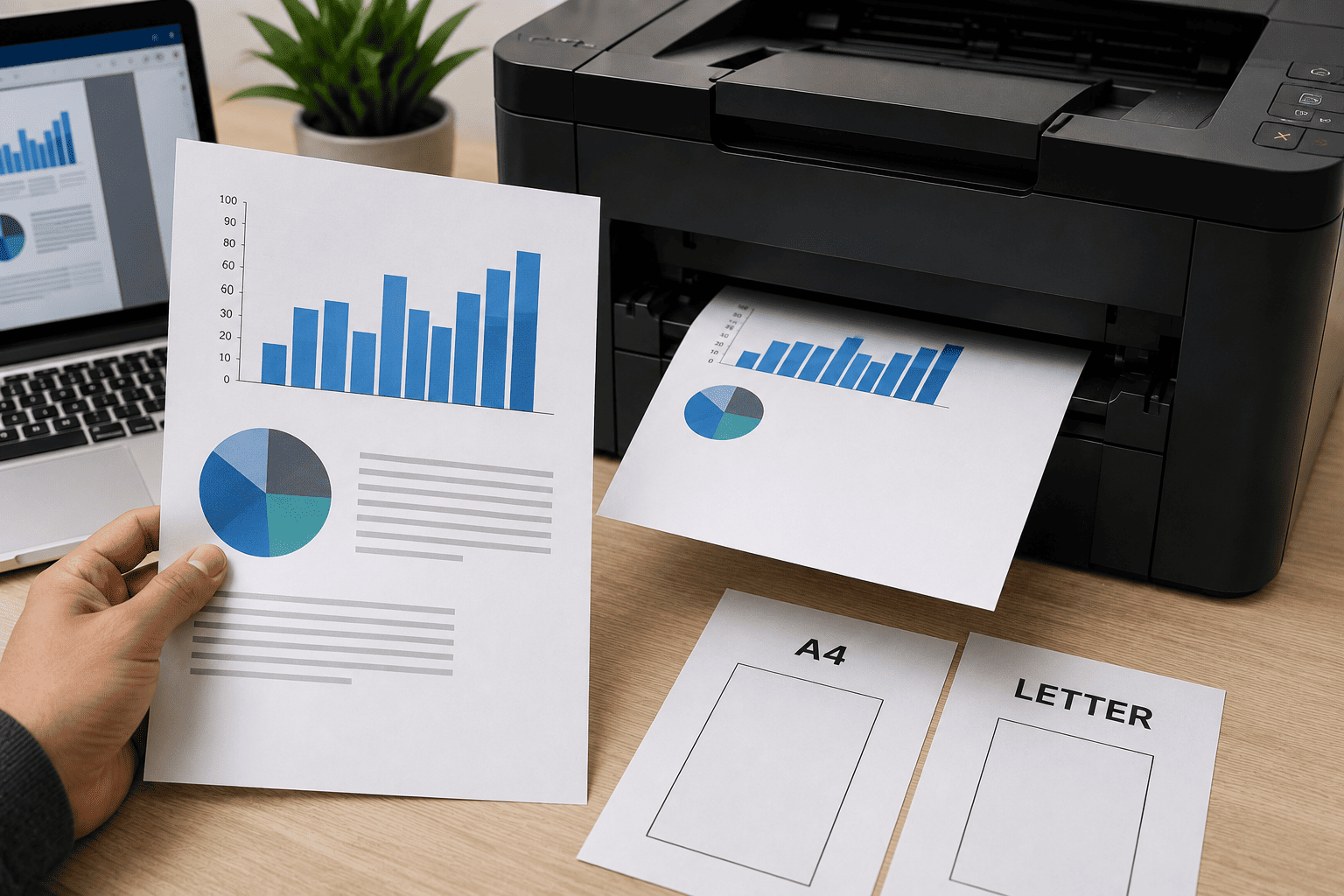
When a printer prints only half of a PDF page, cuts off content, or places the document incorrectly on the paper, the printer itself may not be faulty. A common cause is a mismatch between the PDF page size, printer paper size, driver settings, and print scaling options.
For example, a PDF created for A4 paper may be sent to a printer configured for Letter size, or a document designed for a larger page may be printed without scaling. Correcting the paper size and print settings can often resolve the problem without replacing any printer components.
Problem
The customer has a PDF that looks correct on the computer screen, but the printer produces only part of the page.
The printed document may be cut off on one side, print only the top or bottom half, or appear smaller or larger than expected.
What Problem Is the Customer Facing?
Customers may experience:
- Printer prints only half of a PDF
- Right side of PDF is cut off
- Bottom part of PDF does not print
- PDF prints on the wrong paper size
- A4 PDF prints incorrectly
- PDF content is shifted to one side
- Text or images are missing from the printout
- PDF prints larger than the paper
- Printer uses Letter instead of A4
- Printer prints only part of landscape documents
- PDF preview looks correct but printed page is wrong
- Multiple pages print incorrectly
- Printed document has large blank areas
- PDF scaling changes the document layout
Root Causes of the Problem
1. PDF Page Size Does Not Match Printer Paper
The PDF may have been created using A4, Letter, Legal, or another page size.
If the printer is loaded with a different paper size, some content may fall outside the printable area.
2. Printer Driver Uses the Wrong Paper Size
The operating system or printer driver may be configured for Letter while the actual paper loaded in the tray is A4.
This mismatch can cause unexpected scaling or cropping.
3. PDF Print Scaling Is Incorrect
Print settings such as:
- Actual Size
- Fit
- Shrink oversized pages
- Custom Scale
can change how the PDF is positioned on the physical page.
4. Wrong Page Orientation
A landscape PDF printed using portrait settings can cause content to be cut off or incorrectly positioned.
5. Printable Area Limitations
Printers cannot normally print all the way to the physical edge of the paper.
If the PDF content extends beyond the printer's printable area and scaling is disabled, some content may be clipped.
6. Incorrect Tray Paper Configuration
Some printers allow the paper size to be configured separately for each tray.
If the physical paper and printer's tray configuration do not match, the printer may process the document incorrectly.
7. PDF Was Created With a Custom Page Size
Some PDFs are created using custom dimensions.
The document may look normal on screen but be too large for the selected physical paper.
8. Driver or Application Settings Conflict
The PDF reader, Windows printer preferences, and printer control panel can sometimes use different paper sizes or scaling options.
9. Landscape or Duplex Settings Are Incorrect
Wrong orientation, duplex settings, or page layout options can alter the final output.
10. Printer-Specific Driver Problem
An outdated, incorrect, or generic printer driver may interpret page dimensions differently from the manufacturer's driver.
How Can Customers Identify the Issue?
Look for:
- PDF looks correct on the computer
- Printed page is cut off
- Only half of the document appears
- Right or bottom side is missing
- A4 paper is loaded but printer shows Letter
- Printer tray reports the wrong paper size
- Problem happens only with PDFs
- Word or other documents print normally
- Landscape documents are especially affected
- “Actual Size” produces a cropped print
- “Fit” produces a correctly sized document
- Different PDF files produce different results
- The issue started after changing printer or driver settings
Possible Solutions
1. Check the PDF Page Size
Open the PDF properties or document information and determine its actual page dimensions.
Common sizes include:
- A4
- Letter
- Legal
- A3
- Custom page sizes
Confirm that the document size matches the paper intended for printing.
2. Check the Paper Loaded in the Printer
Look at the actual paper in the tray.
For example, if the PDF is A4 but the printer contains Letter paper, the output may not match the expected layout.
Make sure the paper is loaded correctly and that the guides are positioned properly.
3. Check the Printer's Paper Size Setting
Open the printer's settings and verify the paper size selected for the active tray.
Make sure:
Physical paper = Tray setting = Print settings
For example:
A4 paper → A4 tray setting → A4 print setting
4. Use “Fit” When Appropriate
When printing a PDF, selecting Fit or an equivalent scaling option can reduce the document slightly so that it fits inside the printable area.
This is especially useful when the PDF is larger than the selected paper.
5. Check “Actual Size”
Actual Size prints the PDF at its original dimensions.
This is useful when exact document dimensions are required, but it can cause clipping if the PDF is larger than the printer's printable area.
6. Check Page Orientation
If the PDF is designed for landscape printing:
- Select Landscape
- Check the preview
- Confirm the correct paper size
- Print a test page
For portrait documents, select Portrait.
7. Check “Choose Paper Source by PDF Page Size”
Some PDF applications offer an option that selects the paper tray according to the PDF page size.
This can be useful in offices with multiple trays containing different paper sizes.
However, make sure the printer trays are correctly configured.
8. Check the Printable Area
If the document is very close to the edge of the paper, the printer may not be capable of printing the entire page.
Try:
- Fit
- Shrink oversized pages
- Slightly reducing scale
- Using a printer that supports borderless printing when appropriate
9. Check Printer Driver Preferences
Open the printer's properties and verify:
- Paper size
- Orientation
- Scaling
- Print quality
- Duplex mode
- Tray selection
- Page layout
Make sure these settings agree with the PDF application's print settings.
10. Test With Another PDF
Print another PDF using the same printer.
If the second document prints correctly, the issue may be related to the original PDF's page dimensions or formatting.
If every PDF is cropped, printer or driver configuration becomes more likely.
11. Print a Test Page From Another Application
Try printing:
- Microsoft Word document
- Image
- Web page
- Text document
If these print correctly but PDFs do not, focus on the PDF reader and PDF print settings.
12. Update or Reinstall the Printer Driver
If the problem continues across different applications, install the correct driver for the exact printer model.
Avoid using an incorrect generic driver when the manufacturer's driver is available.
13. Check Printer Firmware When Appropriate
For some professional office printers, firmware updates may resolve compatibility or print-processing problems.
Use the manufacturer's recommended firmware for the exact model.
14. Test With Different Scaling Options
Print the same PDF using:
- Actual Size
- Fit
- Shrink oversized pages
- Custom scale
Compare the results.
If Fit prints the complete document while Actual Size cuts it off, the problem is likely related to page dimensions or printable-area limitations rather than a mechanical printer failure.
15. Check the PDF Before Replacing Printer Hardware
If the printer prints test pages and other documents normally, don't immediately assume that the printer needs repair.
Correcting the PDF page size, paper selection, orientation, scaling, or driver configuration may solve the problem.
Why Choose Guru Computer Solution?
1. Experienced Technicians
Our technicians can diagnose printer, driver, PDF, paper-size, and print configuration problems systematically.
2. Printer Driver Configuration
We can configure the correct printer driver and verify paper size, orientation, scaling, tray selection, and other print preferences.
3. PDF Printing Troubleshooting
We can identify whether the problem comes from the PDF itself, the application, Windows settings, or the printer.
4. Office Printer Support
We can help businesses configure printers correctly for A4, Letter, Legal, and other commonly used paper sizes.
5. Fast Diagnosis
Common paper-size and scaling problems can often be identified quickly without unnecessary hardware replacement.
6. Affordable Service
We diagnose the actual cause of the printing problem before recommending printer repair or replacement.